
 Add to Chrome
 Add to Edge
 Adi Leviim
ChatGPT Backup Guide: Never Lose Your AI Conversations (2026)
Have you ever had that sinking feeling when technology fails? Maybe you've lost important documents, photos, or emails. Now imagine losing months or even years of valuable ChatGPT conversations—research insights, creative work, problem-solving sessions, and more. Your ChatGPT history isn't just data; it's a record of your learning, creativity, and productivity.
The good news? Backing up your ChatGPT conversations is easier than you think. Whether you're a casual user wanting to preserve a few important chats or a power user managing hundreds of conversations, this comprehensive guide will show you exactly how to protect your AI conversations from accidental deletion, account issues, or platform changes.
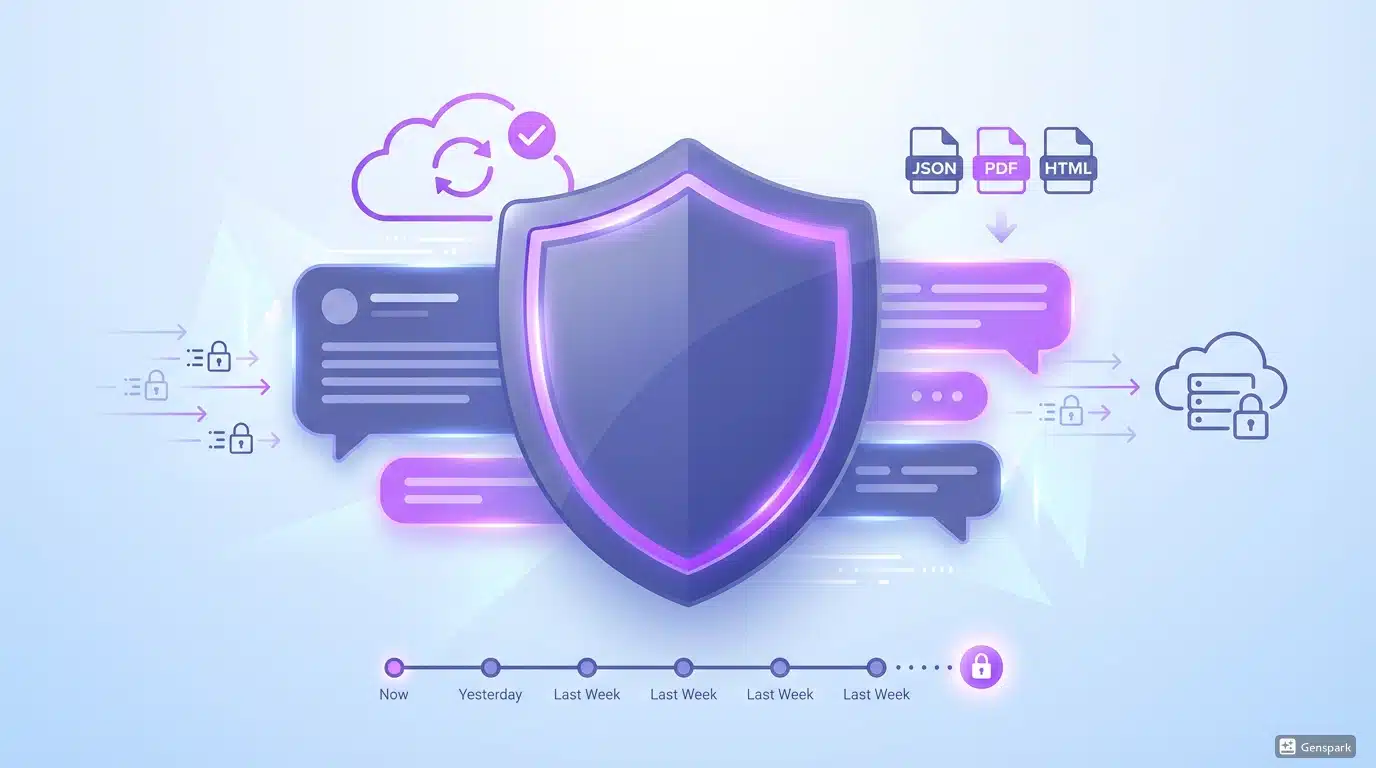
Why You Need to Back Up Your ChatGPT Conversations
Before diving into the how, let's understand the why. Your ChatGPT conversations contain valuable information that's worth protecting:
- Accidental Deletion: It's surprisingly easy to delete conversations by mistake, especially when managing dozens or hundreds of chats. Once deleted, they're gone forever.
- Account Issues: Technical problems, billing issues, or account suspensions can temporarily or permanently lock you out of your chat history.
- Platform Changes: While unlikely, OpenAI could change their data retention policies, potentially affecting older conversations.
- Research & Reference: Many professionals use ChatGPT for research, coding solutions, or brainstorming. Losing this reference material means losing hours of productive work.
- Legal & Compliance: Business users may need to maintain records of AI-assisted work for compliance or documentation purposes.
- Knowledge Base: Your conversation history is a personalized knowledge base that becomes more valuable over time.
According to user reports on Reddit and forums, hundreds of users have experienced unexpected chat loss due to browser issues, account problems, or accidental bulk deletions. Don't let this happen to you. Learn more about managing your chats safely with our guide on how to bulk delete ChatGPT conversations.
Understanding ChatGPT's Native Export Feature
OpenAI provides a built-in way to export your ChatGPT data, but it has significant limitations. Here's what you need to know about the native export method:
How to Use ChatGPT's Native Export
- Log into your ChatGPT account at chat.openai.com
- Click your profile icon in the bottom-left corner
- Select "Settings" from the menu
- Navigate to "Data Controls"
- Click "Export Data"
- Confirm your email address
- Wait for OpenAI to process your request (typically 24-48 hours)
- Check your email for a download link
- Download the ZIP file containing your chat history in JSON format
Limitations of Native ChatGPT Export
While OpenAI's export feature is useful, it comes with several drawbacks that make it impractical for regular backups:
- Slow Processing Time: You must wait 24-48 hours to receive your export, making it impossible to back up conversations on demand.
- Limited Format: Data is exported only in JSON format, which is difficult for most users to read or search through without technical knowledge.
- No Selective Export: You can't choose specific conversations to export; it's all or nothing.
- Manual Process: There's no way to automate regular backups using the native method.
- No Organization: The exported data doesn't preserve your folder structure or organization if you use conversation management tools.
For users who want more control over their backup strategy, third-party solutions like ChatGPT Toolbox's export feature offer instant, flexible export options in multiple formats.
Automated Backup with ChatGPT Toolbox
For users who want a reliable, automated backup solution, ChatGPT Toolbox provides the most comprehensive backup features available. Here's what makes it the preferred backup solution for over 50,000 users:
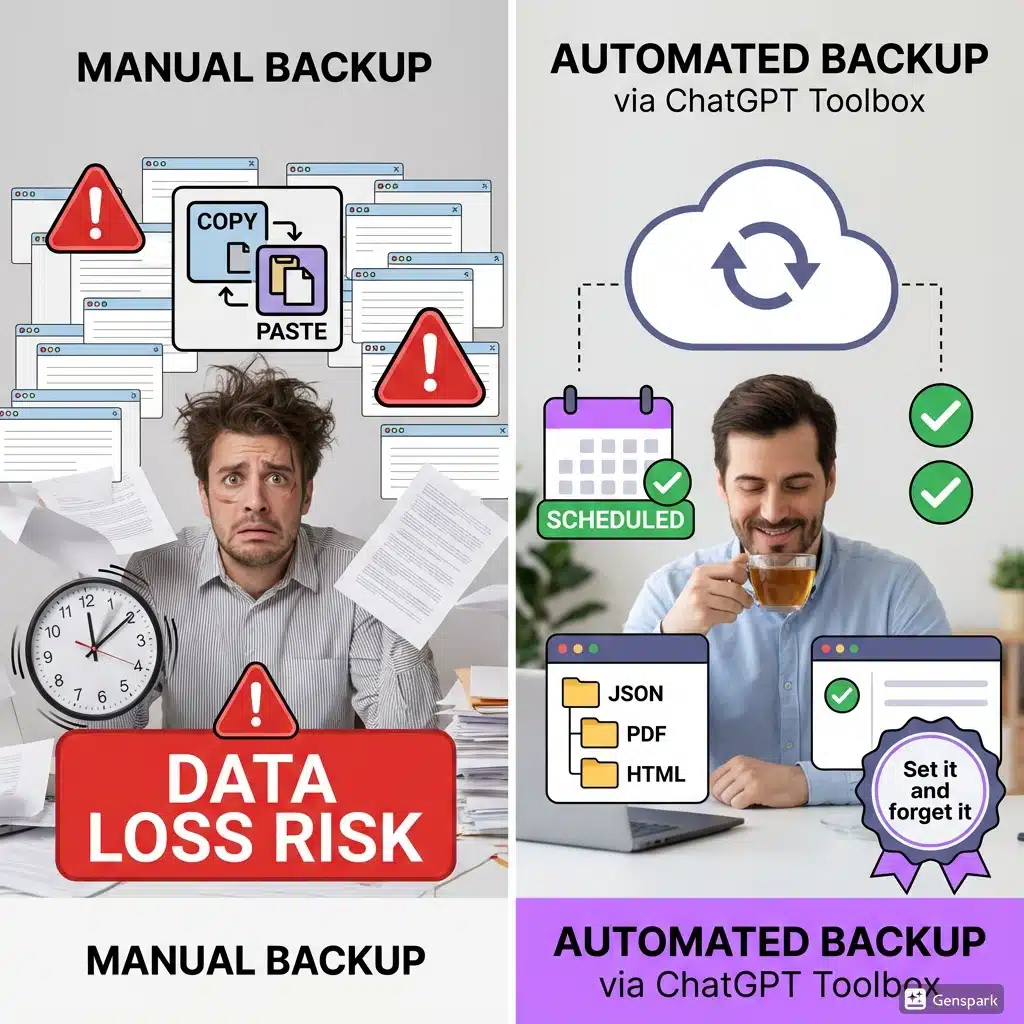
Key Backup Features in ChatGPT Toolbox
- Instant Export: Export any conversation or group of conversations immediately—no waiting period.
- Multiple Formats: Save conversations as JSON, PDF, HTML, Markdown, or plain text based on your needs.
- Selective Export: Choose specific conversations, folders, or date ranges to back up.
- Bulk Export: Export hundreds of conversations at once with a single click.
- Organized Structure: Your folder organization is preserved in exports, making it easy to navigate backed-up content.
- Cloud Sync (Premium): Automatically sync your conversation metadata across devices for seamless backup.
- Search & Filter: Use powerful search to find specific conversations before backing them up.
How to Set Up Automated Backups with ChatGPT Toolbox
- Install ChatGPT Toolbox from the Chrome Web Store
- Open ChatGPT and click the ChatGPT Toolbox icon in your sidebar
- Go to "Manage Chats" to see all your conversations
- Select the conversations or folders you want to back up
- Click the export icon and choose your preferred format
- Schedule regular exports (weekly or monthly) as a reminder in your calendar
- Store exported files in a secure cloud storage service (Google Drive, Dropbox, etc.)
The Premium version includes additional backup features like cross-device sync and advanced export options. Learn more about organizing your conversations before backing them up with our complete organization guide.
Comparing Export Formats: Which One Should You Use?
Different backup scenarios require different file formats. Here's a comprehensive comparison to help you choose the right format for your needs:
| Format | Best For | Pros | Cons | File Size |
|---|---|---|---|---|
| JSON | Technical users, developers, data analysis | Complete data structure, machine-readable, preserves metadata | Not human-readable, requires technical knowledge | Small |
| Archival, sharing, printing | Professional appearance, preserves formatting, widely compatible | Larger file size, not editable | Large | |
| HTML | Web viewing, searchable archives | Easy to view in browsers, preserves links, searchable | Requires web browser to view | Medium |
| Markdown | Documentation, note-taking apps | Plain text, portable, works with many apps | Limited formatting options | Small |
| Plain Text | Simple archival, universal compatibility | Smallest file size, universally compatible | No formatting, no metadata | Smallest |
Recommendation: For most users, a combination of HTML (for easy viewing) and JSON (for complete data preservation) provides the best backup strategy. Business users should consider PDF for professional documentation and compliance purposes.
The 3-2-1 Backup Strategy for ChatGPT Conversations
The 3-2-1 backup rule is a time-tested strategy used by IT professionals worldwide. Here's how to adapt it for your ChatGPT conversations:
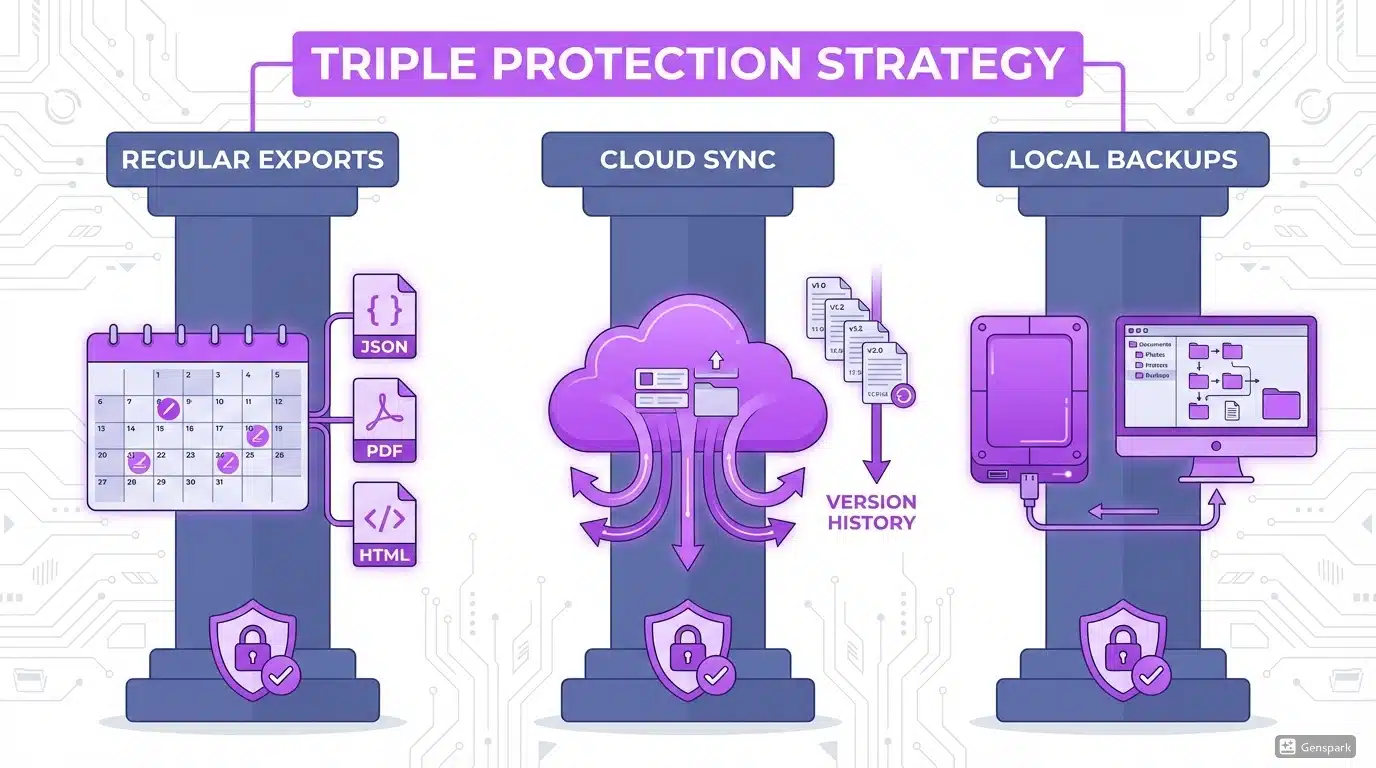
Understanding the 3-2-1 Rule
- 3 Copies: Keep three copies of your data—the original on ChatGPT and two backups.
- 2 Different Media: Store backups on two different types of media (e.g., external hard drive and cloud storage).
- 1 Off-site: Keep at least one backup off-site (cloud storage counts as off-site).
Implementing 3-2-1 for ChatGPT
Here's a practical implementation of the 3-2-1 strategy for your ChatGPT conversations:
- Primary Copy: Your conversations live on ChatGPT's servers (first copy)
- Local Backup: Export conversations monthly to an external hard drive or your computer's designated backup folder (second copy, first medium)
- Cloud Backup: Upload your monthly exports to Google Drive, Dropbox, or another cloud service (third copy, second medium, off-site)
Recommended Backup Schedule
| User Type | Backup Frequency | Export Method | Storage Location |
|---|---|---|---|
| Casual User (5-10 chats/month) | Monthly | Manual export of important conversations | Cloud storage (Google Drive, Dropbox) |
| Regular User (20-50 chats/month) | Weekly | ChatGPT Toolbox bulk export | Cloud storage + local folder |
| Power User (100+ chats/month) | Daily or after important sessions | ChatGPT Toolbox with organized folders | Cloud storage + external drive + local backup |
| Business User | Daily with retention policy | ChatGPT Toolbox with audit trail | Enterprise cloud storage + compliance archive |
Set calendar reminders for your backup schedule to ensure consistency. Learn how to manage your chat history efficiently with our guide on bulk archiving ChatGPT conversations.
Recovery and Restoration: What to Do When Things Go Wrong
Having backups is only half the battle—you also need to know how to restore them when needed. Here's what you can and cannot do with different backup types:
What You CAN Restore
- Content Review: Open any backed-up conversation in your chosen format (PDF, HTML, etc.) to review the content.
- Copy & Paste: Copy text from backed-up conversations to create new ChatGPT conversations with context.
- Search & Reference: Use backed-up files as a searchable reference library for past insights and solutions.
- Documentation: Use exported conversations as documentation for projects, research, or compliance.
- Analysis: Analyze backed-up JSON data to understand your ChatGPT usage patterns.
What You CANNOT Restore
Important: Currently, OpenAI does not provide a way to re-import conversations back into ChatGPT. This means:
- You cannot restore deleted conversations to your ChatGPT account
- You cannot merge backed-up conversations with your current chat history
- You cannot transfer conversations between accounts
This limitation makes preventive backups even more critical—once a conversation is deleted from ChatGPT, you can only access it through your backup files, not within the ChatGPT interface.
Best Practices for Using Backed-Up Conversations
- Organize Your Backups: Use clear folder structures and naming conventions (e.g., "ChatGPT_Backup_2026-12-04")
- Create a Search System: For HTML exports, consider using desktop search tools like Everything (Windows) or Spotlight (Mac) to search through backed-up content
- Document Important Conversations: Add notes or tags to your backup files to make them easier to find later
- Regular Testing: Periodically verify that you can open and read your backup files
- Version Control: Keep multiple backup versions with dates to track your conversation history over time
Discover more ways to manage your conversation history with our guide on organizing chats with folders.
Advanced Backup Strategies for Power Users
If you're a heavy ChatGPT user or use it for professional purposes, consider these advanced backup strategies:
1. Automated Backup Scripts
For technical users, consider creating automated backup workflows using ChatGPT Toolbox exports combined with cloud sync services. Set up a monthly automation that:
- Exports all new conversations from ChatGPT
- Saves them to a designated folder
- Automatically syncs that folder to cloud storage
- Sends you a confirmation email
2. Project-Based Backup Organization
Instead of backing up all conversations at once, organize backups by project or topic:
- Create folders in ChatGPT Toolbox for different projects (e.g., "Web Development," "Content Writing," "Research")
- Export each folder separately to keep backups organized
- Store project backups with related project files
Learn more about this approach in our guide on using subfolders for organization.
3. Compliance and Audit Trail
Business users may need to maintain audit trails of AI-assisted work. Consider:
- Daily exports with timestamps
- Immutable cloud storage (with versioning enabled)
- Regular compliance reviews of backed-up conversations
- Retention policies aligned with your industry regulations
Security Considerations for ChatGPT Backups
Your ChatGPT conversations may contain sensitive information—project details, personal insights, business strategies, or proprietary information. Protect your backups with these security measures:
Encryption
- Use cloud storage services with encryption at rest (Google Drive, Dropbox, and OneDrive all offer this)
- Consider encrypting backup files before uploading them to cloud storage using tools like VeraCrypt or 7-Zip with AES-256 encryption
- Enable two-factor authentication on your cloud storage accounts
Access Control
- Don't share backup folders publicly
- Use private folders or encrypted containers for sensitive conversations
- Regularly review who has access to your cloud storage
Data Privacy
- Be mindful of what you backup and where you store it
- Follow your organization's data handling policies
- Consider using on-premise storage for highly sensitive conversations
- Review ChatGPT Toolbox's privacy policy to understand how the extension handles your data
For more information about data privacy with ChatGPT extensions, read our article on data privacy and ChatGPT Toolbox.
Troubleshooting Common Backup Issues
Native Export Not Arriving
If OpenAI's export email hasn't arrived after 48 hours:
- Check your spam/junk folder
- Verify the email address in your account settings
- Submit another export request
- Contact OpenAI support if the issue persists
- Use ChatGPT Toolbox for immediate export needs
Large Export File Sizes
If your exports are too large to manage:
- Export conversations in smaller batches using ChatGPT Toolbox's selective export
- Use JSON or plain text format instead of PDF to reduce file size
- Consider exporting by date range (monthly backups instead of all-time backups)
- Compress backup files using ZIP or RAR before storing them
Cannot Open Exported JSON Files
JSON files from native exports can be difficult to read:
- Use a JSON viewer like JSON Viewer or JSON Formatter
- Convert JSON to a more readable format using online converters
- Use ChatGPT Toolbox to export in HTML, PDF, or Markdown for easier reading
For more troubleshooting tips, explore our frequently asked questions page.
Getting Started with Your Backup Strategy Today
Don't wait until it's too late to protect your ChatGPT conversations. Here's your action plan to implement a robust backup strategy today:
- Assess Your Needs: Determine how many conversations you have and how valuable they are to you
- Choose Your Tools: Install ChatGPT Toolbox for flexible, instant backups
- Create Your First Backup: Export your most important conversations today
- Set Up Storage: Designate a secure location for your backups (cloud storage + local copy)
- Schedule Regular Backups: Set calendar reminders based on your usage level
- Test Your System: Verify that you can open and read your backed-up files
- Document Your Process: Write down your backup procedure so you can follow it consistently
Remember: The best backup is the one you actually do. Start simple—even backing up your most important conversations once a month is infinitely better than having no backup at all.
Conclusion: Peace of Mind Through Smart Backups
Your ChatGPT conversations represent hours of work, valuable insights, and creative output. Protecting them with a solid backup strategy is not just smart—it's essential for anyone who relies on ChatGPT for work, learning, or creative projects.
Whether you choose OpenAI's native export feature for occasional backups or ChatGPT Toolbox for automated, flexible backup options, the important thing is to start backing up your conversations today. Implement the 3-2-1 strategy, choose formats that suit your needs, and set up a regular backup schedule that fits your usage patterns.
Don't wait for disaster to strike. Take 10 minutes today to create your first backup, and give yourself the peace of mind that comes with knowing your AI conversations are safe and protected.
Ready to protect your ChatGPT conversations? Install ChatGPT Toolbox from the Chrome Web Store and start backing up your conversations in seconds. Visit chatgpttoolbox.com to explore all features and choose the plan that's right for you.
Frequently Asked Questions
Can I restore deleted ChatGPT conversations?
No, OpenAI does not currently provide a way to restore deleted conversations back into your ChatGPT account. This is why creating regular backups is so important. Once a conversation is deleted from ChatGPT, the only way to access its content is through your backup files. Using tools like ChatGPT Toolbox, you can export conversations before deletion and keep them in accessible formats like PDF or HTML.
How long does OpenAI's native export take?
OpenAI's native export feature typically takes 24-48 hours to process your request. You'll receive an email with a download link once your data is ready. This processing time makes native export impractical for urgent backup needs or regular automated backups. For instant exports, consider using ChatGPT Toolbox's export feature, which allows you to download conversations immediately in multiple formats.
What's the best format for backing up ChatGPT conversations?
The best format depends on your use case. For most users, a combination of HTML (for easy viewing) and JSON (for complete data preservation) works best. HTML files can be opened in any web browser and are easily searchable. JSON preserves all metadata and structure but requires technical knowledge to read. PDF is ideal for professional documentation and archival purposes. Markdown works well if you use note-taking apps like Obsidian or Notion. Plain text offers the smallest file size and universal compatibility. ChatGPT Toolbox supports all these formats, allowing you to choose based on your specific needs.
How often should I back up my ChatGPT conversations?
Backup frequency depends on your usage level. Casual users (5-10 chats/month) should back up monthly. Regular users (20-50 chats/month) should back up weekly. Power users (100+ chats/month) should back up daily or after important sessions. Business users should implement daily backups with proper retention policies. Set calendar reminders to maintain consistency. The key is choosing a schedule you'll actually follow—a simple monthly backup is better than an elaborate weekly system you never use.
Does ChatGPT Toolbox work on mobile devices?
ChatGPT Toolbox is a Chrome extension designed for desktop browsers (Chrome, Edge, Brave, Opera). It does not work directly on mobile devices. However, the Premium version includes cloud sync features that allow you to access your conversation organization across devices. For mobile users, the best backup strategy is to use ChatGPT Toolbox on desktop to export conversations, then store them in a cloud service like Google Drive or Dropbox, which you can access from your mobile device.
Is it safe to store ChatGPT backups in cloud storage?
Yes, storing ChatGPT backups in cloud storage is generally safe, especially if you follow security best practices. Use reputable cloud providers like Google Drive, Dropbox, or OneDrive, which offer encryption at rest. Enable two-factor authentication on your cloud storage account. For highly sensitive conversations, consider encrypting backup files before uploading them using tools like VeraCrypt or 7-Zip with AES-256 encryption. Keep backup folders private and regularly review access permissions. Learn more about data privacy considerations in our data privacy guide.
Can I transfer ChatGPT conversations to another account?
No, OpenAI does not provide a native way to transfer conversations between accounts. However, you can export conversations from one account and keep them as reference files when using another account. While you cannot import these conversations directly into the new account, you can copy and paste content from backed-up conversations to provide context in new chats. This is another reason why maintaining organized backups is important—they serve as a reference library even if you switch accounts.
What happens to my backups if ChatGPT Toolbox is uninstalled?
Any conversations you've exported using ChatGPT Toolbox remain safe in whatever location you saved them (your computer, external drive, or cloud storage). Uninstalling ChatGPT Toolbox does not delete your exported backup files. However, your folder organization and conversation metadata within ChatGPT will be lost unless you're using the Premium version with cloud sync. Always export your organized conversations before uninstalling any tools.
Do I need ChatGPT Plus to back up my conversations?
No, you can back up ChatGPT conversations regardless of whether you have a free or Plus account. OpenAI's native export feature is available to all users. Similarly, ChatGPT Toolbox's free version includes export functionality for backing up conversations. However, ChatGPT Toolbox Premium offers additional features like advanced export options, bulk operations, and cloud sync that make backing up large conversation histories more efficient. Check out our pricing page to compare free and Premium features.
Can I automate ChatGPT backups?
While OpenAI's native export cannot be automated, you can create a semi-automated backup workflow using ChatGPT Toolbox. Set calendar reminders for regular backups (weekly or monthly), then use ChatGPT Toolbox's bulk export feature to download all conversations at once. Save these exports to a folder that automatically syncs with cloud storage (like Google Drive, Dropbox, or OneDrive with desktop sync enabled). This creates a semi-automated system that requires only a few clicks per backup session. Technical users can further automate the process by combining ChatGPT Toolbox exports with cloud sync services and scheduling tools.
Last updated: March 16, 2026
