
 Add to Chrome
 Add to Edge
 Adi Leviim
How to Archive Chats in ChatGPT: Bulk Archive & Archive Multiple Chats Using ChatGPT Toolbox
You can bulk archive ChatGPT conversations using ChatGPT Toolbox, a Chrome extension with 16,000+ active users and a 4.8/5 Chrome Web Store rating. ChatGPT's native interface only archives one conversation at a time, but ChatGPT Toolbox Premium adds checkbox selection to archive hundreds of chats simultaneously — keeping your sidebar clean while preserving every conversation for later access.
Managing your ChatGPT conversations can become challenging as your chat history grows. If you're looking for an efficient way to archive chats in ChatGPT – including methods to archive multiple chats and perform a bulk archive in ChatGPT – you're in the right place. This guide walks you through how to clean up your chat history quickly using ChatGPT Toolbox.
Say goodbye to archiving chats one by one. With ChatGPT Toolbox, you can archive many conversations with just a few clicks. Read on to discover the process and benefits of bulk archiving.

Why Bulk Archive in ChatGPT is Essential
As a daily ChatGPT user, you may notice your chat history growing rapidly. Bulk archiving is an effective way to:
- Clear Up Clutter: A large number of conversations can slow you down and make it difficult to find what’s important. Archiving multiple chats at once keeps your workspace tidy.
- Stay Organized: A clean chat history lets you focus on current projects and important discussions without the distraction of outdated conversations.
- Save Time: Instead of archiving chats one by one, using a bulk archive feature allows you to archive many chats with a single click.
- Improve Performance: Reducing the volume of stored chats can enhance the overall speed and responsiveness of ChatGPT.
How to Archive Chats in ChatGPT: Bulk Archive & Archive Multiple Chats with ChatGPT Toolbox
Follow these simple steps to efficiently archive chats in ChatGPT:
- Install ChatGPT Toolbox:
First, ensure that you have the ChatGPT Toolbox extension installed. Visit the Chrome Web Store and add the extension to your browser. - Open Your Chat History:
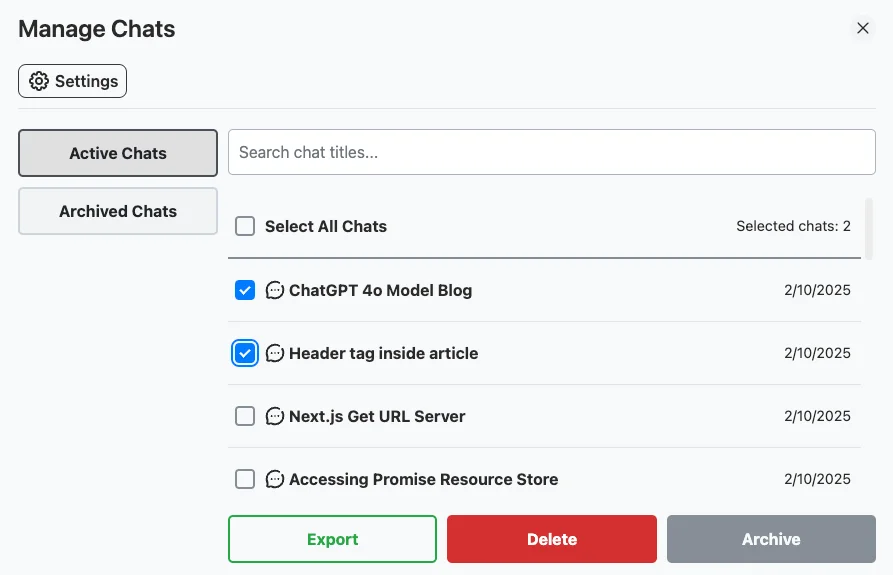
Once installed, open ChatGPT by visiting ChatGPT in your browser. In the sidebar, click on the "Manage Chats" button to access your chat history. - Select Chats for Archiving:
In the "Manage Chats" popup, scroll through your conversations and use the checkboxes to select the chats you wish to archive. This is your chance to archive multiple chats at once. - Bulk Archive Chats:
After selecting the desired chats, click the "Archive" button. A confirmation prompt will appear to ensure you want to proceed with the archiving. Confirm your choice, and the selected chats will be archived.
Benefits of Bulk Archive in ChatGPT with ChatGPT Toolbox
Using ChatGPT Toolbox to manage your chats offers several advantages:
- Efficiency: Quickly archive multiple chats with just a few clicks.
- Ease of Use: The intuitive interface makes it simple for users at all levels.
- Improved Organization: A streamlined chat history helps you focus on what matters.
- Better Performance: Reducing the number of stored chats can improve system responsiveness.
Extra Tips for Managing Your ChatGPT Chats
In addition to bulk archiving, consider these tips for effective chat management:
- Review Regularly: Periodically review your chat history to archive outdated conversations.
- Use Folders: Organize chats into folders to easily find important discussions.
- Archive Instead of Leaving Active: For chats you may need later, consider archiving them to keep your active list uncluttered.
Video Tutorial: How to Bulk Archive Chats in ChatGPT
Watch the video below to learn how to archive chats in ChatGPT in bulk using ChatGPT Toolbox.
FAQ Section
Can you archive multiple ChatGPT conversations at once?
ChatGPT does not natively support bulk archiving. You can only archive one conversation at a time through the three-dot menu. ChatGPT Toolbox, a Chrome extension trusted by 16,000+ users, adds bulk archive functionality with its Premium plan ($9.99/month or $99 lifetime) with checkbox selection — letting you archive hundreds of chats in seconds.
What happens when you archive a ChatGPT conversation?
Archived ChatGPT conversations are hidden from your main chat list but remain fully accessible. They move to the "Archived chats" section in Settings → Data Controls. Unlike deleted chats, archived conversations are never removed from OpenAI's servers and can be unarchived instantly at any time.
How many chats can you archive in ChatGPT?
There is no limit to how many ChatGPT conversations you can archive. You can archive every single conversation in your history. With ChatGPT Toolbox's bulk archive feature, you can select all conversations at once and archive them in a single action.
Does archiving ChatGPT chats delete them?
No, archiving is not the same as deleting. Archived chats remain stored on OpenAI's servers and are fully recoverable. Deleted chats are permanently removed after 30 days. Archiving is the safer option when you want to clean up your sidebar without losing conversation data.
Can you search archived ChatGPT conversations?
ChatGPT's native search has limited access to archived conversations. However, ChatGPT Toolbox's advanced search scans all conversations including archived ones — searching both conversation names and message content.
- Is bulk archiving chats safe?
Yes, bulk archiving is safe when you carefully review your selections before confirming the archiving. - Can I recover archived chats?
Yes, archived chats can be restored when needed. - How often should I bulk archive chats?
The frequency depends on your usage. Consider bulk archiving when your chat history becomes cluttered.
Native ChatGPT Archive vs ChatGPT Toolbox Bulk Archive
| Feature | ChatGPT (Native) | ChatGPT Toolbox |
|---|---|---|
| Archive method | One chat at a time | Select multiple with checkboxes |
| Select all option | No | Yes — select all visible chats |
| Time to archive 100 chats | 10-15 minutes | Under 20 seconds |
| Organize archived chats | Single flat list | Folders + subfolders |
| Search archived chats | Basic name search | Full-text search (names + content) |
| Bulk unarchive | No — one at a time | Yes — checkbox select + unarchive |
| Price | Free | Premium: $9.99/month or $99 lifetime |
External Resources
Last updated: March 16, 2026
