
 Add to Chrome
 Add to Edge
 Adi Leviim
How to Export ChatGPT Conversations: Complete Guide (2025)
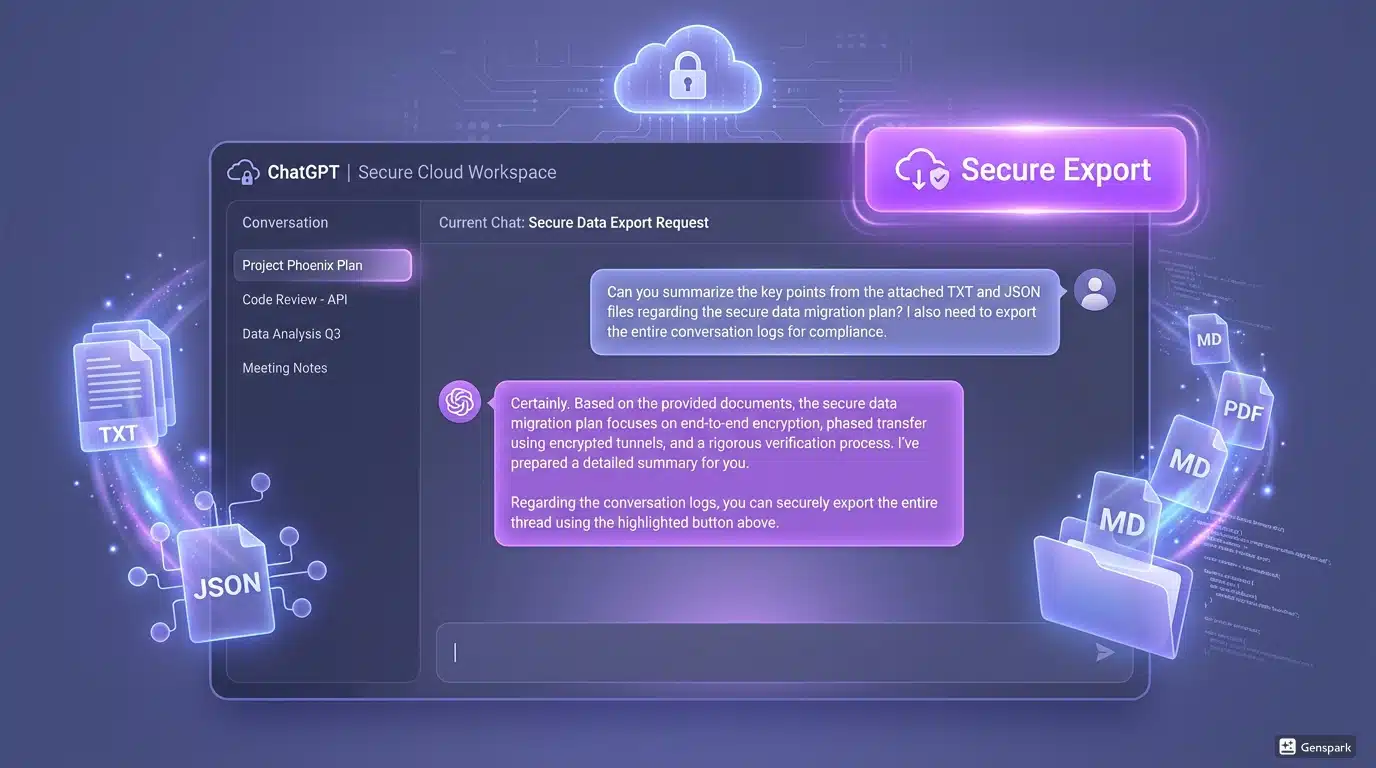
Ever lost an important ChatGPT conversation? Whether you're saving research notes, backing up code solutions, or archiving client work, exporting your ChatGPT conversations is essential for data ownership and peace of mind. In this comprehensive guide, you'll learn how to export ChatGPT conversations using native methods and advanced tools like ChatGPT Toolbox, compare export formats (TXT, JSON, Markdown), and discover workflows for different use cases.
Why Export Your ChatGPT Conversations?
Data ownership has never been more important. Here's why thousands of users export their ChatGPT conversations daily:
- Backup protection: Safeguard valuable conversations from accidental deletion or account issues
- Documentation: Archive research findings, code solutions, and project discussions
- Team collaboration: Share AI-generated insights with colleagues and clients
- Compliance requirements: Meet data retention policies for regulated industries
- Offline access: Read conversations without an internet connection
- Portfolio building: Showcase AI-assisted work for interviews or presentations
With ChatGPT Toolbox, you can export multiple conversations simultaneously in seconds—something native ChatGPT doesn't support. Let's explore all your export options.
Native ChatGPT Export: The Basics
OpenAI provides a built-in export feature, but it has significant limitations:
How to Export with Native ChatGPT
- Open ChatGPT and click your profile icon in the bottom-left corner
- Navigate to Settings → Data Controls
- Click "Export data"
- Confirm your export request
- Wait for an email (usually 24-48 hours) with a download link
- Download the ZIP file containing your conversations in JSON format
Limitations of Native ChatGPT Export
- Long wait times: 24-48 hours delay before receiving your data
- JSON only: No TXT or Markdown format options
- All-or-nothing: Can't export individual conversations or folders
- Complex format: JSON structure requires technical knowledge to parse
- No bulk selection: Must export entire account history each time
For power users managing dozens or hundreds of conversations, these limitations quickly become frustrating. That's where ChatGPT Toolbox comes in.
ChatGPT Toolbox Export: Instant, Flexible, Powerful
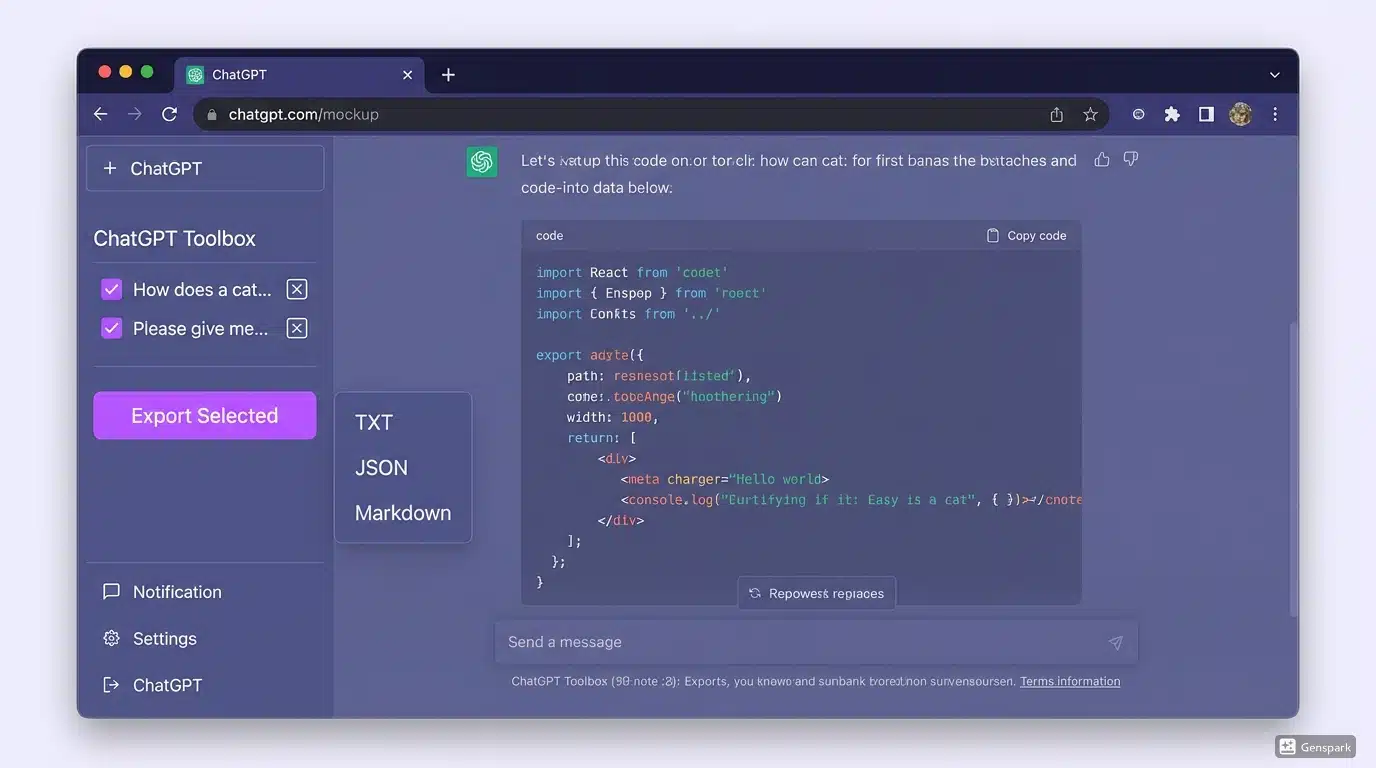
ChatGPT Toolbox transforms how you export conversations with instant access, multiple formats, and selective export capabilities. Here's why 16,000+ users trust it for their export needs:
Key Advantages
- Instant exports: Download conversations immediately—no waiting
- Multiple formats: Export to TXT (readable), JSON (structured), or Markdown (documentation-ready)
- Bulk operations: Select and export multiple conversations simultaneously
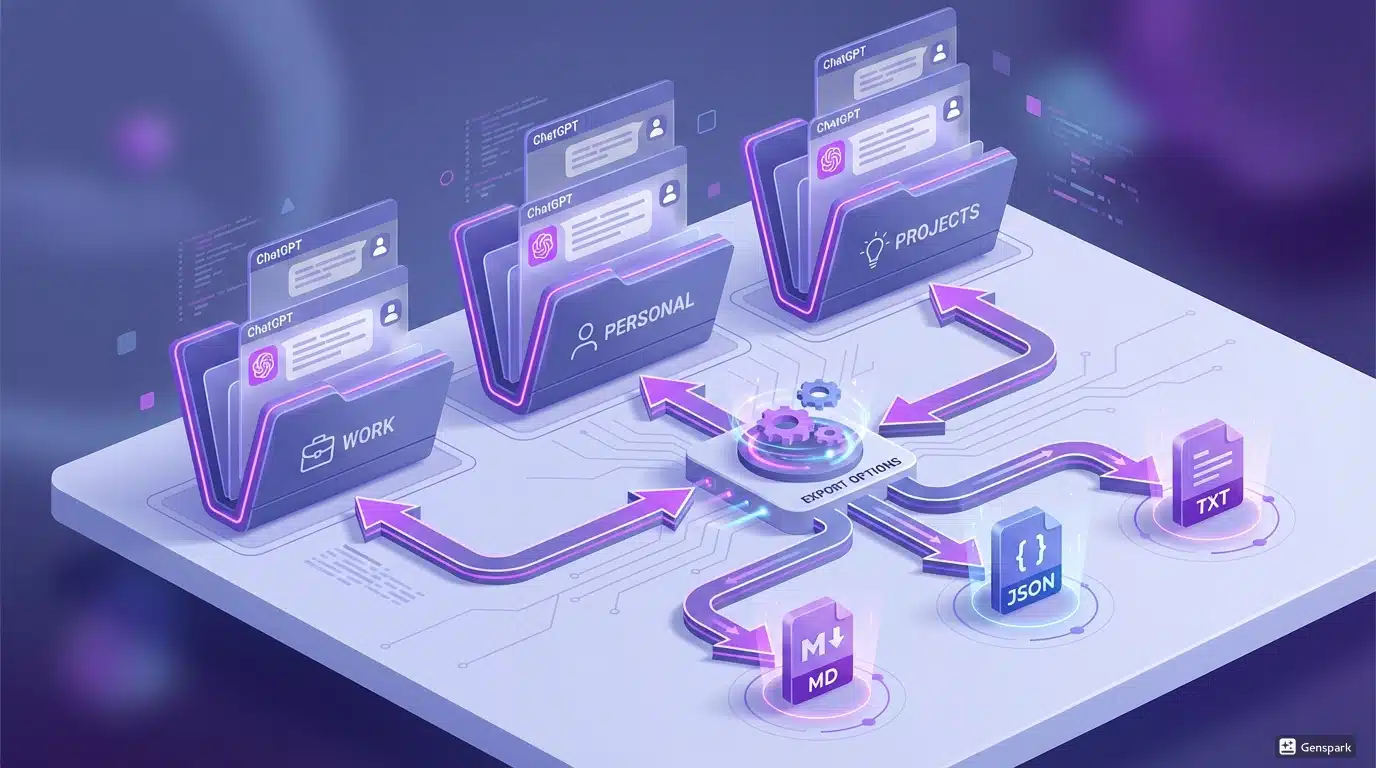
- Selective export: Export specific folders, projects, or conversations
- One-click simplicity: Export individual chats with a single click
- Scheduled backups: Set automatic export reminders (Pro plan)
How to Export with ChatGPT Toolbox
- Install ChatGPT Toolbox from the Chrome Web Store
- Open ChatGPT—you'll see new export buttons in the interface
- For single conversations: Hover over any chat and click the export icon
- For bulk exports: Select multiple conversations using checkboxes
- Choose your format: TXT, JSON, or Markdown
- Click "Export" and your files download instantly
The entire process takes seconds, not days. Plus, you maintain complete control over what you export and when.
Export Format Comparison: TXT vs JSON vs Markdown
Choosing the right export format depends on your use case. Here's a comprehensive breakdown:
| Feature | TXT | JSON | Markdown |
|---|---|---|---|
| Readability | ✅ Excellent (human-readable) | ❌ Poor (technical format) | ✅ Excellent (formatted text) |
| Editing | ✅ Easy (any text editor) | ⚠️ Requires JSON editor | ✅ Easy (Markdown editors) |
| Sharing | ✅ Universal compatibility | ❌ Technical users only | ✅ Great for documentation |
| Printing | ✅ Print-ready | ❌ Not print-friendly | ✅ Professional formatting |
| Data Structure | ❌ Flat text only | ✅ Preserves metadata & timestamps | ⚠️ Basic structure (headers, lists) |
| Automation | ⚠️ Basic parsing only | ✅ Perfect for APIs & scripts | ⚠️ Moderate (good for docs) |
| File Size | Small | Large (includes all metadata) | Small to Medium |
| Best For | Quick backups, sharing, printing | Development, data analysis, archival | Documentation, wikis, GitHub |
TXT Format: Best for Sharing and Readability
Pros:
- Opens in any text editor (Notepad, TextEdit, VS Code)
- Easy to share via email or messaging apps
- Print-friendly for physical archiving
- Small file sizes for faster downloads
- Compatible with all operating systems
Cons:
- No metadata preservation (timestamps, conversation IDs)
- Limited formatting options
- Difficult to parse programmatically
Use when: You need to quickly share conversations with non-technical colleagues, create readable backups, or print conversations for meetings.
JSON Format: Best for Developers and Data Analysis
Pros:
- Preserves complete conversation structure and metadata
- Includes timestamps, message IDs, and model information
- Perfect for automated processing and API integration
- Easy to parse with programming languages (Python, JavaScript)
- Enables data analysis and conversation insights
Cons:
- Not human-readable without formatting tools
- Larger file sizes due to metadata overhead
- Requires technical knowledge to work with
Use when: You're building automation tools, analyzing conversation patterns, archiving for long-term storage with full metadata, or integrating with other systems.
Markdown Format: Best for Documentation
Pros:
- Professional formatting with headers, lists, and code blocks
- Perfect for GitHub, Notion, and documentation platforms
- Maintains conversation structure with clear formatting
- Easy to convert to HTML, PDF, or other formats
- Great for technical documentation and wikis
Cons:
- Requires Markdown knowledge for advanced editing
- Less universal than TXT format
- Some metadata may be lost in conversion
Use when: Creating technical documentation, publishing to GitHub/GitLab, building knowledge bases, or creating team wikis.
Export Workflows for Different Use Cases
Different professionals need different export strategies. Here's how to optimize your workflow:
1. Researchers: Documentation and Citation
Recommended format: Markdown + JSON backup
Workflow:
- Create folders in ChatGPT Toolbox by research topic or paper
- Export each research session to Markdown for your notes and documentation
- Periodically export all research folders to JSON for long-term archival
- Use Markdown exports to create research logs, methodology notes, and literature review summaries
- Tag conversations with keywords for easy retrieval using advanced search
Pro tip: Export conversations immediately after significant research breakthroughs to prevent data loss.
2. Developers: Code Archiving and Reference
Recommended format: JSON (primary) + Markdown (for documentation)
Workflow:
- Organize conversations by project or programming language using folders
- Export code-heavy conversations to JSON for preservation of exact formatting and timestamps
- Use Markdown exports for creating README files and technical documentation
- Archive completed project conversations at project milestones
- Maintain a "Code Solutions" folder with quick-reference conversations
Pro tip: Export debugging sessions to JSON so you can parse them later to analyze problem-solving patterns.
3. Business Professionals: Client Work and Meetings
Recommended format: TXT (for sharing) + JSON (for archival)
Workflow:
- Create folders for each client or project in ChatGPT Toolbox
- Export meeting preparation conversations to TXT for easy sharing with team members
- Archive completed projects in JSON format for compliance and future reference
- Export strategy discussions to TXT for email summaries
- Maintain monthly backups of all client folders
Pro tip: Use bulk export features to archive entire client folders when projects complete.
4. Content Creators: Brainstorming and Drafts
Recommended format: Markdown (primary) + TXT (for drafts)
Workflow:
- Organize conversations by content type (blog posts, social media, video scripts)
- Export brainstorming sessions to Markdown for content planning documents
- Export final draft conversations to TXT for quick copy-paste into editing tools
- Archive published content conversations for portfolio documentation
- Maintain a "Content Ideas" folder with regularly exported brainstorming sessions
Pro tip: Export conversations after each content creation session to build a searchable archive of creative ideas.
5. Students: Study Notes and Assignments
Recommended format: Markdown (for notes) + TXT (for study guides)
Workflow:
- Create folders for each course or subject
- Export study sessions to Markdown for formatted notes with headers and lists
- Export Q&A conversations to TXT for creating study guides
- Archive semester conversations at the end of each term
- Maintain a "Exam Prep" folder with quick-export study materials
Pro tip: Export conversations before major exams to create comprehensive review documents.
Comparison Table: Export Capabilities Across Extensions
Not all ChatGPT extensions offer export features. Here's how the major tools compare:
| Feature | Native ChatGPT | ChatGPT Toolbox | Superpower ChatGPT | AIPRM | ChatGPT Exporter |
|---|---|---|---|---|---|
| TXT Export | ❌ | ✅ | ✅ | ❌ | ✅ |
| JSON Export | ✅ (via email) | ✅ (instant) | ✅ | ❌ | ✅ |
| Markdown Export | ❌ | ✅ | ❌ | ❌ | ✅ |
| PDF Export | ❌ | ❌ | ✅ | ❌ | ❌ |
| Bulk Export | ❌ | ✅ (multi-select) | ⚠️ (limited) | ❌ | ✅ |
| Folder Export | ❌ | ✅ | ❌ | ❌ | ❌ |
| Selective Export | ❌ (all-or-nothing) | ✅ (individual chats) | ✅ | ❌ | ✅ |
| Export Speed | 24-48 hours | Instant | Instant | N/A | Instant |
| Free Plan | ✅ | ✅ | ⚠️ (limited) | N/A | ✅ |
| Best For | Complete archival | Daily workflows & backups | PDF documentation | Prompt management | Simple exports only |
Winner:ChatGPT Toolbox offers the most comprehensive export solution with instant access, multiple formats, bulk operations, and folder-based organization—all in the free plan.
Advanced Export Strategies
Take your export workflow to the next level with these advanced techniques:
1. Scheduled Backup Routine
Create a consistent backup schedule to prevent data loss:
- Daily: Export active project conversations at end of workday
- Weekly: Bulk export all conversations in current work folder
- Monthly: Complete account backup to external storage (JSON format)
- Project completion: Export entire project folder and archive
Pro users: Set calendar reminders or use ChatGPT Toolbox's backup reminder feature to maintain consistency.
2. Folder-Based Export Strategy
Organize conversations into folders before exporting for better file management:
- Create a folder structure: Projects → Clients → Topics
- Move conversations into appropriate folders
- Export entire folders at once (ChatGPT Toolbox feature)
- Maintain consistent naming conventions for exported files
- Store exported files in matching folder structure on your computer
Learn more about organizing chats with folders to maximize this strategy.
3. Selective Export Based on Tags
Use conversation naming and search to identify specific conversations for export:
- Add keywords or tags to conversation titles (e.g., "[URGENT]", "[CLIENT]", "[CODE]")
- Use advanced search to find tagged conversations
- Select all matching conversations
- Bulk export with appropriate format
4. Version Control for Long Conversations
For ongoing projects with evolving conversations:
- Export conversation at key milestones (v1.0, v2.0, etc.)
- Add version numbers to exported filenames
- Maintain a changelog document tracking what changed
- Store versions in date-stamped folders
5. Multi-Format Export for Different Audiences
Export the same conversation in multiple formats for different purposes:
- TXT for sharing with team members via email
- JSON for long-term archival and compliance
- Markdown for documentation in your wiki or GitHub
ChatGPT Toolbox allows you to export the same conversation in multiple formats without re-selecting it.
Troubleshooting Common Export Issues
Issue 1: Export Takes Too Long
Native ChatGPT: This is normal—exports can take 24-48 hours. No workaround available.
ChatGPT Toolbox: Exports are instant, but if you experience delays:
- Check your internet connection
- Try exporting smaller batches of conversations
- Clear browser cache and restart Chrome
- Update to the latest version of ChatGPT Toolbox
Issue 2: Exported File is Empty or Incomplete
Solutions:
- Ensure the conversation has loaded completely before exporting
- For very long conversations, try scrolling to the bottom first
- Check if the conversation contains unsupported content (some images may not export)
- Try exporting to a different format
Issue 3: Can't Find Exported Files
Solutions:
- Check your browser's default download location
- Search your computer for ".txt", ".json", or ".md" files from today's date
- Check if your browser blocked the download (look for notification in address bar)
- Temporarily disable ad blockers or privacy extensions that might interfere
Issue 4: JSON Format is Unreadable
Solutions:
- Use a JSON formatter tool like jsonformatter.org
- Open in a code editor with JSON support (VS Code, Sublime Text)
- Consider exporting to TXT or Markdown for readability instead
- Use Python or JavaScript to parse and format the JSON programmatically
Export Best Practices for Data Security
When exporting conversations, follow these security best practices:
- Sensitive information: Review conversations before exporting to ensure no passwords, API keys, or personal data are included
- Client confidentiality: Redact client names and identifying information before sharing
- Secure storage: Store exported files in encrypted folders or cloud storage with access controls
- Regular cleanup: Delete old exports you no longer need to minimize data exposure
- Backup redundancy: Keep multiple backup copies in different locations (local + cloud)
- Version control: Don't delete previous versions immediately—maintain history for recovery
Why ChatGPT Toolbox is the Best Export Solution
After comparing all available export methods, ChatGPT Toolbox stands out as the most comprehensive solution for several reasons:
1. Native-Looking Integration
Unlike competitors that add clunky sidebars or panels, ChatGPT Toolbox integrates seamlessly into ChatGPT's interface. Export buttons appear naturally where you expect them, making the workflow intuitive.
2. Complete Format Coverage
With support for TXT, JSON, and Markdown, you're covered for every use case—from quick sharing to technical archival to documentation.
3. Instant Export Speed
No waiting 24-48 hours like native ChatGPT. Click export and download immediately—critical for time-sensitive work.
4. Bulk Operations at Scale
Select dozens of conversations with checkboxes and export them all at once. Native ChatGPT and most competitors don't offer this.
5. Folder-Based Export
Export entire folders of related conversations in one action. Perfect for archiving completed projects or backing up research topics.
6. Completely Free
All export features are available in the free plan. No paywalls, no export limits, no subscription required.
7. Trusted by 16,000+ Users
With a 4.8/5 rating on Chrome Web Store and Featured badge, ChatGPT Toolbox has proven reliability for export workflows.
Try ChatGPT Toolbox free: Install from Chrome Web Store
Frequently Asked Questions
Can I export all my ChatGPT conversations at once?
Native ChatGPT: Yes, but only via the account export feature (takes 24-48 hours, JSON only). ChatGPT Toolbox: Yes, use bulk selection to export multiple conversations instantly in your choice of TXT, JSON, or Markdown format.
What formats can I export ChatGPT chats to?
Native ChatGPT: JSON only (via email request). ChatGPT Toolbox: TXT (readable text), JSON (structured data), and Markdown (formatted documentation). Choose the format that best fits your workflow.
How do I export a single ChatGPT conversation?
With ChatGPT Toolbox, hover over any conversation in your sidebar and click the export icon. Choose your format and the file downloads instantly. Native ChatGPT doesn't support single conversation exports—you must export your entire account.
Is there a limit to how many conversations I can export?
Native ChatGPT: No limit, but you must export everything at once. ChatGPT Toolbox: No limit on the free plan. Export as many conversations as you need, individually or in bulk.
Can I export ChatGPT conversations with images?
Yes, but the method varies. Native ChatGPT's JSON export includes image references. ChatGPT Toolbox exports images depending on format: JSON includes image URLs, while TXT/Markdown may include image placeholders. For comprehensive image management, use the Media Gallery feature.
Do deleted ChatGPT conversations appear in exports?
No. Once you delete a conversation from ChatGPT, it cannot be recovered or exported. This is why regular backups with ChatGPT Toolbox are essential—export important conversations before deleting them.
Can I export archived ChatGPT conversations?
Yes. Both native ChatGPT and ChatGPT Toolbox include archived conversations in exports. With ChatGPT Toolbox, you can selectively export from your archived conversations or export an entire archive folder. Learn more about archiving conversations.
How long does it take to export ChatGPT conversations?
Native ChatGPT: 24-48 hours (you'll receive an email when ready). ChatGPT Toolbox: Instant—click export and download immediately, regardless of how many conversations you're exporting.
Can I automate ChatGPT conversation exports?
Native ChatGPT doesn't offer automation. With ChatGPT Toolbox Pro, you can set up backup reminders to prompt you to export conversations on a schedule. For full automation, export to JSON and use scripts (Python, JavaScript) to process and store conversations programmatically.
Which export format is best for backups?
For comprehensive backups, use JSON format. It preserves all metadata, timestamps, and conversation structure. For quick, readable backups, use TXT format. For documentation-style backups, use Markdown format.
Conclusion: Take Control of Your ChatGPT Data
Exporting your ChatGPT conversations is essential for data ownership, backup protection, and workflow efficiency. While native ChatGPT offers basic export functionality with significant limitations, ChatGPT Toolbox provides a complete, professional-grade export solution that's fast, flexible, and completely free.
With support for TXT, JSON, and Markdown formats, instant export speeds, bulk operations, and folder-based organization, ChatGPT Toolbox is the definitive tool for managing your ChatGPT data. Whether you're a researcher, developer, business professional, or student, the right export strategy ensures you never lose valuable AI conversations.
Ready to take control of your ChatGPT exports? Install ChatGPT Toolbox today and start exporting conversations instantly in any format you need.
For more ChatGPT productivity tips, explore our guides on organizing conversations with folders, advanced search features, and bulk archive operations. See all features in our complete comparison hub or explore professional use cases.
