
 Add to Chrome
 Add to Edge
 Adi Leviim
How to Archive ChatGPT Conversations: Complete Guide (2026)
Need to clean up your ChatGPT chat list without losing important conversations? Archiving lets you hide chats from your main view while keeping them fully accessible. Unlike deleting, archived conversations are never lost—you can restore them instantly whenever needed. This guide shows you exactly how to archive and unarchive ChatGPT chats in just a few clicks.
Quick Answer: How to Archive ChatGPT Chats
- Archive a chat: Hover over any conversation → Click the three dots (···) → Select "Archive"
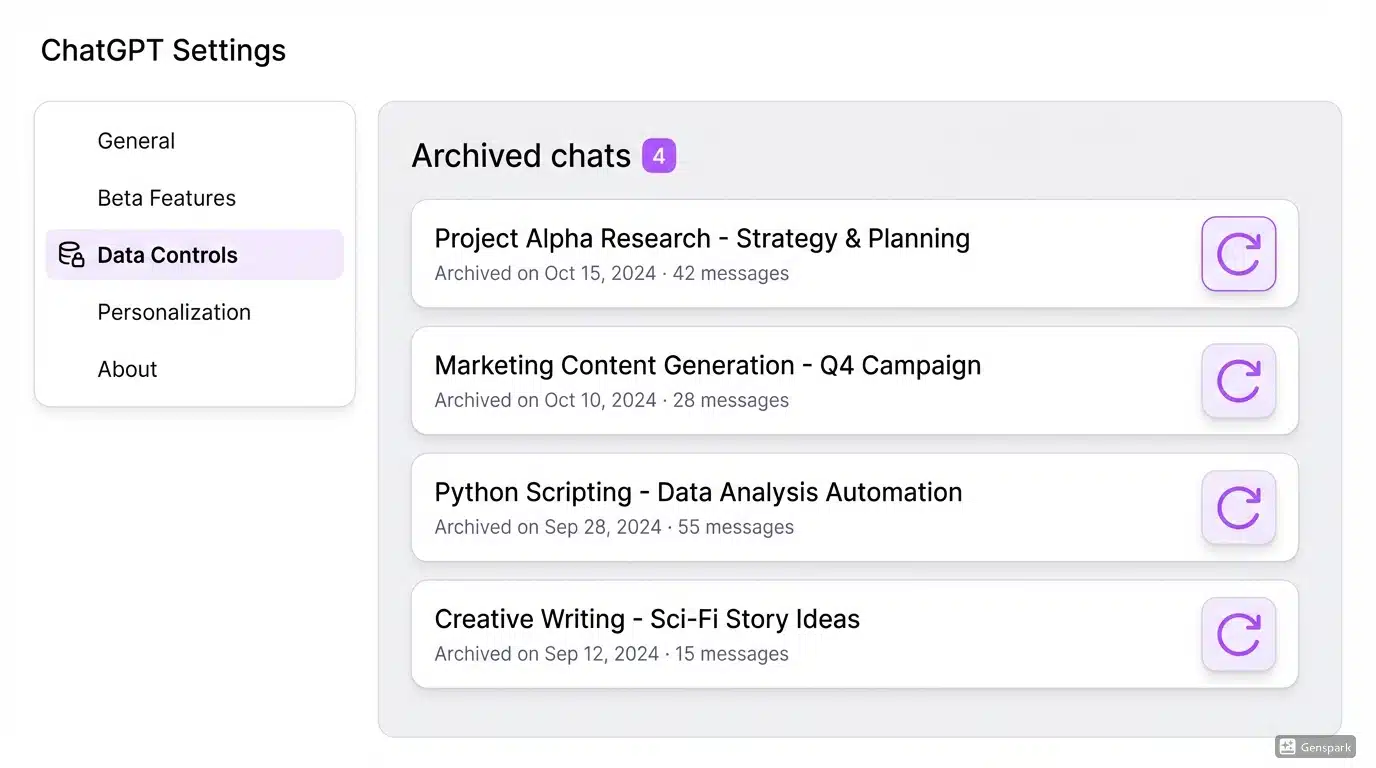
- Unarchive a chat: Go to Settings → Data Controls → "Archived chats" → Click unarchive icon next to the conversation
- Bulk archive: Use ChatGPT Toolbox to archive multiple conversations simultaneously and organize them in custom folders
- Archive vs Delete: Archived chats remain accessible and searchable; deleted chats are permanently removed after 30 days
What is Archive in ChatGPT?
Archiving in ChatGPT is a feature that lets you hide conversations from your main chat list without deleting them permanently. When you archive a chat, it moves to a separate "Archived chats" section that you can access anytime through your Settings.
Think of archiving like moving files to a storage folder on your computer—they're out of sight but not gone. This is perfect for:
- Decluttering your workspace: Remove completed projects or old conversations from your active chat list
- Preserving important information: Keep valuable conversations safe without them cluttering your sidebar
- Organizing by project status: Archive completed work while keeping active projects visible
- Maintaining privacy: Hide sensitive conversations from your main view
Key difference from deleting: Archived chats remain fully searchable and can be restored instantly. Deleted chats are permanently removed from ChatGPT's servers after 30 days and cannot be recovered.
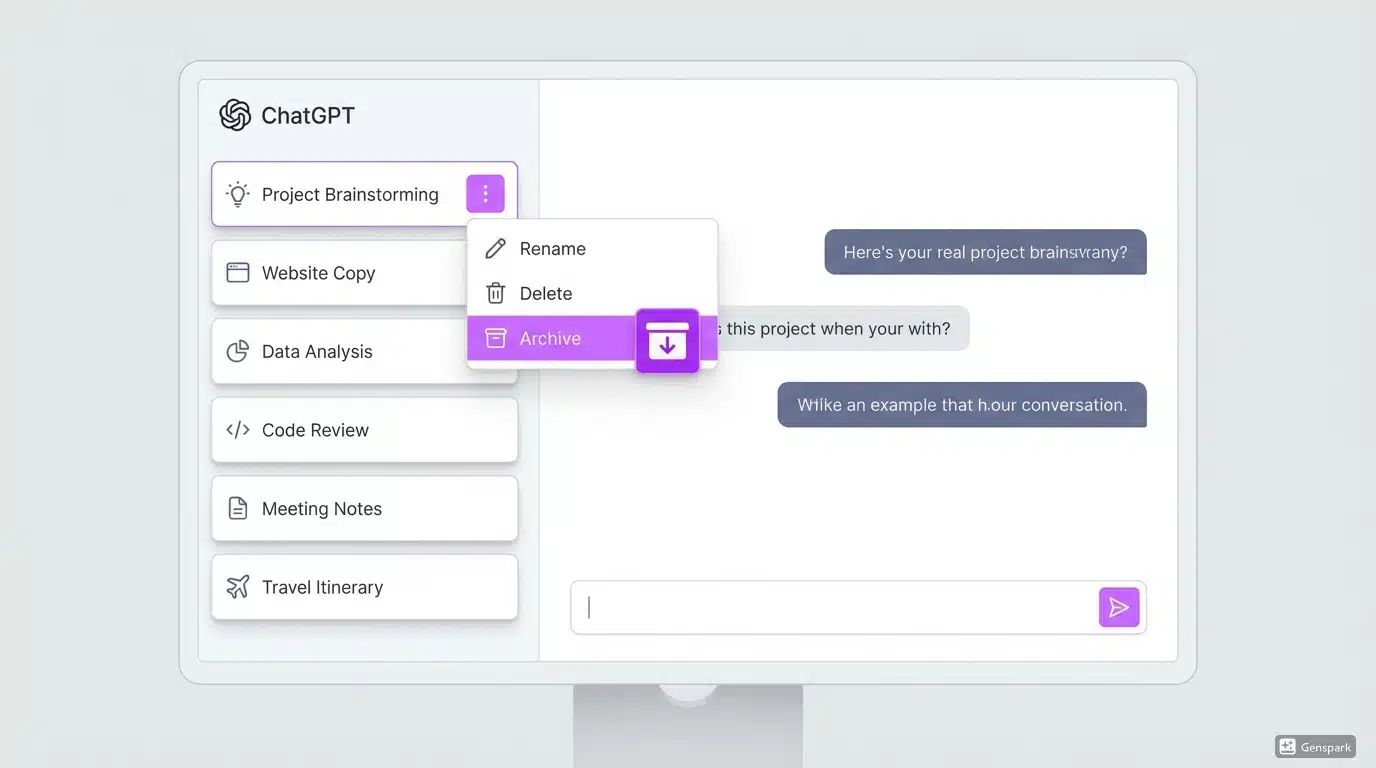
How to Archive ChatGPT Conversations (Step-by-Step)
Archiving a ChatGPT conversation takes just 3 clicks. Here's the complete process:
Method 1: Archive from the Sidebar (Desktop & Mobile)
- Locate the conversation: Find the chat you want to archive in your sidebar chat list
- Open the menu: Hover over the conversation title (desktop) or tap and hold (mobile) until the three-dot menu (···) appears
- Select Archive: Click or tap the three dots, then select "Archive" from the dropdown menu
- Confirm: The chat immediately disappears from your main list and moves to the Archived chats section
Visual indicator: On desktop, the three-dot menu only appears when you hover over a chat title. On mobile, long-press the conversation to reveal the menu options.
Method 2: Archive from Within a Conversation
- Open the chat: Click on any conversation to open it
- Access chat options: Look for the three-dot menu (···) in the top-right corner of the chat window
- Archive: Click the menu and select "Archive chat"
- Return to sidebar: You'll be redirected to your chat list with the conversation now archived
Pro tip: You can archive multiple conversations one after another without needing to refresh the page. The sidebar updates in real-time.
Keyboard Shortcuts for Power Users
While ChatGPT doesn't have native keyboard shortcuts for archiving, ChatGPT Toolbox adds custom hotkeys:
- Ctrl/Cmd + Shift + A: Archive the currently selected chat
- Ctrl/Cmd + Shift + U: Unarchive and restore to main list
- Ctrl/Cmd + Shift + B: Open bulk archive mode (select multiple chats)
How to Unarchive ChatGPT Conversations
Need to restore an archived conversation? Unarchiving is just as simple and brings the chat back to your main sidebar instantly.
Step-by-Step: Unarchive a Chat
- Open Settings: Click your profile picture in the bottom-left corner of ChatGPT → Select "Settings"
- Navigate to Data Controls: In the Settings menu, click on "Data controls" in the left sidebar
- Access Archived chats: Scroll down to find "Archived chats" and click "Manage" or "View archived chats"
- Find your conversation: Browse through your archived conversations or use the search function to find a specific chat
- Unarchive: Click the unarchive icon (↺) or three-dot menu next to the conversation → Select "Unarchive"
- Verify restoration: The chat immediately returns to your main sidebar in its original position
Search functionality: ChatGPT's search feature works across both active and archived conversations, so you can find archived chats without manually browsing the archive.
Unarchive Multiple Chats at Once
ChatGPT's native interface requires unarchiving conversations one at a time. However, ChatGPT Toolbox enables bulk unarchiving:
- Open ChatGPT Toolbox settings → Navigate to "Archive Management"
- View all archived conversations in a sortable list with checkboxes
- Select multiple chats using checkboxes or "Select All" for batch operations
- Click "Unarchive Selected" to restore all chosen conversations simultaneously
This is especially useful if you archived multiple project-related chats and need to restore them all when resuming work.
Archive vs Delete: What's the Difference?
Understanding the difference between archiving and deleting is crucial for managing your ChatGPT conversations effectively. Here's a detailed comparison:
| Feature | Archive | Delete |
|---|---|---|
| Permanence | Temporary hiding—can be restored anytime | Permanent removal after 30 days |
| Searchability | Fully searchable from main search bar | Not searchable after deletion |
| Storage | Still counts toward your storage | Freed from storage after 30 days |
| Recovery | Instant one-click restoration | 30-day grace period, then unrecoverable |
| Visibility | Hidden from sidebar, visible in Settings | Completely removed from all views |
| Chat History Export | Included in exported data | Not included after permanent deletion |
| Best For | Completed projects, seasonal work, reference material | Sensitive data, test conversations, unwanted chats |
Does Delete All Chats Delete Archived Chats in ChatGPT?
Yes, the "Delete all chats" function in ChatGPT DOES delete archived chats. When you select "Delete all chats" in Settings → Data controls, it removes:
- ✓ All active conversations in your sidebar
- ✓ All archived conversations in your archive folder
- ✓ All chat history across all folders and categories
Warning: This action cannot be undone after the 30-day grace period. If you want to preserve any conversations, export them first using ChatGPT's export feature or ChatGPT Toolbox's bulk export tool.
When to Archive vs When to Delete
Choose Archive when:
- You might need to reference the conversation in the future
- The chat contains valuable insights, code, or research
- You're organizing completed projects but want to keep records
- You need to declutter without losing data
- The conversation has sentimental or historical value
Choose Delete when:
- The conversation contains sensitive personal information
- You're certain you'll never need the chat again
- You want to free up storage space (for very heavy users)
- The chat was just a test or experiment
- You need to comply with data privacy requirements
Bulk Archive Multiple Chats with ChatGPT Toolbox
ChatGPT's native interface requires archiving conversations individually, which becomes tedious when managing dozens or hundreds of chats. ChatGPT Toolbox solves this with powerful bulk archive features.
How Bulk Archive Works
- Install ChatGPT Toolbox: Add the Chrome extension (free) to your browser
- Enable bulk selection: Click the ChatGPT Toolbox icon → Select "Bulk Operations" → Enable "Multi-select mode"
- Select conversations: Checkboxes appear next to each chat in your sidebar. Click to select multiple conversations
- Filter and sort: Use filters to select chats by date range, keywords, or conversation length
- Archive selected: Click "Archive Selected" to move all chosen conversations to your archive folder at once
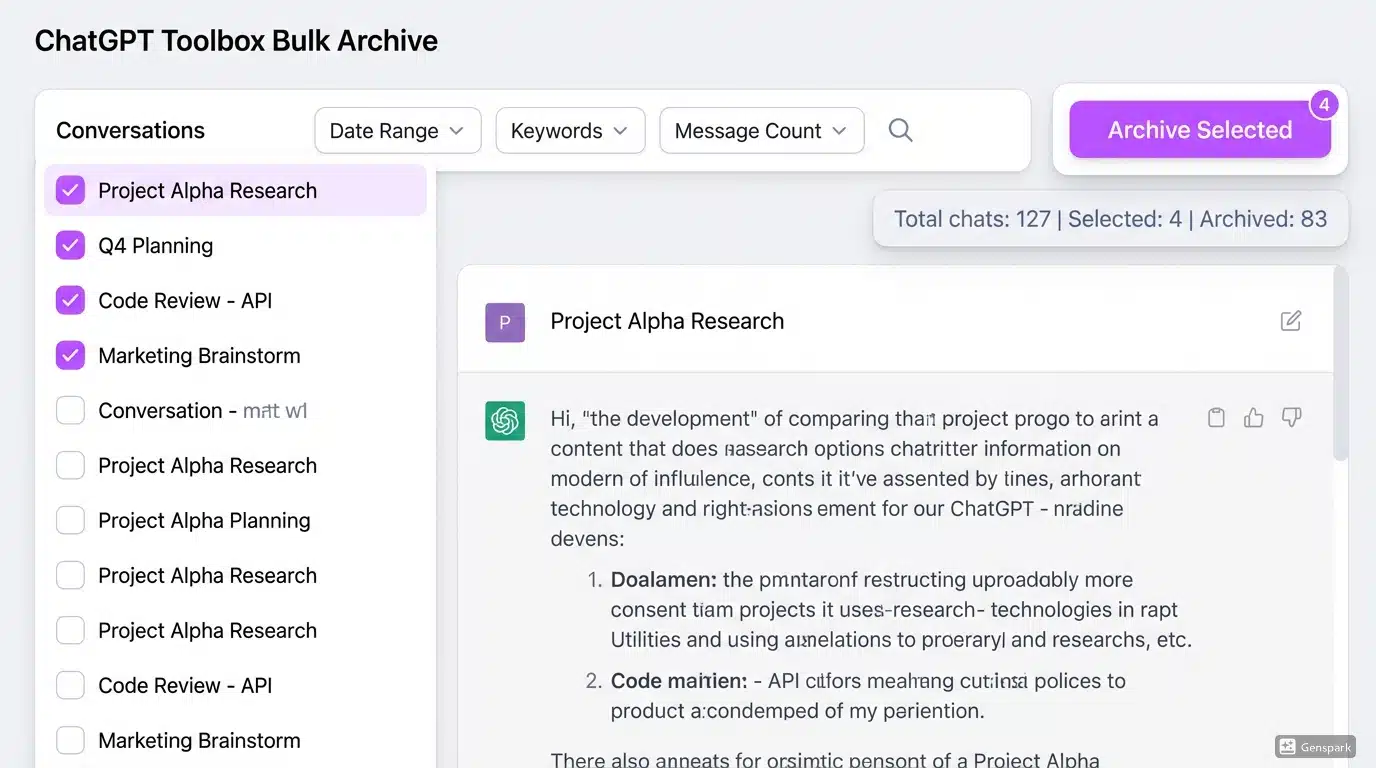
Advanced Bulk Archive Features
1. Smart Filters for Selective Archiving:
- Date-based archiving: Archive all chats older than 30, 60, or 90 days automatically
- Keyword filtering: Archive all conversations containing specific keywords or topics
- Length-based selection: Archive short test chats (under 5 messages) while keeping substantial conversations
- GPT model filtering: Archive chats from specific models (e.g., all GPT-3.5 chats when you've upgraded to GPT-4)
2. Folder-Based Organization Before Archiving:
ChatGPT Toolbox lets you organize conversations into custom folders BEFORE archiving them:
- Create project-based folders: "2024 Marketing," "Code Projects," "Research Notes"
- Move related conversations into appropriate folders
- Archive entire folders while preserving your organizational structure
- When you unarchive, conversations return to their designated folders
3. Scheduled Auto-Archive:
Set up automatic archiving rules to maintain a clean workspace:
- Auto-archive chats inactive for 30+ days
- Auto-archive completed conversations based on folder status
- Weekly cleanup: Archive all chats tagged as "Done" or "Complete"
Time savings: Users report saving 5-10 minutes per week on chat organization with bulk archive, adding up to 8+ hours per year.
Advanced Archive Features in ChatGPT Toolbox
Beyond basic archiving, ChatGPT Toolbox offers professional-grade organization features:
1. Archive Search and Preview
- Quick search: Find archived conversations instantly without opening Settings
- Preview archived chats: Read the full conversation without unarchiving it
- Advanced filters: Search by date range, message count, or custom tags
2. Archive Analytics and Insights
- Archive statistics: View total archived conversations, storage saved, and organization metrics
- Usage trends: See which topics or projects you archive most frequently
- Cleanup recommendations: Get suggestions for chats that can be safely archived based on inactivity
3. Export Archived Conversations
- Bulk export from archive: Download archived conversations without unarchiving them first
- Multiple formats: Export to TXT, JSON, Markdown, or PDF
- Preserve metadata: Include timestamps, folder structure, and tags in exports
Learn more about exporting in our guide: How to Export ChatGPT Conversations.
4. Smart Unarchive Suggestions
- Related conversations: When working on a topic, get notifications about relevant archived chats
- Seasonal reminders: Automatically suggest unarchiving project-specific chats when resuming work
- Search integration: Archived conversations appear in search results with one-click restore
Common Issues and Solutions
Problem 1: Can't Find the Archive Option
Solution:
- Ensure you're using the latest version of ChatGPT (archive was added in 2024)
- Try refreshing your browser or clearing cache
- On mobile, make sure you long-press (not just tap) to reveal the menu
- Verify you're logged into your ChatGPT account (archive isn't available for guests)
Problem 2: Archived Chats Don't Appear in Search
Solution:
- ChatGPT's search should include archived chats, but results may prioritize active conversations
- Go directly to Settings → Data controls → Archived chats to view the full archive
- Use ChatGPT Toolbox's dedicated archive search for faster results
Problem 3: Accidentally Archived Important Chat
Solution:
- Unarchive immediately using the steps in How to Unarchive section
- Use ChatGPT Toolbox's "Recently Archived" quick-access menu for one-click restoration
- Enable ChatGPT Toolbox's "Confirm before archive" setting to prevent accidents
Problem 4: Archive Section Is Cluttered
Solution:
- Use ChatGPT Toolbox to organize archived chats into subfolders within the archive
- Delete conversations you're certain you don't need instead of archiving them
- Export old archived chats to external storage, then delete from ChatGPT
- Set up auto-delete rules: Archive for 90 days → Export → Delete permanently
Problem 5: Bulk Archive Slowing Down ChatGPT
Solution:
- ChatGPT Toolbox processes bulk operations in batches to avoid performance issues
- For 100+ conversations, use "Archive in background" mode to continue working while archiving completes
- Schedule bulk archives during off-peak hours for large operations
Best Practices for Organizing ChatGPT Chats
1. Develop an Archive Strategy
- 30-60-90 Rule: Review chats every 30 days, archive inactive ones at 60 days, consider deletion at 90 days
- Project-based archiving: When a project completes, archive all related conversations together
- Seasonal organization: Archive seasonal content (e.g., "Holiday Marketing 2024") after the season ends
2. Use Folders Before Archiving
- Organize active conversations into folders by project, client, or topic
- Archive entire folders when projects complete to maintain structure
- Use ChatGPT Toolbox's subfolder feature for granular organization
3. Tag Conversations for Easy Retrieval
- Add descriptive tags to conversations before archiving: #code, #research, #client-work
- Use consistent naming conventions for easier searching
- ChatGPT Toolbox allows custom tags that persist after archiving
4. Regular Archive Maintenance
- Weekly cleanup: Spend 5 minutes archiving completed conversations
- Monthly review: Check archived chats and delete anything no longer needed
- Quarterly export: Back up important archived conversations to external storage
5. Export Before Permanent Deletion
- Always export archived chats before deleting them permanently
- Use ChatGPT Toolbox's bulk export to save archives to Google Drive, Dropbox, or local storage
- Keep a master archive folder organized by year and topic
Frequently Asked Questions
Does delete all chats delete archived chats ChatGPT?
Yes. When you use the "Delete all chats" function in ChatGPT Settings → Data controls, it permanently deletes BOTH active conversations in your sidebar AND all archived conversations. This action cannot be undone after 30 days. Always export important chats before using delete all.
Can you archive multiple chats at once in ChatGPT?
Not with ChatGPT's native interface. You must archive conversations one by one. However, ChatGPT Toolbox adds bulk archive functionality, letting you select and archive dozens or hundreds of conversations simultaneously using checkboxes and filters.
Where do archived chats go in ChatGPT?
Archived chats are stored in a dedicated "Archived chats" section accessible through Settings → Data controls → Archived chats. They're not visible in your main sidebar but remain fully searchable and can be accessed or restored anytime.
How do I find my archived conversations in ChatGPT?
There are three ways:
- Settings access: Profile picture → Settings → Data controls → "Archived chats" → Click "Manage"
- Search function: Use ChatGPT's main search bar—archived conversations appear in results with an "Archived" label
- ChatGPT Toolbox: Click the Toolbox icon → "Archive Manager" for instant access to all archived chats
What happens when you archive a chat in ChatGPT?
When you archive a chat:
- ✓ The conversation disappears from your main sidebar immediately
- ✓ All messages, images, and files in the chat are preserved exactly as they were
- ✓ The chat moves to the "Archived chats" section in Settings
- ✓ You can still search for and access the conversation anytime
- ✓ The chat can be unarchived and restored to your sidebar with one click
- ✓ No data is deleted or modified—archiving is 100% reversible
Is there a limit to how many chats I can archive?
No official limit. ChatGPT doesn't publish a specific cap on archived conversations. Users report successfully archiving hundreds or even thousands of chats without issues. Your total chat limit (active + archived combined) may be subject to ChatGPT's overall storage policies.
Can other people see my archived ChatGPT conversations?
No. Archived conversations are completely private and only accessible to you through your ChatGPT account. They have the same privacy protections as your active chats—no one else can view, search, or access your archived conversations, including OpenAI staff (except when necessary for service maintenance or security purposes, as outlined in OpenAI's privacy policy).
Does archiving chats save storage space?
No, archiving does not free up storage space. Archived conversations still count toward your ChatGPT storage quota—archiving only hides chats from your sidebar for better organization. If you need to free up storage, you must permanently delete conversations (Settings → Data controls → Delete specific chats or Delete all chats).
Can I export archived conversations without unarchiving them?
With ChatGPT Toolbox, yes. The extension allows you to:
- Export individual archived chats directly from the archive view
- Bulk export all archived conversations in one operation
- Choose export formats: TXT, JSON, Markdown, or PDF
- Include or exclude metadata (timestamps, folder names, tags)
ChatGPT's native export function (Settings → Data controls → Export data) includes archived chats in the full account export, but doesn't allow selective archive exports.
What's the difference between archiving and using folders?
Folders organize visible chats; archive hides chats completely:
- Folders (ChatGPT Toolbox): Organize active conversations in your sidebar into categories while keeping them visible and immediately accessible
- Archive: Completely removes conversations from your sidebar view—use for completed work you rarely need
- Best practice: Use folders for ongoing organization, then archive entire folders when projects complete
Can I set up automatic archiving based on rules?
Yes, with ChatGPT Toolbox. Set up auto-archive rules such as:
- Archive conversations inactive for 30+ days
- Auto-archive when a conversation is moved to a "Completed" folder
- Archive chats with specific tags on a schedule
- Bulk archive by date range (e.g., "Archive all chats from 2024")
Conclusion
Archiving ChatGPT conversations is essential for maintaining an organized, productive workspace without losing valuable information. Whether you're a casual user decluttering your chat list or a power user managing hundreds of conversations, archiving lets you hide completed work while keeping everything accessible for future reference.
Key takeaways:
- Archive to hide chats from your sidebar while preserving them completely—delete only when you're certain you don't need the data
- Use Settings → Data controls → Archived chats to view and manage all archived conversations
- Unarchive with one click to restore conversations instantly to your main sidebar
- Remember: "Delete all chats" removes archived conversations too—always export important chats first
For power users managing large numbers of conversations, ChatGPT Toolbox transforms archiving from a manual one-by-one process into an efficient bulk operation with smart filters, folder integration, and automatic scheduling. The combination of native archiving and Toolbox features gives you complete control over your ChatGPT workspace organization.
Ready to take your ChatGPT organization to the next level? Install ChatGPT Toolbox today and experience bulk archiving, advanced search, custom folders, and automated organization—all completely free.
Related guides:
- How to Export ChatGPT Conversations - Save your chats before deleting
- ChatGPT Bulk Export Guide - Export multiple conversations simultaneously
- How to Pin ChatGPT Conversations - Keep important chats at the top
- Advanced Search in ChatGPT History - Find archived chats instantly
