
 Add to Chrome
 Add to Edge
 Adi Leviim
Folders in ChatGPT: The Complete Organization Guide (2026)
Have you ever struggled to find that important ChatGPT conversation from last week? With hundreds or even thousands of chats accumulating over time, scrolling through an endless list becomes impossible. Here's the truth: ChatGPT doesn't have folders—but ChatGPT Toolbox does, and it's a game-changer.
In this comprehensive guide, you'll learn how to transform your chaotic ChatGPT history into a beautifully organized system using folders, subfolders, and advanced organization strategies. Plus, discover why folders are exclusive to ChatGPT Toolbox—a feature that competitor extensions like AIPRM and Superpower ChatGPT simply don't offer.
Why You Need Folders in ChatGPT
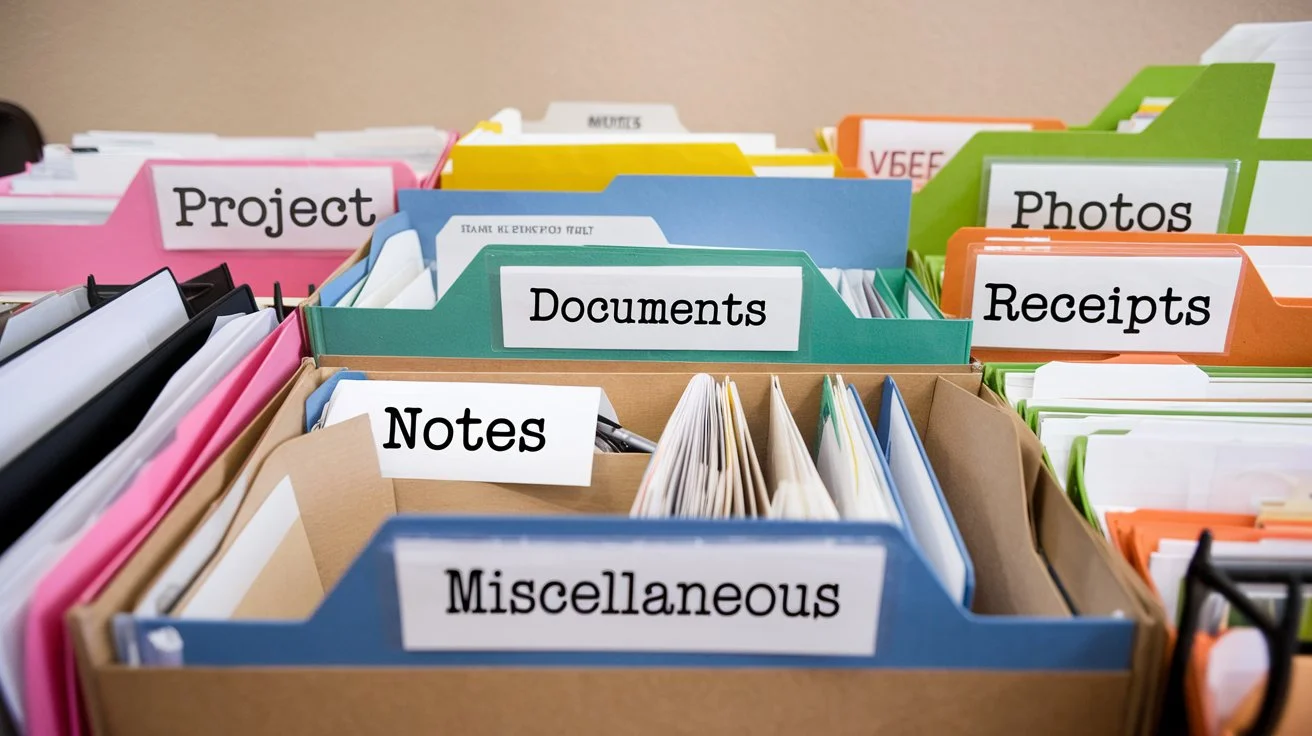
ChatGPT's default interface displays all conversations in a single chronological list. While this works fine for 10-20 chats, it becomes unmanageable when you're using ChatGPT daily for work, research, content creation, and personal projects. Without folders, you face three major problems:
- Wasted Time: Spending 5-10 minutes scrolling to find a specific conversation from last month
- Lost Context: Forgetting which chat contained that perfect prompt or important code solution
- Mental Clutter: Mixing professional work chats with personal conversations, creating cognitive overload
Folders solve all three problems instantly. With ChatGPT Toolbox, you can group related conversations by project, topic, client, or any system that matches your workflow. Think of it like organizing your email inbox—except for your AI conversations.
ChatGPT Toolbox vs Competitors: The Folder Advantage
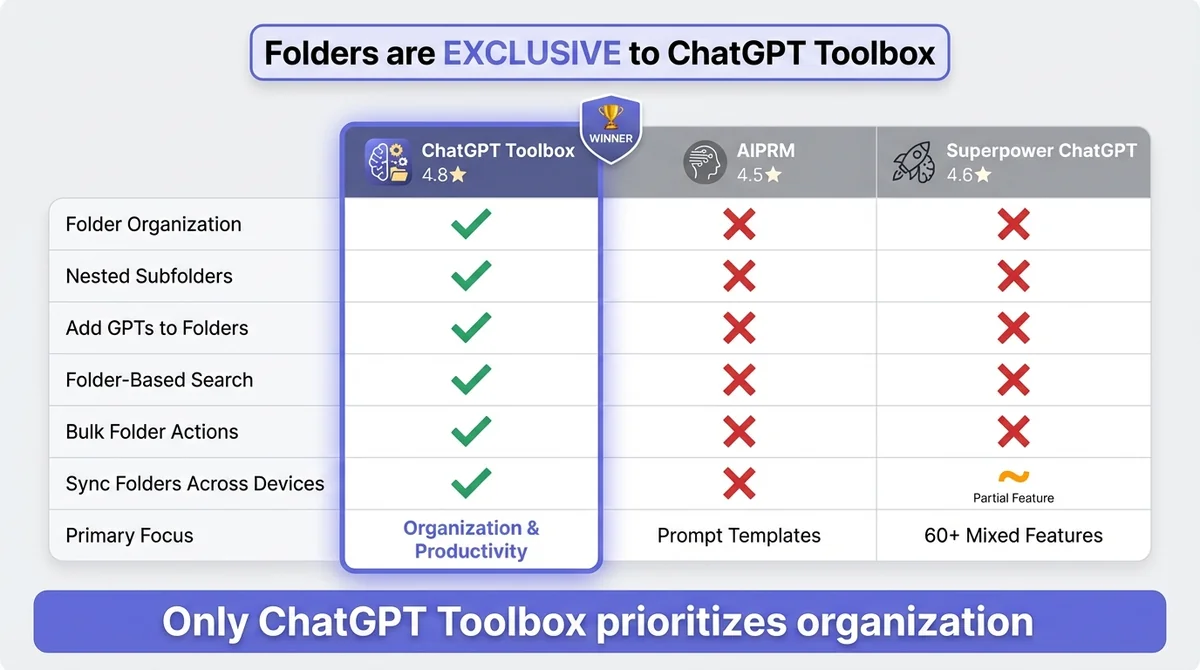
Before diving into how to use folders, it's crucial to understand something: ChatGPT Toolbox is the ONLY major extension that offers true folder organization. Here's what competitors are missing:
| Feature | ChatGPT Toolbox | AIPRM | Superpower ChatGPT |
|---|---|---|---|
| Folder Organization | ✅ Yes (Unlimited folders) | ❌ No folders | ❌ No folders |
| Nested Subfolders | ✅ Yes (Unlimited depth) | ❌ Not available | ❌ Not available |
| Add GPTs to Folders | ✅ Yes (Mix chats & GPTs) | ❌ Not available | ❌ Not available |
| Folder-Based Search | ✅ Yes (Search within folders) | ❌ Not available | ⚠️ Global search only |
| Bulk Folder Actions | ✅ Yes (Move, export folders) | ❌ Not available | ❌ Not available |
| Sync Folders Across Devices | ✅ Yes (Personal/Pro plans) | ❌ Not available | ⚠️ Paid feature only |
| Primary Focus | Organization & Productivity | Prompt templates | 60+ mixed features |
Why the difference? AIPRM focuses on providing a massive prompt template library (4,500+ prompts), while Superpower ChatGPT tries to do everything with 60+ features—but neither prioritizes conversation organization. ChatGPT Toolbox is purpose-built for organization, making folders the core feature with a clean, native-looking interface.
How to Create Folders in ChatGPT (Step-by-Step)
Setting up your folder system in ChatGPT Toolbox takes less than 60 seconds. Here's exactly how to do it:
Step 1: Install ChatGPT Toolbox
If you haven't already, install ChatGPT Toolbox from the Chrome Web Store (it's free). The extension works with all ChatGPT plans: Free, Plus, Team, and Enterprise.
Step 2: Access Manage Folders
Open ChatGPT and look at the sidebar. You'll see a new "Manage Folders" button with a folder icon. Click it to open the folder management panel.
Step 3: Create Your First Folder
- Click the "Add Folder" button
- Enter a descriptive folder name (e.g., "Work Projects," "Personal," "Research")
- Click "Save"
That's it! Your folder appears instantly in the sidebar. Now you can start organizing.
Step 4: Add Conversations to Folders
There are two ways to add conversations to folders:
- Method 1 (Drag & Drop): Simply drag any conversation from your list and drop it onto the folder name
- Method 2 (Right-Click Menu): Right-click on any conversation, select "Move to Folder," and choose your destination folder
Step 5: Create Subfolders for Advanced Organization
Need even more structure? Create subfolders within your main folders:
- Click on any folder to select it
- Click "Add Subfolder"
- Name your subfolder (e.g., "Client A," "Client B" under "Work Projects")
- Drag conversations into subfolders just like main folders
You can nest folders as deep as you need—ChatGPT Toolbox has no limits on folder depth.
Advanced Folder Organization Strategies
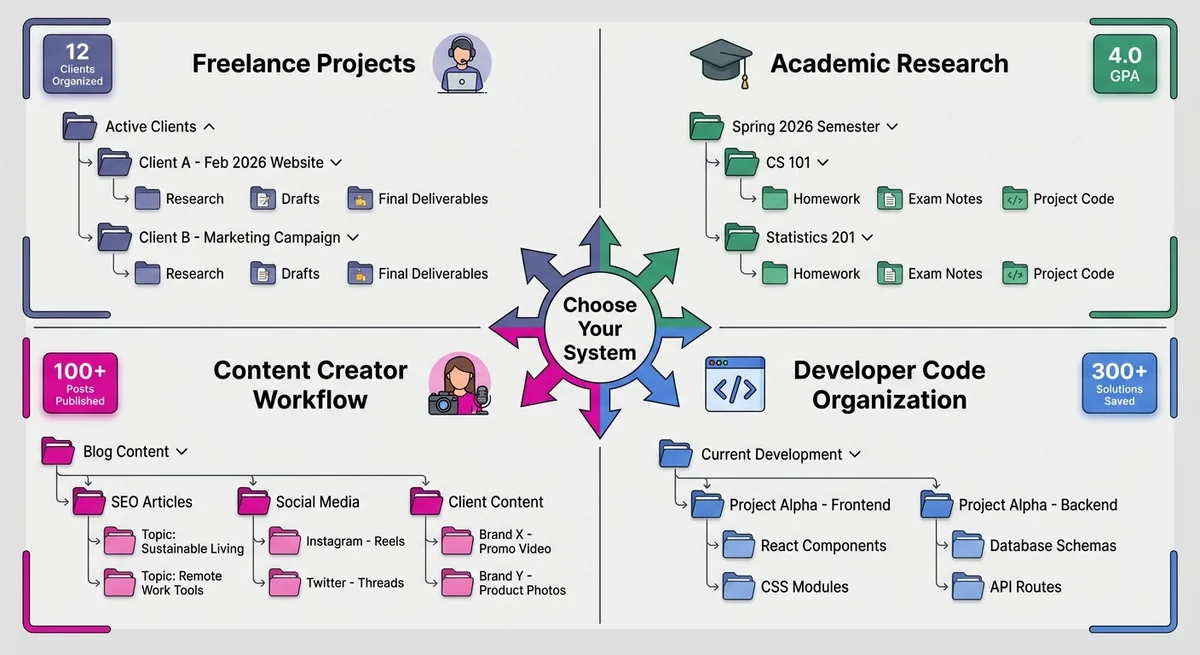
Once you've mastered the basics, these advanced strategies will take your ChatGPT organization to the next level:
1. Project-Based Folder System
Perfect for freelancers, consultants, and project managers:
📁 Active Projects 📁 Client A - Website Redesign 💬 Research & Planning 💬 Content Strategy 💬 Technical Requirements 📁 Client B - Marketing Campaign 💬 Campaign Ideas 💬 Ad Copy Drafts 💬 Performance Analysis 📁 Completed Projects (Archive) 📁 Client C - Q4 2025 Project 📁 Client D - Product LaunchPro tip: Add the month/year to completed project folders for easy reference: "Client A - Feb 2026 Website."
2. Subject-Based Academic System
Ideal for students and researchers:
📁 Spring 2026 Semester 📁 Computer Science 101 💬 Homework Help 💬 Exam Study Notes 💬 Project Code Assistance 📁 Statistics 201 💬 Problem Sets 💬 Data Analysis 📁 English Literature 💬 Essay Brainstorming 💬 Research Notes 📁 Summer Research Project 📁 Literature Review 📁 Methodology Development 📁 Data Analysis3. Content Creator Workflow System
For writers, marketers, and content professionals:
📁 Blog Content 📁 SEO Articles 💬 Keyword Research 💬 Outline Drafts 💬 Final Edits 📁 Social Media 💬 Instagram Captions 💬 Twitter Threads 💬 LinkedIn Posts 📁 Client Content 📁 Brand A - January Campaign 📁 Brand B - Product Launches 📁 Brand C - Email Newsletters 📁 Personal Brand 📁 YouTube Scripts 📁 Newsletter Ideas 📁 Course Development4. Developer Code Organization System
For programmers and software engineers:
📁 Current Development 📁 Project Alpha - Frontend 💬 React Component Help 💬 CSS Styling Solutions 💬 API Integration 📁 Project Alpha - Backend 💬 Database Design 💬 Authentication Logic 💬 API Endpoints 📁 Learning & References 📁 JavaScript Resources 📁 Python Tutorials 📁 DevOps Best Practices 📁 Bug Fixes & Debugging 📁 Production Issues 📁 Testing Solutions5. Professional Separation System
Keep work and personal life organized:
📁 Work 📁 Meetings & Notes 📁 Project Planning 📁 Email Drafts 📁 Reports & Documentation 📁 Personal 📁 Home Projects 📁 Learning & Hobbies 📁 Travel Planning 📁 Health & Fitness 📁 Side Projects 📁 Startup Ideas 📁 Freelance OpportunitiesFolder Naming Conventions for Maximum Efficiency
How you name your folders matters more than you think. Follow these best practices to create a system that scales:
Use Descriptive, Scannable Names
- ✅ Good: "Q1 2026 Marketing Campaign - Facebook Ads"
- ❌ Bad: "Campaign1" or "Marketing Stuff"
Add Dates for Time-Based Projects
- ✅ Good: "2026-02 Website Redesign"
- ✅ Good: "Spring 2026 Coursework"
- ❌ Bad: "Recent Project" (what's "recent" in 6 months?)
Use Prefixes for Visual Hierarchy
- [Active] Current Projects - Client A
- [Archive] Completed Projects - 2025
- [Reference] Code Snippets & Resources
Keep Names Under 40 Characters
Long folder names get truncated in the sidebar. Aim for clarity and brevity.
Use Consistent Capitalization
- Title Case: "Work Projects - Client Management"
- Sentence case: "Work projects - client management"
Pick one style and stick with it across all folders.
Combining Folders with Other ChatGPT Toolbox Features
Folders become even more powerful when combined with ChatGPT Toolbox's other organization tools:
Folders + Advanced Search
Use ChatGPT Toolbox's advanced search feature to search within specific folders. This narrows down results dramatically:
- Search "React components" in your "Frontend Development" folder
- Find "meeting notes" in your "Work Projects" folder
- Locate "essay drafts" in your "English Literature" folder
Folders + Pinned Conversations
Pin your most important conversations to the top of each folder. Perfect for:
- Daily standup prompts in your "Work" folder
- Template prompts in your "Content Creation" folder
- Reference documentation in your "Learning" folder
Learn more about pinning conversations in ChatGPT.
Folders + Bulk Export
Export entire folders at once for backups or sharing:
- Export your "Completed Projects" folder at year-end for archival
- Share your "Research Notes" folder with team members
- Backup your "Work" folder to local storage monthly
Check out our guide on exporting ChatGPT conversations.
Folders + Sync Across Devices
With ChatGPT Toolbox Personal or Pro plans, your entire folder structure syncs automatically across all devices. Set up folders on your work laptop, and they'll appear on your home desktop and tablet instantly.
Real-World Use Case Examples
Use Case 1: Freelance Writer Managing 10+ Clients
Challenge: Sarah writes content for 12 different clients and struggles to keep track of briefs, drafts, and client-specific style guidelines.
Solution with Folders:
📁 Active Clients (February 2026) 📁 TechCorp - Blog Articles 📁 EcoLife - Social Media 📁 FinanceHub - Email Campaigns 📁 Client Templates & Briefs 📁 Editorial Calendars 📁 Completed Work - ArchiveResult: Sarah now finds client-specific conversations in 5 seconds instead of 5 minutes. She uses subfolders for each content type and archives completed months into year-based folders.
Use Case 2: Graduate Student Conducting Research
Challenge: James is working on his PhD dissertation with hundreds of ChatGPT conversations about literature review, methodology, data analysis, and writing.
Solution with Folders:
📁 Dissertation - AI Ethics 2026 📁 Chapter 1 - Literature Review 📁 Chapter 2 - Methodology 📁 Chapter 3 - Data Analysis 📁 References & Citations 📁 Advisor Feedback Responses 📁 Course Teaching (TA Work) 📁 Exam Preparation ResourcesResult: James organizes 300+ conversations across 7 folders, making it easy to find specific research notes when writing different dissertation chapters.
Use Case 3: Software Developer Working on Multiple Projects
Challenge: Alex works on 3 concurrent development projects and uses ChatGPT for debugging, code generation, and architecture discussions.
Solution with Folders:
📁 Project Mercury - E-commerce Platform 📁 Frontend (React) 📁 Backend (Node.js) 📁 Database Design 📁 Bug Fixes 📁 Project Venus - Mobile App 📁 Flutter Development 📁 API Integration 📁 Testing & QA 📁 Learning & Exploration 📁 New Technologies 📁 Code Refactoring IdeasResult: Alex switches between projects effortlessly, never mixing code solutions from different projects. Subfolder organization by tech stack makes finding specific solutions instant.
Migrating Your Existing ChatGPT History to Folders
Already have hundreds of conversations? Here's a quick strategy to organize them without spending hours:
The 80/20 Folder Organization Method
- Create broad categories first (Work, Personal, Learning, Archive)
- Sort your 20% most important conversations into specific folders (recent active projects)
- Bulk move the rest into "Archive - 2025" or similar
- Refine over time as you access older conversations
This approach gets you 80% of the organization benefits in 20% of the time.
Quick Migration Steps
- Create 3-5 main folders: Work, Personal, Learning, Archive, Reference
- Use bulk selection (hold Shift) to select multiple conversations at once
- Drag selected conversations to appropriate folders
- Repeat until your main sidebar is clear
- Add subfolders later as needed
Why Folders Matter: The Psychology of Organization
Folder organization isn't just about saving time—it's about reducing cognitive load and improving focus. Here's the science behind it:
Cognitive Load Reduction
Research shows that visual clutter increases mental fatigue. When your ChatGPT sidebar shows 500+ unorganized conversations, your brain wastes energy processing irrelevant information. Folders create visual hierarchy, allowing your brain to focus only on relevant context.
Context Switching Efficiency
Studies on productivity indicate that context switching costs 20-40% of productive time. Folders minimize context switching by grouping related conversations together. When you open your "Work Projects" folder, your brain immediately enters work mode—no mental transition needed.
Retrieval Practice & Memory
Organizing conversations into folders strengthens memory pathways. You remember where information is stored (which folder), making retrieval faster even before using search.
Frequently Asked Questions (FAQ)
Can I organize ChatGPT conversations without folders?
ChatGPT's native interface doesn't support folders. Without ChatGPT Toolbox, your only option is scrolling through a chronological list. You can use ChatGPT's built-in archive feature to hide old conversations, but you can't group them by topic or project. ChatGPT Toolbox is the only extension that adds true folder functionality to ChatGPT.
Do AIPRM or Superpower ChatGPT have folder features?
No. AIPRM focuses on providing a large prompt template library (4,500+ prompts) but doesn't offer conversation organization via folders. Superpower ChatGPT has 60+ features including history export and auto-sync, but it also lacks folder organization. ChatGPT Toolbox is the only major extension with folders and subfolders.
How many folders can I create in ChatGPT Toolbox?
There's no limit. You can create unlimited folders and subfolders with unlimited nesting depth. Whether you need 5 folders or 50, ChatGPT Toolbox scales with your needs.
Can I move conversations between folders easily?
Yes, absolutely. You can drag and drop conversations between folders, or use the right-click menu to select "Move to Folder." You can also use bulk selection (hold Shift or Ctrl/Cmd) to move multiple conversations at once.
Do folders sync across my devices?
Folder synchronization is available with ChatGPT Toolbox Personal ($9.99/month) and Pro ($99 lifetime) plans. Create folders on your work laptop, and they'll automatically appear on your home desktop, tablet, and any other device where you've installed ChatGPT Toolbox. The free plan stores folders locally per browser.
Can I add custom GPTs to folders along with conversations?
Yes! ChatGPT Toolbox lets you add both regular conversations AND custom GPTs to the same folder. This is perfect for project-based organization where you might use specific GPTs alongside related conversations.
What happens to folders if I uninstall ChatGPT Toolbox?
Your folder structure is stored in the extension's local data. If you uninstall ChatGPT Toolbox, the folders disappear (but your actual ChatGPT conversations remain intact in OpenAI's system). If you reinstall the extension or sync across devices (with Personal/Pro plans), your folder structure returns. We recommend exporting your folder structure periodically as a backup.
Can I search within a specific folder?
Yes. ChatGPT Toolbox's advanced search allows you to search within individual folders or across all folders. Simply select a folder, then use the search feature—results will be filtered to that folder's contents only. This makes finding specific conversations dramatically faster in large folder structures.
How are folders different from ChatGPT's archive feature?
ChatGPT's native archive feature simply hides conversations from your main sidebar—they go into a single "Archived" view without any organization. Folders, on the other hand, let you organize conversations by topic, project, client, or any system you choose. You can have multiple folders, subfolders, and keep conversations easily accessible without hiding them. Think of archive as "hide away," while folders are "organized and visible."
Can I rename or delete folders after creating them?
Absolutely. Click on any folder, then use the "Rename Folder" or "Delete Folder" options from the menu. When you delete a folder, the conversations inside it aren't deleted—they simply move back to your main conversation list. You can also merge folders by dragging all conversations from one folder to another.
Is there a mobile app version with folders?
ChatGPT Toolbox is currently a Chrome browser extension, so folder features work on desktop/laptop browsers (Chrome, Edge, Brave, etc.). The extension doesn't work on mobile apps. However, if you access ChatGPT through a mobile browser (like Chrome on Android or Safari on iOS), some features may work, though the experience is optimized for desktop.
Can I export an entire folder of conversations at once?
Yes! ChatGPT Toolbox's bulk export feature lets you select an entire folder and export all conversations within it to TXT or JSON format. This is perfect for backing up completed projects or sharing research notes with team members. Learn more in our ChatGPT export guide.
What's the best folder structure for beginners?
Start simple with 3-5 main folders: Work, Personal, Learning, Archive, and optionally Reference. As you use ChatGPT more, create subfolders under these main categories based on your actual needs. Don't over-engineer your system upfront—let it evolve organically based on how you actually use ChatGPT.
Getting Started with Folders Today
Ready to transform your ChatGPT experience? Here's your action plan:
- Install ChatGPT Toolbox from the Chrome Web Store (free)
- Create 3-5 main folders based on your primary use cases (Work, Personal, Learning, etc.)
- Organize your 20 most recent conversations into appropriate folders
- Add subfolders as needed for more specific categorization
- Explore advanced features like folder-based search, bulk export, and pinning
Within 10 minutes, you'll have a ChatGPT organization system that saves you hours every week. And unlike AIPRM or Superpower ChatGPT, you'll have true folder organization—not just tags or categories, but a fully nested, hierarchical folder structure that works exactly like your computer's file system.
Conclusion: Folders Are the Missing Feature ChatGPT Needed
ChatGPT is an incredible tool, but without proper organization, it becomes overwhelming fast. Folders in ChatGPT Toolbox transform chaos into clarity—giving you the same intuitive organization system you use for email, files, and documents.
Remember: Folders aren't just about finding things faster (though they do that brilliantly). They're about reducing stress, maintaining context, and creating a sustainable workflow as your ChatGPT usage grows. Whether you're managing client projects, conducting research, creating content, or coding, folders ensure your AI conversations work for you, not against you.
And here's the key differentiator: Only ChatGPT Toolbox offers this feature. AIPRM gives you prompts. Superpower ChatGPT gives you features. ChatGPT Toolbox gives you organization—the foundation that makes everything else work better.
Start organizing your ChatGPT conversations today. Download ChatGPT Toolbox and take control of your AI workflow.
Want to see all organization features? Explore our complete features comparison hub or check 50+ organization use cases with workflows.
