
 Add to Chrome
 Add to Edge
 Adi Leviim
Can You Use ChatGPT Offline? Complete Guide (2026)
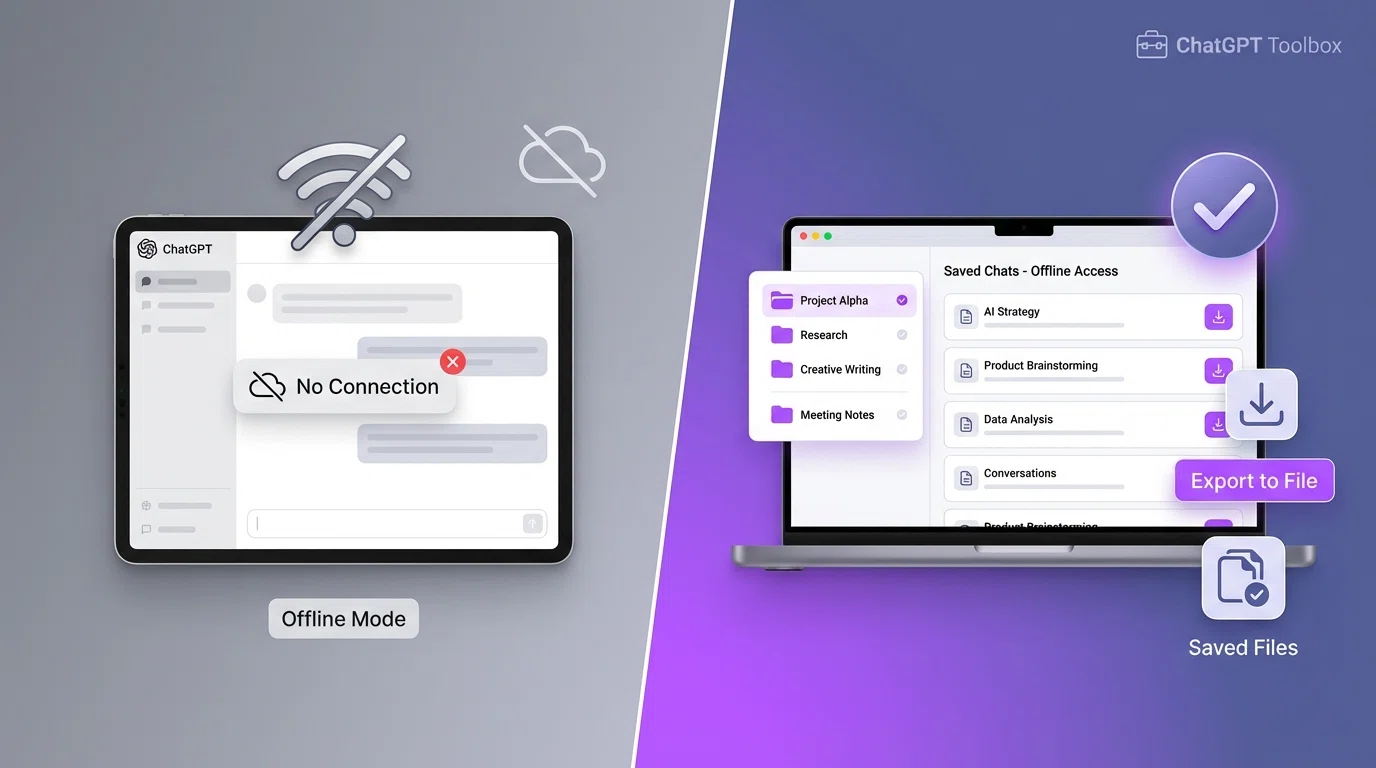
If you're wondering "can you use ChatGPT offline?", the short answer is no—ChatGPT requires an active internet connection to function. However, there are practical workarounds to access your ChatGPT conversations offline, and understanding why ChatGPT needs internet helps you make informed decisions about using AI productively.
In this guide, we'll explain why ChatGPT can't work offline, what happens when you lose connection, how to save conversations for offline viewing with ChatGPT Toolbox, and explore offline AI alternatives for situations where internet access isn't available.
Why ChatGPT Requires Internet Connection
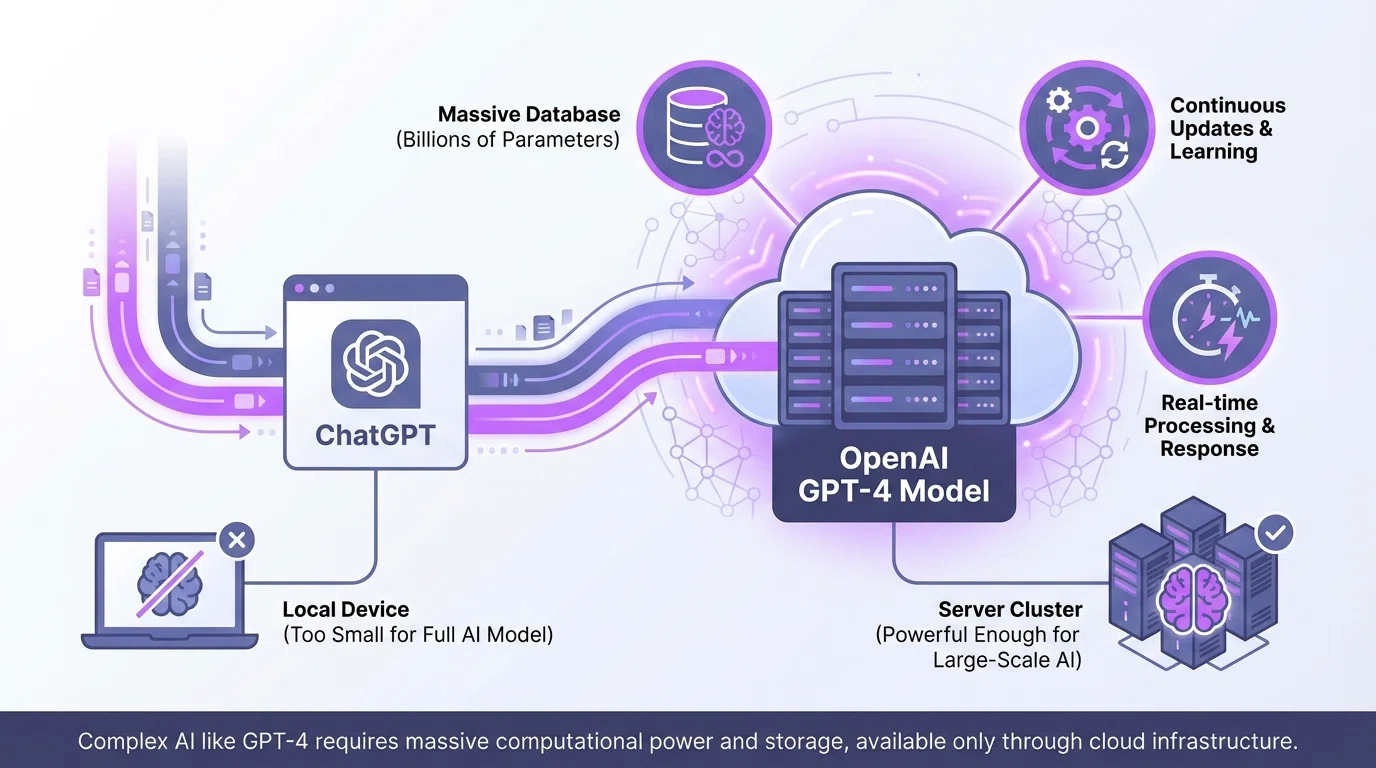
ChatGPT is a cloud-based AI service, which means the AI model doesn't run on your device—it runs on OpenAI's powerful servers. When you send a prompt to ChatGPT, your request is transmitted to OpenAI's data centers, processed by the GPT-4 model, and the response is sent back to your browser.
Here's why ChatGPT can't work offline:
- Massive Model Size: GPT-4 contains hundreds of billions of parameters, requiring hundreds of gigabytes of storage and specialized hardware. Most consumer devices simply can't store or run the full model locally.
- Processing Power: Running large language models requires GPU clusters with thousands of processors. Your laptop or phone doesn't have the computational power to process responses at ChatGPT's speed.
- Continuous Updates: OpenAI regularly updates ChatGPT with improvements, safety measures, and new capabilities. An offline version would quickly become outdated.
- Cost Efficiency: Cloud-based deployment allows OpenAI to serve millions of users simultaneously while maintaining consistent performance and quality.
- Safety & Moderation: Real-time content moderation and safety filters require server-side processing to prevent misuse and ensure responsible AI deployment.
The technical reality is that running ChatGPT locally on consumer hardware isn't practical with current technology. However, this doesn't mean you're completely out of luck when internet isn't available.
What Happens When You Lose Internet Connection
If your internet connection drops while using ChatGPT, you'll experience the following:
- Immediate Loss of Functionality: ChatGPT will display an error message indicating no connection. You won't be able to send new prompts or receive responses.
- Conversation Saved: Your chat history up to the point of disconnection is saved on OpenAI's servers (if chat history is enabled).
- Resume When Reconnected: When internet returns, simply refresh the page. Your conversation history will be there, and you can continue where you left off.
- Pending Messages Lost: If you sent a message right before losing connection, it may not be processed. You'll need to resend it once reconnected.
The good news is that ChatGPT automatically saves your conversations as you chat, so you won't lose your work. However, to access that history later—even just to read it—you'll need internet access unless you've proactively saved it offline.
How to Access ChatGPT Conversations Offline
While you can't generate new ChatGPT responses offline, you can access previously saved conversations without internet using these methods:
Method 1: Export with ChatGPT Toolbox (Recommended)
The most efficient way to save ChatGPT conversations for offline reading is using ChatGPT Toolbox, which offers powerful export features:
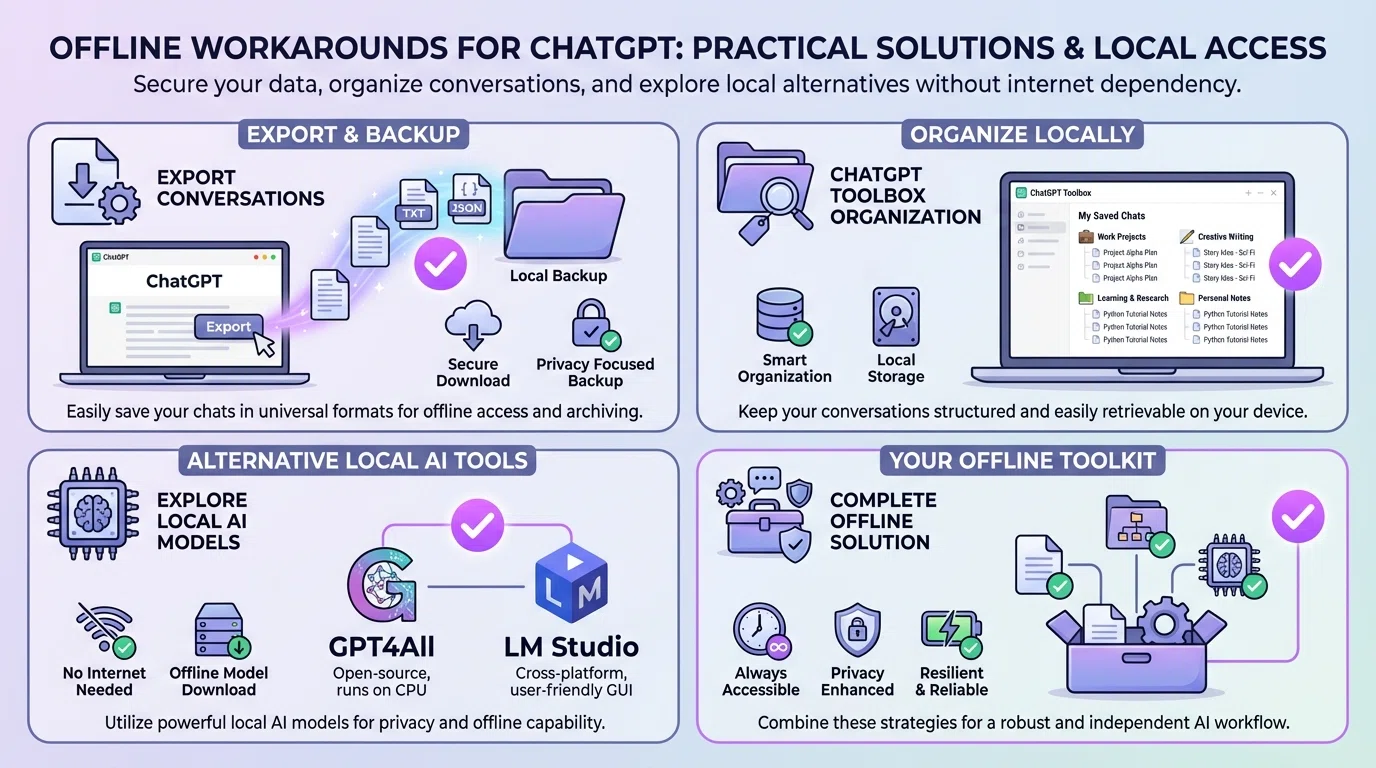
- Bulk Export: Export multiple conversations at once in TXT or JSON format
- Organized Storage: Export entire folders of related conversations together
- Format Options: Choose TXT for human-readable text or JSON for preserving full conversation structure
- Quick Access: Exported files open instantly without internet in any text editor
How to export with ChatGPT Toolbox:
- Install ChatGPT Toolbox from Chrome Web Store
- Open ChatGPT and organize conversations into folders if desired
- Click the export button on individual conversations or use bulk export for multiple chats
- Select your preferred format (TXT for reading, JSON for data)
- Save files to your device for offline access anytime
For detailed instructions, check our guide on how to export ChatGPT conversations.
Method 2: Manual Screenshot or Copy-Paste
For occasional offline access:
- Screenshot Important Responses: Take screenshots of valuable ChatGPT responses and save them to your device
- Copy to Documents: Manually copy-paste conversations into Google Docs, Microsoft Word, or note-taking apps
- PDF Export: Use your browser's "Print to PDF" function to save entire conversations as PDF files
While these methods work, they're time-consuming for multiple conversations. ChatGPT Toolbox automates the process and maintains better organization.
Method 3: Use ChatGPT's Native Export (Limited)
ChatGPT offers a basic data export feature:
- Go to Settings → Data Controls
- Click "Export Data"
- Wait for OpenAI to email you a ZIP file with all your conversations (can take hours)
- Download and extract the ZIP file for offline access
This method exports all your conversations at once in JSON format, which isn't ideal for quick offline access to specific chats. ChatGPT Toolbox offers more flexibility with selective exports.
Offline AI Alternatives to ChatGPT
If you frequently need AI assistance without internet, consider open-source offline AI alternatives. These run locally on your computer but require technical setup:
| Tool | Difficulty | Hardware Requirements | Best For |
|---|---|---|---|
| GPT4All | Easy | 8GB RAM, no GPU required | Beginners, basic queries |
| LM Studio | Moderate | 16GB RAM, GPU recommended | Advanced users, model experimentation |
| Ollama | Moderate | 8-16GB RAM, GPU helpful | Developers, terminal users |
| LocalAI | Advanced | 16GB+ RAM, powerful GPU | Self-hosting, enterprise use |
Important considerations for offline AI:
- Lower Quality: Offline models are generally less capable than ChatGPT due to smaller size and less training
- Technical Setup: Requires downloading large model files (several GB) and configuring software
- Hardware Demands: Performance depends heavily on your computer's RAM and GPU capabilities
- No Real-Time Updates: Models don't improve automatically; you must manually download new versions
- Privacy Benefit: All processing happens locally—your data never leaves your device
For most users, saving ChatGPT conversations for offline reading is more practical than setting up local AI alternatives. Offline AI tools work best for users with specific privacy requirements or who frequently work without internet.
Use Cases: When Offline Access Matters
Understanding why you need offline access helps determine the best solution:
Scenario 1: Travel & Commuting
Frequent travelers who work on planes, trains, or remote locations benefit from exporting important ChatGPT conversations before departure. Save research, code snippets, or writing drafts to review offline during transit.
Scenario 2: Reference Documentation
Technical professionals who use ChatGPT for code examples, troubleshooting steps, or documentation should export conversations for quick offline reference. This avoids internet dependency when implementing solutions.
Scenario 3: Backup & Archiving
Students, researchers, and professionals working on long-term projects should regularly export ChatGPT conversations as backups. This protects against accidental deletion and ensures offline access to important work. Learn more in our ChatGPT backup guide.
Scenario 4: Compliance & Security
Organizations with strict data retention policies may require offline copies of AI interactions. Export conversations to maintain records that comply with regulatory requirements.
Best Practices for Offline ChatGPT Access
Follow these best practices to maximize offline utility:
- Export Regularly: Don't wait until you need offline access. Set a schedule to export important conversations weekly
- Organize Before Exporting: Use ChatGPT Toolbox folders to group related conversations, making exports more organized
- Choose the Right Format: Use TXT for reading convenience or JSON to preserve full conversation structure with timestamps
- Name Files Descriptively: When exporting, use clear filenames that describe conversation topics for easy offline searching
- Store in Cloud Services: Save exported files to Dropbox, Google Drive, or iCloud for access across devices even without ChatGPT access
- Create Backups: Maintain multiple copies of critical conversations in different locations
For comprehensive organization strategies, read our guide on how to organize ChatGPT conversations.
The Future: Will ChatGPT Ever Work Offline?
While OpenAI hasn't announced plans for a fully offline ChatGPT, several developments could change this:
Potential Future Developments:
- Smaller Models: OpenAI is developing smaller, more efficient models that could theoretically run on powerful devices
- Edge AI: Advances in AI chips specifically designed for neural networks may enable local deployment
- Hybrid Approach: Future versions might offer basic offline functionality with cloud enhancement when online
- Mobile-Optimized Models: Specialized lightweight versions for smartphones with limited offline capabilities
However, the technical and economic realities suggest that ChatGPT will remain primarily cloud-based for the foreseeable future. The computational demands of frontier AI models continue to exceed consumer hardware capabilities.
Frequently Asked Questions
Can you use ChatGPT offline?
No, ChatGPT requires an active internet connection to function. It's a cloud-based AI service that processes requests on OpenAI's servers. However, you can save conversations for offline reading using export features or ChatGPT Toolbox.
Why does ChatGPT need internet?
ChatGPT needs internet because the AI model runs on OpenAI's powerful cloud servers, not on your device. The massive language model (billions of parameters) is too large to run locally on most computers and requires constant updates.
Can I download ChatGPT for offline use?
You cannot download the official ChatGPT for offline use. OpenAI doesn't offer an offline version. However, you can export and save your conversations for offline reading, or explore open-source alternatives designed for local deployment.
What happens if I lose internet while using ChatGPT?
If you lose internet connection, ChatGPT will stop responding and display an error message. Your conversation history up to that point is saved on OpenAI's servers. When you reconnect, you can continue where you left off.
Are there offline alternatives to ChatGPT?
Yes, open-source alternatives like GPT4All, LM Studio, and Ollama allow you to run AI models locally on your computer. However, they require technical setup and powerful hardware, and are generally less capable than ChatGPT.
How can I access my ChatGPT conversations offline?
Use ChatGPT Toolbox to export your conversations in TXT or JSON format for offline reading. You can also screenshot conversations or copy-paste them into documents. Export before going offline to ensure access.
Conclusion: Making ChatGPT Work for You Offline
While you can't use ChatGPT offline to generate new responses, you can absolutely access your ChatGPT work without internet by planning ahead. The key is proactively exporting important conversations before you need offline access.
Quick recap:
- ChatGPT requires internet because the AI model runs on cloud servers
- Export conversations with ChatGPT Toolbox for offline reading
- Offline AI alternatives exist but require technical setup and powerful hardware
- Regular exports protect your work and ensure offline access when needed
Install ChatGPT Toolbox for free to easily export and organize your ChatGPT conversations for offline access. With bulk export, folder organization, and multiple format options, it's the most efficient way to ensure you can access your AI work anytime, anywhere—even without internet.
Want to learn more about managing your ChatGPT workflow? Check out our guides on exporting to TXT, exporting to JSON, and workflow automation.
