
 Add to Chrome
 Add to Edge
 Adi Leviim
Export ChatGPT to JSON: Complete Developer Guide (2026)
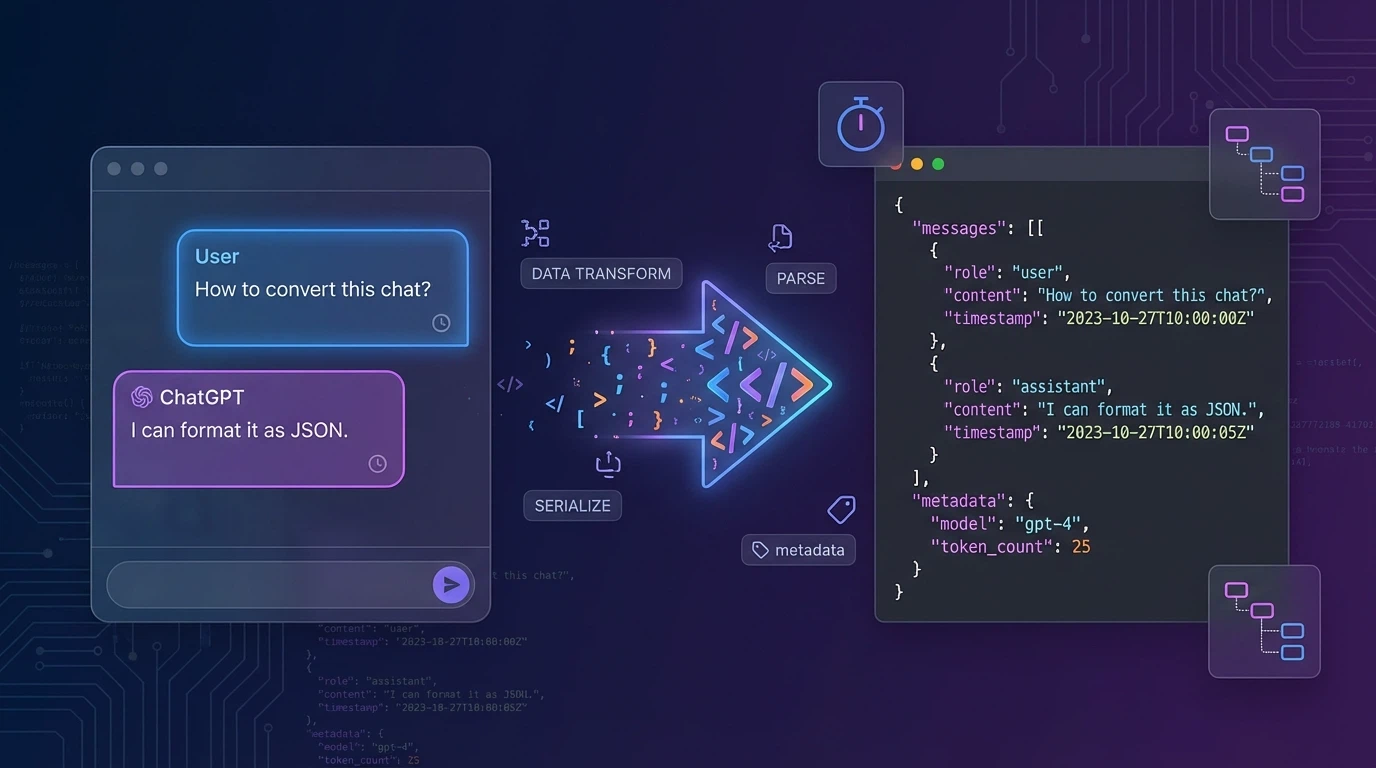
Need to export your ChatGPT conversations in a structured format that preserves all metadata? JSON export is the answer for developers, data analysts, and anyone who wants machine-readable backups of their AI conversations. This guide shows you exactly how to export ChatGPT to JSON format using ChatGPT Toolbox.
What is JSON Export for ChatGPT?
JSON (JavaScript Object Notation) is a lightweight data format that's easy for both humans and machines to read. When you export ChatGPT conversations to JSON, you get:
- Complete metadata - Timestamps, message IDs, conversation titles
- Structured data - User and assistant messages clearly labeled
- Machine-readable format - Perfect for data analysis and processing
- Import capability - Can be imported into databases, apps, or other tools
Unlike plain text exports, JSON preserves the entire conversation structure, making it ideal for developers who want to analyze their ChatGPT usage patterns or build tools that process conversation data.
Why Export ChatGPT Conversations to JSON?
There are several compelling reasons to choose JSON format for your ChatGPT exports:
For Developers
- Parse conversations programmatically with any programming language
- Build training datasets for custom AI models
- Create analytics dashboards tracking your ChatGPT usage
- Import conversations into custom applications
For Data Analysts
- Analyze conversation patterns and topics
- Extract insights from your AI interactions
- Create reports on ChatGPT usage across teams
- Build visualizations of conversation data
For Backup & Archival
- Preserve complete conversation history with all metadata
- Create searchable archives of your ChatGPT knowledge
- Maintain data portability across platforms
How to Export ChatGPT to JSON (Step-by-Step)
Follow these simple steps to export your ChatGPT conversations to JSON format using ChatGPT Toolbox:
- Install ChatGPT Toolbox - Add the free Chrome extension to your browser
- Open ChatGPT - Navigate to chat.openai.com
- Find the conversation - Locate the chat you want to export
- Click the export button - Hover over the conversation and click the export icon
- Select JSON format - Choose "JSON" from the format options
- Download your file - The JSON file downloads instantly to your computer
That's it! Your conversation is now saved as a structured JSON file ready for any use case.
Understanding the JSON Export Structure
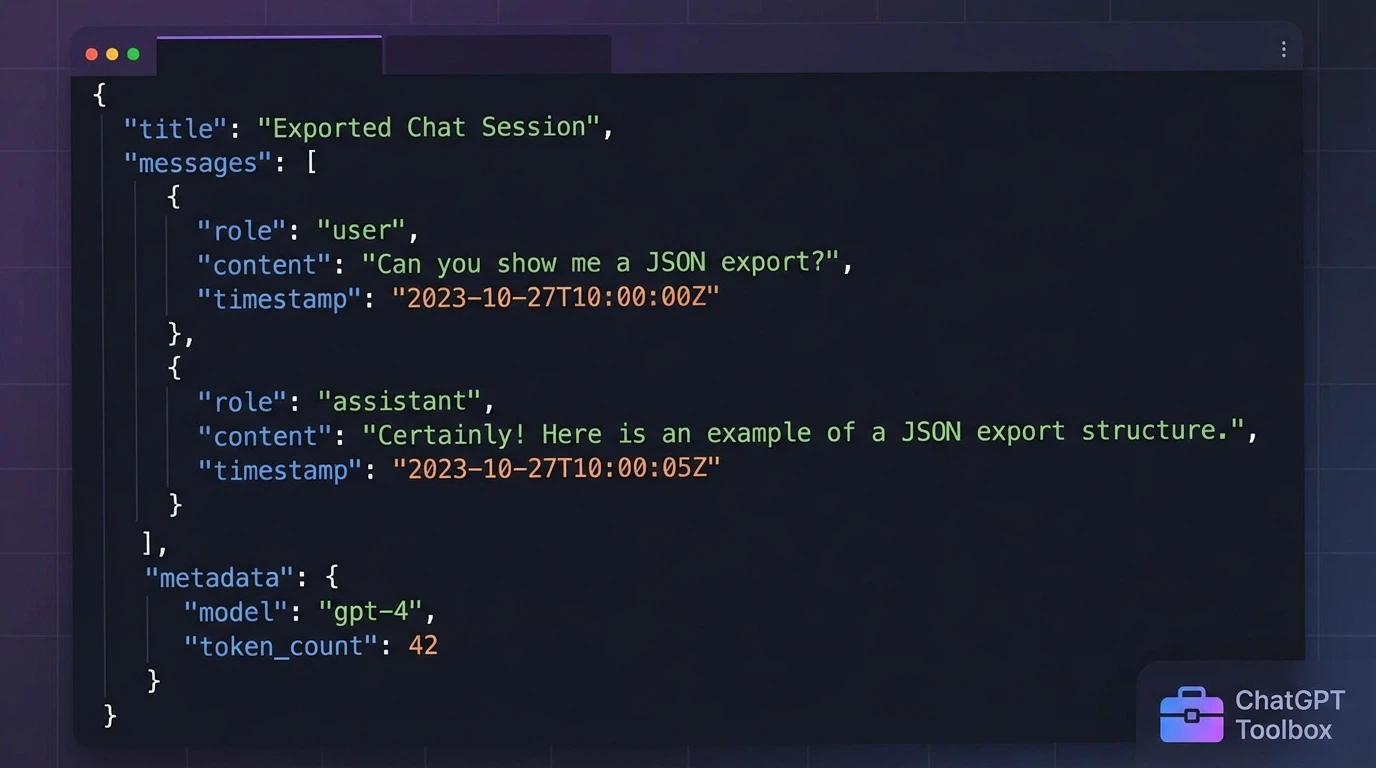
When you export a ChatGPT conversation to JSON, you'll receive a file with this structure:
{ "title": "Conversation Title", "create_time": "2026-01-28T10:30:00Z", "update_time": "2026-01-28T11:45:00Z", "messages": [ { "role": "user", "content": "Your message here", "timestamp": "2026-01-28T10:30:00Z" }, { "role": "assistant", "content": "ChatGPT's response here", "timestamp": "2026-01-28T10:30:15Z" } ] }Each message includes the role (user or assistant), the content, and a timestamp. This makes it easy to parse and process the conversation programmatically.
Bulk Export Multiple Conversations to JSON
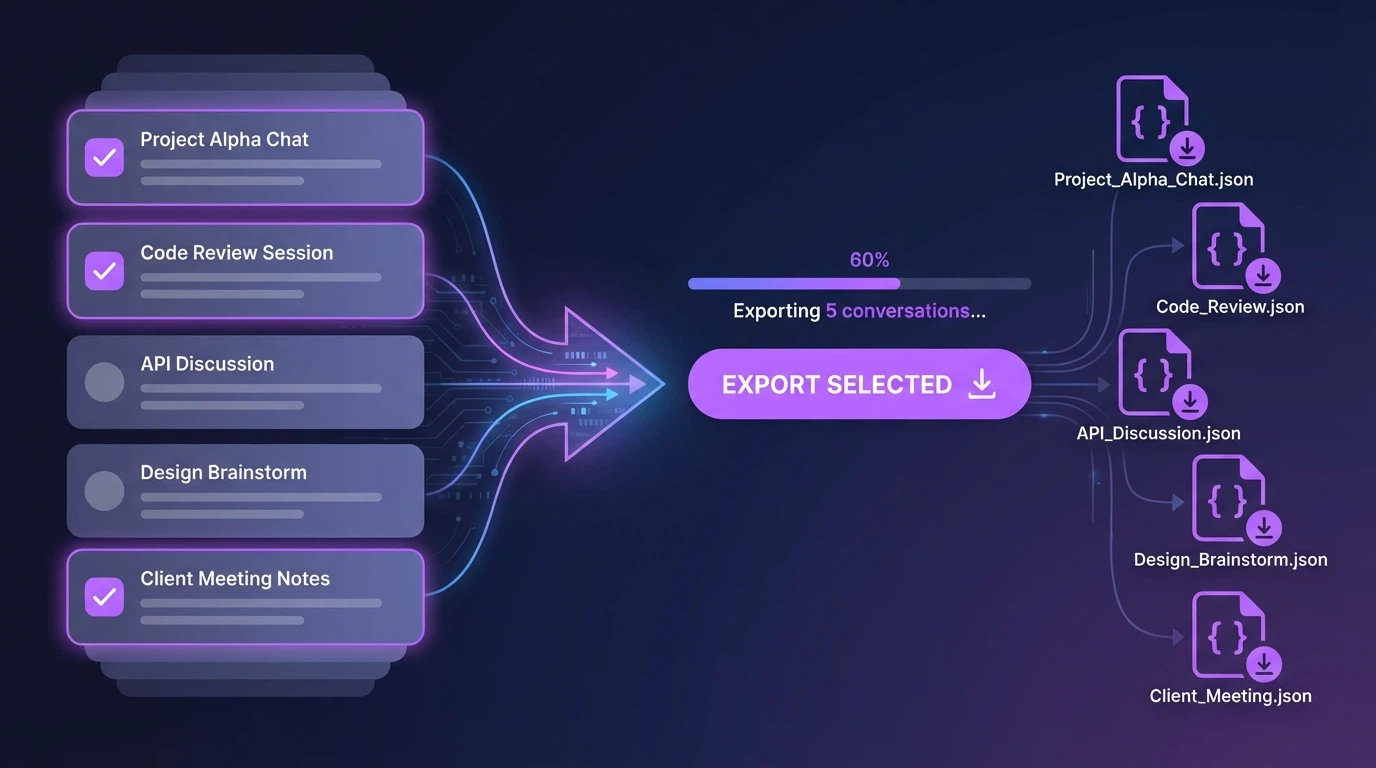
Need to export many conversations at once? ChatGPT Toolbox's bulk export feature lets you select multiple conversations and export them all simultaneously:
- Enable selection mode by clicking the checkbox icon in the sidebar
- Select all conversations you want to export (or use "Select All")
- Click the bulk export button
- Choose JSON as your format
- Download all conversations as separate JSON files or a combined archive
This is especially useful for creating complete backups or migrating your entire ChatGPT history.
Learn more about bulk exports in our complete bulk export guide.
JSON vs TXT Export: Which Format Should You Choose?
| Feature | JSON Export | TXT Export |
|---|---|---|
| Best for | Developers, data analysis | Reading, sharing, printing |
| Metadata preserved | Yes (timestamps, IDs, structure) | No (conversation only) |
| Machine readable | Yes | Limited |
| Human readable | Moderate | Excellent |
| File size | Larger (includes metadata) | Smaller |
| Import capability | High (databases, apps) | Low |
Choose JSON when: You need to process the data programmatically, want complete metadata, or plan to import into other systems.
Choose TXT when: You want to read, print, or share conversations in a simple format. See our TXT export guide for details.
Working with JSON Exports in Code
Here's how to parse ChatGPT JSON exports in popular programming languages:
Python
import json with open('conversation.json', 'r') as f: chat = json.load(f) for message in chat['messages']: print(f"{message['role']}: {message['content'][:100]}...")JavaScript/Node.js
const fs = require('fs'); const chat = JSON.parse(fs.readFileSync('conversation.json', 'utf8')); chat.messages.forEach(msg => { console.log(`${msg.role}: ${msg.content.substring(0, 100)}...`); });OpenAI's Native Export vs ChatGPT Toolbox
OpenAI offers a native data export feature, but there are key differences:
| Feature | OpenAI Native | ChatGPT Toolbox |
|---|---|---|
| Export speed | 24-48 hours via email | Instant download |
| Select specific chats | No (all or nothing) | Yes |
| Bulk export | All conversations only | Select any combination |
| Format options | JSON only | JSON and TXT |
| Frequency limit | Once per 30 days | Unlimited |
ChatGPT Toolbox gives you instant, flexible exports whenever you need them—no waiting for email confirmations.
Common Use Cases for JSON Exports
1. Building a Knowledge Base
Export your ChatGPT conversations and import them into tools like Notion, Obsidian, or custom databases to create a searchable knowledge repository.
2. Training Custom Models
Use exported conversations as training data for fine-tuning language models or building chatbots based on your interaction patterns.
3. Usage Analytics
Analyze your ChatGPT usage patterns—track topics, conversation length, time spent, and more.
4. Team Documentation
Export and share structured conversation data with team members for documentation or training purposes.
Tips for Managing JSON Exports
- Organize exports by project - Use ChatGPT folders to organize before exporting
- Create regular backups - Export important conversations weekly with our backup guide
- Use descriptive filenames - Rename exports with date and topic for easy retrieval
- Validate JSON structure - Use online validators to ensure file integrity
Frequently Asked Questions
What is the JSON format for ChatGPT exports?
JSON (JavaScript Object Notation) is a structured data format that preserves all conversation metadata including timestamps, message IDs, user/assistant roles, and conversation structure. It's machine-readable and perfect for data analysis or importing into other tools.
How do I export ChatGPT conversations to JSON?
With ChatGPT Toolbox, click the export button on any conversation and select JSON format. The file downloads instantly with all metadata preserved. For bulk exports, select multiple conversations and export them all at once.
Can I export multiple ChatGPT conversations to JSON at once?
Yes! ChatGPT Toolbox's bulk export feature lets you select multiple conversations and export them all to JSON simultaneously. This is perfect for creating complete backups or archiving project-related chats.
What's included in a ChatGPT JSON export?
JSON exports include the conversation title, creation and modification timestamps, and all messages with their roles (user/assistant), content, and individual timestamps. This preserves the complete conversation structure.
Is JSON or TXT better for ChatGPT exports?
JSON is better for developers and data analysis since it preserves metadata and structure. TXT is better for reading, printing, and sharing since it's human-readable. Choose based on your intended use case.
Start Exporting to JSON Today
Ready to export your ChatGPT conversations in a structured, developer-friendly format? Install ChatGPT Toolbox for free and start exporting to JSON instantly.
Join 16,000+ users who trust ChatGPT Toolbox for organizing, searching, and exporting their ChatGPT conversations.
