
 Add to Chrome
 Add to Edge
 Adi Leviim
ChatGPT Prompt Management: Save, Reuse & Chain Prompts (2026)
Effective prompt management means saving your best prompts, accessing them instantly with keyboard shortcuts, and chaining multiple prompts into automated workflows. ChatGPT Toolbox provides a built-in Prompt Library with a // shortcut for instant prompt access, {{variable}} syntax for dynamic prompts, and Prompt Chaining with a .. shortcut to run sequences of up to 10 prompts automatically—turning hours of repetitive prompt engineering into one-click workflows.
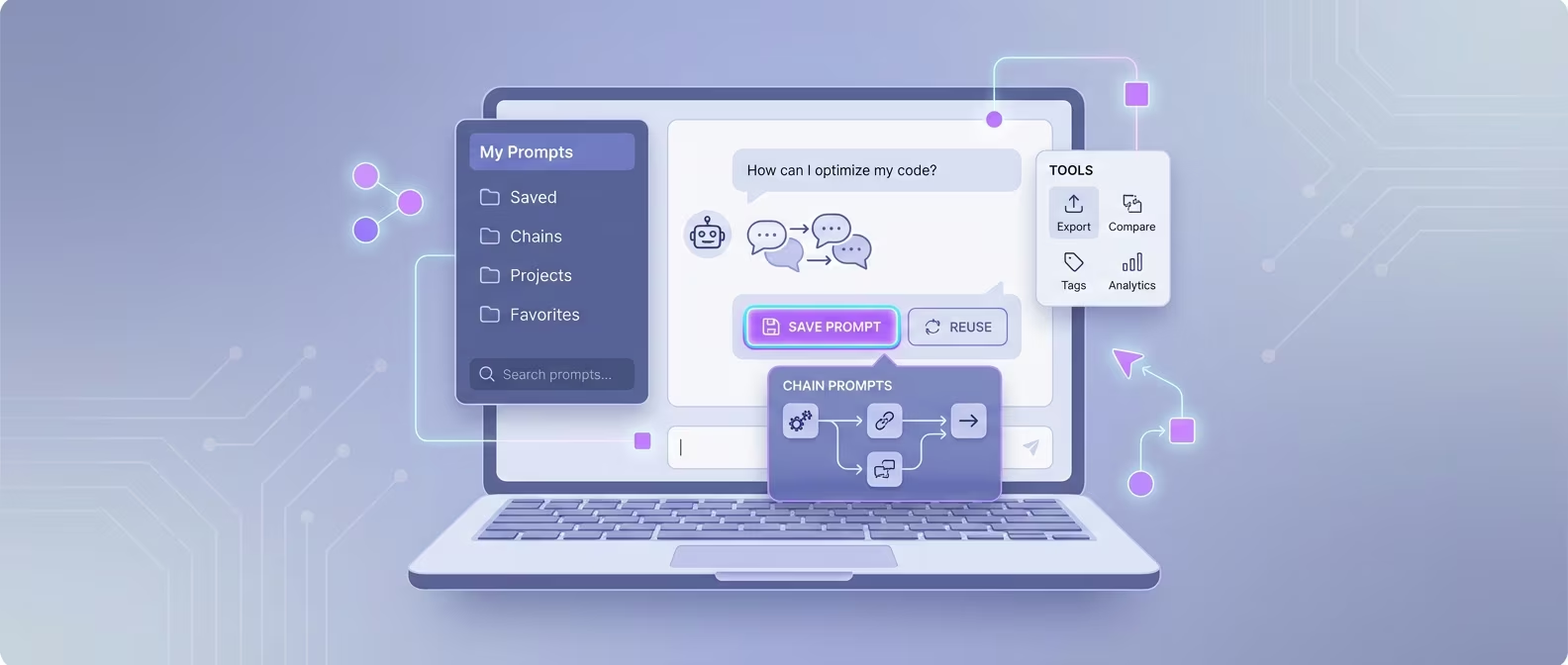
Every experienced ChatGPT user has a collection of prompts that produce reliably great results—a marketing copy template, a code review checklist, a research summarization framework. The problem is where those prompts live.
Most people store them in scattered Google Docs, Notion pages, sticky notes, or worse—their memory. When it is time to use a prompt, they spend minutes hunting for it, then manually pasting it into ChatGPT, then editing the variables by hand.
This guide covers everything you need to build a proper prompt management system: saving and organizing prompts, accessing them instantly, adding dynamic variables so one prompt serves many use cases, and chaining prompts together for multi-step workflows. You will go from scattered prompt fragments to a centralized, searchable, one-click prompt library.
Why Prompt Management Matters More Than Prompt Engineering
Prompt engineering gets the headlines, but prompt management—saving, organizing, and reusing your best prompts—is what actually saves hours per week for daily ChatGPT users.
The internet is full of guides on how to write better prompts. What most guides miss is that the bigger productivity drain is not writing prompts—it is managing them. Consider the workflow of someone without a prompt management system:
- Remember that you wrote a great prompt last month.
- Search your Google Doc for it (2 minutes).
- Copy it from the doc (30 seconds).
- Paste it into ChatGPT (10 seconds).
- Manually replace the placeholder text with your current details (1-2 minutes).
- Repeat this five times per day.
That is 15-20 minutes per day spent on prompt logistics—not prompt quality. Over a year, that is over 80 hours of wasted time. A proper prompt management system cuts steps 1-5 down to about 10 seconds: type //, select your prompt, fill in the variables, send.
ChatGPT Toolbox Prompt Library: The Foundation
ChatGPT Toolbox's Prompt Library combines hundreds of built-in expert-crafted prompts with the ability to save unlimited custom prompts, all accessible directly inside ChatGPT's interface.
The Prompt Library has two layers:
Built-In Prompt Library
ChatGPT Toolbox ships with hundreds of categorized prompts created by AI experts and power users. These cover:
- Marketing: Ad copy, email campaigns, social media posts, SEO content
- Coding: Code review, debugging, documentation, algorithm design
- Writing: Blog posts, creative fiction, academic papers, editing
- Research: Literature reviews, data analysis, hypothesis generation
- Education: Lesson planning, quiz creation, student feedback
- Business: Meeting summaries, project proposals, SWOT analysis
- Customer support: Response templates, escalation scripts, FAQ drafting
These are not generic one-liners. They are structured, detailed prompts that have been tested and refined to produce high-quality ChatGPT outputs consistently. Browse them for inspiration even if you plan to build your own.
For a full tour of the built-in library, see ChatGPT Toolbox Prompt Library.
Custom Prompts: Build Your Personal Library
The real power comes from saving your own prompts. When you craft a prompt that produces excellent results, save it to your library so you never have to recreate it:
- Open ChatGPT Toolbox and navigate to "Manage Prompts."
- Click "Create New Prompt."
- Give it a clear, descriptive name (e.g., "Blog Post Outline - SEO Optimized").
- Paste or type your prompt text.
- Add dynamic variables using
{{variable_name}}syntax (more on this below). - Save. Your prompt is now available via the
//shortcut.
The free plan includes 2 saved custom prompts—enough to test the workflow. Premium users get unlimited saved prompts. For a step-by-step guide, see creating custom prompts.
The // Shortcut: Access Any Prompt in Seconds
Typing // in ChatGPT's text area opens your saved prompt menu instantly, letting you select and insert any prompt without leaving the conversation.
This is the feature that makes prompt management actually practical. Instead of switching tabs, finding your prompt doc, copying, switching back, and pasting, you simply:
- Click into ChatGPT's text area.
- Type
//(two forward slashes). - A dropdown menu appears showing all your saved prompts.
- Type a few characters to filter the list.
- Click a prompt or press Enter to insert it.
- If the prompt contains
{{variables}}, a dialog appears asking you to fill them in. - The completed prompt is inserted into the text area, ready to send.
The entire process takes 5-10 seconds. Compare that to the 3-4 minutes of the copy-paste-from-Google-Docs workflow. Over dozens of uses per week, the time savings compound dramatically.
Build your prompt library today. Install ChatGPT Toolbox free and save your first 2 prompts on the free plan. Once you see how much time the // shortcut saves, upgrade to Premium ($9.99/month) or Lifetime ($99 one-time) for unlimited prompts. Dynamic Variables: One Prompt, Infinite Use Cases
The {{variable_name}} syntax turns a static prompt into a reusable template—the same prompt can serve different clients, topics, or contexts without any manual editing.
Dynamic variables are placeholders you add to your prompts that get filled in at runtime. When you insert a prompt containing variables, ChatGPT Toolbox automatically prompts you to enter values for each one.
How Variables Work
Here is an example of a prompt template with variables:
Write a {{content_type}} about {{topic}} for {{audience}}. The tone should be {{tone}} and the length should be approximately {{word_count}} words. Include {{number_of_sections}} sections with headers.
When you insert this prompt using //, ChatGPT Toolbox shows a form with fields for each variable: content_type, topic, audience, tone, word_count, and number_of_sections. Fill them in, and the completed prompt is assembled and inserted automatically.
Variable Best Practices
- Use descriptive names:
{{client_name}}is better than{{name}}. Clear names mean you do not have to remember what each variable represents. - Keep variables focused: Each variable should control one aspect of the prompt. Do not pack multiple concepts into a single variable.
- Limit to 3-6 variables per prompt: Too many variables make the fill-in dialog tedious. If you need more than 6, consider splitting into multiple prompts or using a prompt chain.
- Include default suggestions in the variable name:
{{tone_professional_or_casual}}reminds you of the expected input.
Example Templates with Variables
Here are practical templates you can save immediately:
- Email draft:
Write a {{formality}} email to {{recipient}} about {{subject}}. Key points: {{key_points}}. Desired outcome: {{outcome}}. - Code review:
Review this {{language}} code for {{review_focus}}. Suggest improvements for readability, performance, and {{additional_focus}}. Code: {{code}} - Meeting summary:
Summarize this meeting about {{topic}} between {{participants}}. Highlight action items, decisions made, and follow-up deadlines. Notes: {{raw_notes}} - Social media post:
Write a {{platform}} post about {{topic}} for {{brand_name}}. Tone: {{tone}}. Include a call to action for {{cta}}. Maximum {{char_limit}} characters.
Prompt Chaining: Automate Multi-Step Workflows
Prompt Chaining lets you create sequences of up to 10 prompts that execute automatically one after another, turning complex multi-step workflows into a single trigger.
Some tasks cannot be accomplished with a single prompt. Content creation, for example, often requires separate steps: research, outline, draft, edit, format. Without chaining, you manually send each prompt, wait for the response, then send the next. With chaining, you define the entire sequence once and trigger it with the .. shortcut.
How Prompt Chaining Works
- Open ChatGPT Toolbox and go to Manage Prompts > Chains tab.
- Click "Create New Chain."
- Give the chain a name (e.g., "Blog Post Pipeline").
- Add prompts to the chain (up to 10 per chain).
- Each prompt can include
{{variables}}that you fill in once when triggering the chain. - Save the chain.
- To run: type
..in ChatGPT's text area, select your chain, fill in the variables, and the chain executes automatically.
Example: Content Creation Chain
Here is a 5-prompt chain for creating a blog post:
- Prompt 1 (Research): "Research the topic '{{topic}}' and provide 5 key insights with supporting data points."
- Prompt 2 (Outline): "Based on the research above, create a detailed outline for a {{word_count}}-word blog post targeting {{audience}}."
- Prompt 3 (Draft): "Write the full blog post based on the outline above. Use a {{tone}} tone. Include an introduction, body sections with headers, and a conclusion."
- Prompt 4 (Edit): "Review the blog post above for clarity, grammar, and flow. Suggest specific improvements and rewrite any weak sections."
- Prompt 5 (SEO): "Optimize the blog post for SEO. Add a meta description, suggest 5 internal linking opportunities, and ensure the keyword '{{primary_keyword}}' appears naturally 3-5 times."
You fill in topic, word_count, audience, tone, and primary_keyword once. The chain runs all five prompts sequentially, and you get a researched, drafted, edited, and SEO-optimized blog post in one sitting.
For a comprehensive guide to prompt chaining, see Prompt Chaining with ChatGPT Toolbox.
More Chain Ideas
- Code Development Chain: Spec > Architecture > Implementation > Unit Tests > Documentation
- Email Campaign Chain: Audience Analysis > Subject Line Options > Body Copy > A/B Variants > Send Schedule
- Research Summary Chain: Source Analysis > Key Findings > Methodology Critique > Summary > Recommendations
- Job Application Chain: Company Research > Resume Tailoring > Cover Letter > Interview Prep Questions
Building Your Personal Prompt Library: A Step-by-Step System
The most effective prompt library starts small—save the prompts you actually use repeatedly, then expand and refine based on real usage patterns.
Do not try to build a library of 100 prompts on day one. That is a recipe for abandonment. Instead, follow this incremental approach:
Week 1: Capture What You Already Use
For one week, every time you write a prompt that produces a good result, save it to ChatGPT Toolbox. Do not overthink categories or variables yet—just capture the raw prompts. By the end of the week, you will have 5-15 prompts that reflect your actual usage.
Week 2: Add Variables and Refine
Go through your saved prompts and identify the parts that change between uses. Replace those parts with {{variables}}. Rename prompts with clear, searchable titles. Delete any that were one-off situations you will not repeat.
Week 3: Build Your First Chain
Identify a multi-step workflow you do regularly—content creation, code review, research summarization. Build a chain that automates it. Test and refine the chain until the output consistently matches what you would produce manually.
Ongoing: Monthly Review
Once a month, spend 10 minutes reviewing your prompt library:
- Delete prompts you have not used in 30 days.
- Refine prompts that produce inconsistent results.
- Add new prompts for tasks that have become repetitive.
- Update variables to be more intuitive.
- Share effective prompts with teammates (Enterprise plan).
Prompt Management: Free vs. Premium Comparison
The free plan lets you test the prompt management workflow with 2 saved prompts and 2 chains, while Premium removes all limits for serious prompt management.
| Feature | Free Plan | Premium ($9.99/mo) | Lifetime ($99) |
|---|---|---|---|
| Built-in prompt library | Browse only | Full access | Full access |
| Custom saved prompts | 2 | Unlimited | Unlimited |
| // shortcut | Yes | Yes | Yes |
| {{variables}} support | Yes | Yes | Yes |
| Prompt chains | 2 chains | Unlimited | Unlimited |
| Prompts per chain | Up to 10 | Up to 10 | Up to 10 |
| .. shortcut for chains | Yes | Yes | Yes |
| Cross-device sync | Yes | Yes | Yes |
| Support | 48 hours | 24 hours | Top priority |
For teams, the Enterprise plan ($12/seat/month) adds team-wide prompt sharing through the admin dashboard, so your best prompts benefit everyone.
Frequently Asked Questions
Can I use ChatGPT Toolbox prompts with ChatGPT Free, Plus, and Team?
Yes. ChatGPT Toolbox works with every ChatGPT plan—Free, Plus, Team, and Enterprise. The prompt management features operate at the browser extension level and are independent of your OpenAI subscription.
How is this different from ChatGPT's built-in custom instructions?
ChatGPT's custom instructions apply globally to every conversation. ChatGPT Toolbox prompts are on-demand—you choose when to use them and in which conversation. They also support variables, chaining, and the // shortcut, which custom instructions do not.
Can I share prompts with my team?
On the Enterprise plan ($12/seat/month), admins can manage and distribute prompts across the team. On individual plans, you can export prompts and share the exported file, but there is no built-in real-time sharing.
What happens to my saved prompts if I uninstall the extension?
If you are on a paid plan with sync enabled, your prompts are stored in the cloud and will restore when you reinstall and log back in. On the free plan, prompts are stored locally in your browser—uninstalling removes them. Always consider exporting before uninstalling.
Can I import prompts from other tools?
Currently, prompt import from other extensions is not directly supported. However, you can manually save prompts from any source into ChatGPT Toolbox's library in under a minute each using the Manage Prompts interface.
How many prompts should I have in my library?
Quality beats quantity. Most power users have 15-30 well-crafted prompts they use regularly, plus 3-5 chains for their most common workflows. Start with the 5 prompts you use most frequently and expand from there.
Do prompt chains work with GPT-4o, o1, and other models?
Yes. Prompt chains send each prompt as a regular message in the conversation, so they work with whatever model your ChatGPT plan supports. The chain simply automates the sequential sending—the model processes each prompt normally.
Can I edit a prompt chain after creating it?
Yes. Go to Manage Prompts > Chains tab, click on the chain you want to edit, and modify any prompt, reorder steps, add or remove prompts, or update variables. Changes take effect the next time you run the chain.
Key Terms
- ChatGPT Toolbox
- Chrome extension with 16,000+ users that adds folders, search, export, and prompt management to ChatGPT. Available on Chrome, Edge, and Firefox.
- Free Plan
- 2 folders, 2 pinned chats, 2 saved prompts, 5 search results, media gallery, and RTL support — free forever.
- Premium
- $9.99/month or $99 one-time lifetime — unlimited folders, full-text search, bulk exportPremium, prompt chaining, and device sync.
Bottom Line
Stop rewriting the same prompts and running the same multi-step workflows manually. ChatGPT Toolbox's Prompt Library gives you a centralized, searchable repository of saved prompts accessible with //, dynamic variables with {{variable_name}}, and Prompt Chaining with .. for automated multi-step workflows. The free plan includes 2 prompts and 2 chains to get started. Premium ($9.99/month) and the best-selling Lifetime plan ($99) unlock unlimited prompts and chains for serious productivity gains.
Ready to build your prompt library? Install ChatGPT Toolbox free and save your first prompt in under a minute. Type // to see how much faster your ChatGPT workflow becomes when your best prompts are always one shortcut away.
Last updated: February 11, 2026
