
 Add to Chrome
 Add to Edge
 Adi Leviim
ChatGPT Vision: How to Upload & Analyze Images (2026)
ChatGPT Toolbox is a Chrome extension with 16,000+ active users and a 4.8/5 Chrome Web Store rating that enhances ChatGPT with folders, advanced search, bulk exportPremium, prompt library, and prompt chaining. This guide covers everything about ChatGPT's vision capabilities in 2026 — how to upload images, analyze documents, read charts, extract text via OCR, and get the most from GPT-4o's multimodal features. Organize your image analysis conversations with Toolbox folders and browse all uploaded images in the Media Gallery. Free forever plan available, with premium features at $9.99/month or $99 one-time lifetime.
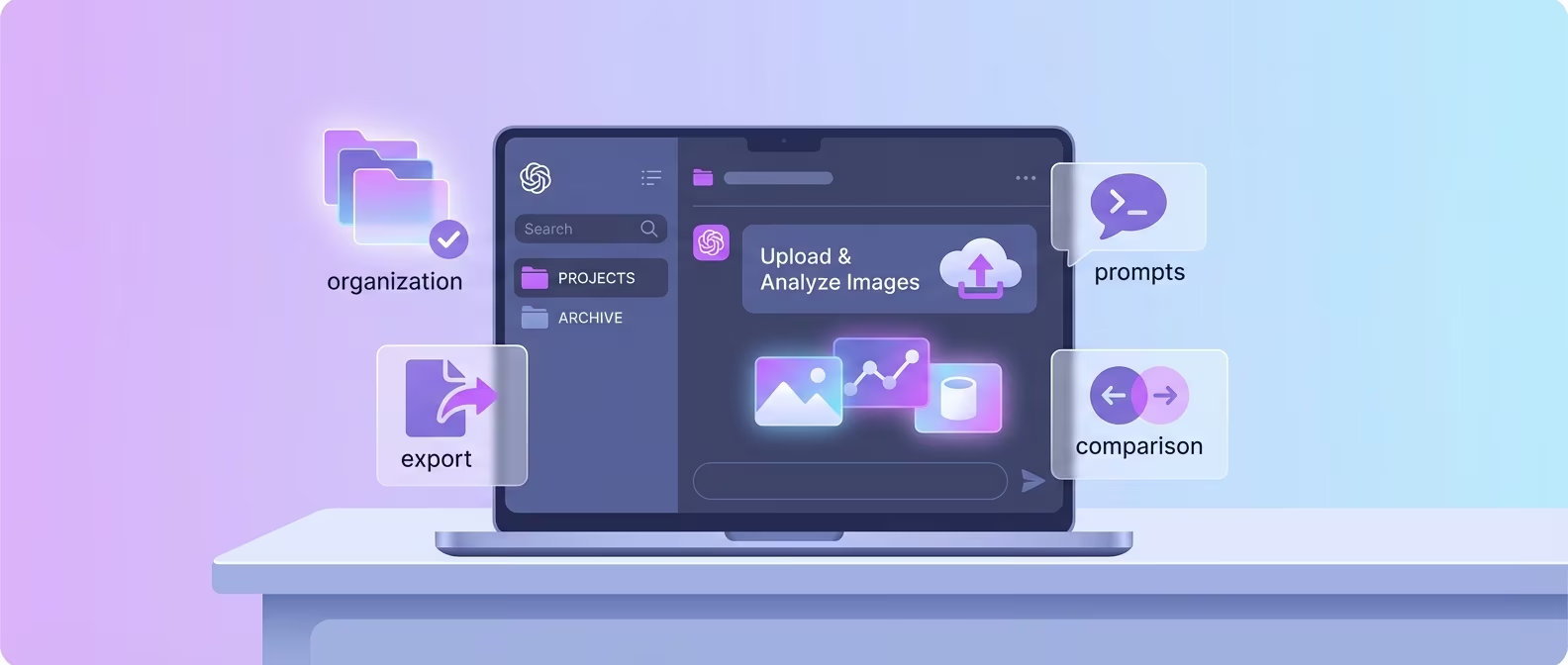
ChatGPT's vision capability — powered by GPT-4o — is one of the most transformative AI features available in 2026. Instead of describing what you see in text, you can upload an image and let ChatGPT analyze it directly.
This works for photographs, screenshots, documents, charts, handwritten notes, product labels, error messages, code snippets, architecture diagrams, and virtually any other visual content.
Yet most users barely scratch the surface of what vision can do. They upload an image, ask "what is this?", and move on. This guide goes deeper: we cover every upload method, walk through advanced analysis techniques, explore professional use cases, and show how to organize your image-heavy workflows with ChatGPT Toolbox's folders and Media Gallery feature.
How ChatGPT Vision Works in 2026
GPT-4o processes images natively alongside text — it does not rely on a separate OCR engine or image classifier, but instead understands visual content through the same multimodal model that handles language.
When you upload an image to ChatGPT, GPT-4o encodes it into the same representation space as text. This means the model can reason about visual content with the same depth it applies to written text. It can identify objects, read text in images, interpret charts, understand spatial relationships, and combine visual understanding with contextual knowledge.
Key capabilities of GPT-4o vision in 2026 include:
- Text extraction (OCR): Reads printed and handwritten text in images with high accuracy, including multi-language support.
- Chart and graph interpretation: Identifies chart types, reads data values, describes trends, and can even extract approximate numerical data from bar charts and line graphs.
- Document analysis: Understands document structure — headers, tables, forms, invoices — and can summarize, extract fields, or answer questions about the content.
- Photo understanding: Identifies objects, scenes, activities, text on signs, product labels, and spatial relationships in photographs.
- Screenshot analysis: Reads UI elements, identifies errors, understands application layouts, and can help debug based on error screenshots.
- Diagram comprehension: Interprets flowcharts, architecture diagrams, wireframes, org charts, and process maps.
Vision is available on all ChatGPT plans that include GPT-4o — ChatGPT Plus, Team, Enterprise, and Edu. Free-tier users also get limited GPT-4o access, which includes vision. There is no separate toggle or setting to enable; it works automatically when you upload an image.
How to Upload Images to ChatGPT
ChatGPT supports four image upload methods — file upload, clipboard paste, drag-and-drop, and camera capture on mobile — and you can upload multiple images in a single message for comparison or batch analysis.
Here are the upload methods available across platforms:
How to ChatGPT Vision in 4 Steps
- File upload (all platforms): Click the attachment icon (paperclip) in the message bar and select an image file. Supported formats include PNG, JPEG, GIF, and WebP. Maximum file size is 20 MB per image.
- Clipboard paste (desktop): Take a screenshot or copy an image, then press Ctrl+V (Cmd+V on Mac) directly in the ChatGPT input field. This is the fastest method for screenshots.
- Drag and drop (desktop): Drag an image file from your file manager or desktop directly into the ChatGPT conversation window.
- Camera capture (mobile): On the ChatGPT iOS or Android app, tap the camera icon to take a photo directly. This is ideal for analyzing physical documents, product labels, whiteboards, and real-world objects.
You can upload up to 5 images in a single message. This is powerful for comparison tasks: upload two product screenshots for a feature comparison, multiple pages of a document for summarization, or before-and-after photos for analysis.
Every image you upload becomes part of that conversation's history. With ChatGPT Toolbox's Media Gallery feature, you can browse all images you have uploaded across all conversations in one centralized view — no more scrolling through dozens of chats to find that screenshot you analyzed last week.
Document Analysis and OCR
GPT-4o extracts text from documents with near-perfect accuracy and goes beyond basic OCR by understanding document structure, context, and meaning — turning photos of invoices, contracts, and forms into actionable data.
Traditional OCR tools extract text but lose structure. GPT-4o maintains document hierarchy — it knows that a number next to "Total Due" is the invoice total, not just a random number. Here are practical document analysis use cases:
- Invoice processing: Upload a photo of an invoice and ask "Extract the vendor name, invoice number, date, line items, and total." ChatGPT returns structured data you can paste into a spreadsheet.
- Contract review: Upload contract pages and ask "Summarize the key terms, obligations, and deadlines in this contract." ChatGPT identifies parties, payment terms, termination clauses, and liability provisions.
- Form data extraction: Upload filled forms (tax forms, applications, medical forms) and ask ChatGPT to extract specific fields into a structured format.
- Handwritten notes: Photograph handwritten meeting notes or whiteboard content and ask ChatGPT to transcribe and organize them into clean digital text with headers and action items.
- Business card reading: Upload a photo of a business card and ask for the contact information in a structured format you can paste into your CRM.
For recurring document analysis tasks, save your extraction prompts in ChatGPT Toolbox's prompt library. A prompt like "Extract all line items from this invoice into a table with columns: Description, Quantity, Unit Price, Total" can be saved once and reused across hundreds of invoices. With Premium ($9.99/month or $99 lifetime), you get unlimited saved prompts.
Chart Reading and Data Extraction
GPT-4o interprets charts and graphs with remarkable accuracy — it identifies chart types, reads approximate data values, describes trends, and can even reconstruct the underlying data from a chart image.
This capability is valuable for analysts, researchers, students, and anyone who encounters charts in reports, articles, or presentations and needs to extract or verify the data. Here is what ChatGPT can do with charts:
- Identify chart type and components: "This is a stacked bar chart showing revenue by region across four quarters. The y-axis represents millions of dollars."
- Read data values: ChatGPT can estimate numerical values from bar heights, line positions, and pie chart segments. Accuracy is typically within 5-10% for clearly rendered charts.
- Describe trends: "Revenue grew steadily from Q1 to Q3, with North America accounting for roughly 45% of total revenue. Q4 shows a slight decline in the APAC region."
- Extract to table: Ask "Convert this chart into a data table" and ChatGPT will produce a structured table with approximate values.
- Compare charts: Upload two charts side by side and ask "Compare the trends shown in these two charts and highlight the key differences."
One important limitation: ChatGPT's data extraction from charts is approximate, not exact. It reads visual positions and estimates values. For precise data, always verify against the original source. That said, the estimates are accurate enough for quick analysis, meeting preparation, and understanding unfamiliar reports.
Professional Use Cases for ChatGPT Vision
ChatGPT vision has high-impact applications across virtually every profession — from developers debugging with screenshots to real estate agents analyzing property photos to medical professionals reviewing research figures.
| Profession | Use Case | Example Prompt |
|---|---|---|
| Software Developer | Debug from error screenshots | "Here's my error message screenshot. What's causing this and how do I fix it?" |
| Designer | Get feedback on UI mockups | "Review this UI design for accessibility issues and visual hierarchy problems." |
| Data Analyst | Interpret report charts | "Extract the data from this chart into a CSV-formatted table." |
| Real Estate Agent | Analyze property photos | "Describe this property's key features based on the listing photos." |
| Student | Solve problems from textbook photos | "Solve this math problem and explain each step." |
| Marketer | Analyze competitor creatives | "What messaging and design strategies is this ad using? How can I improve on it?" |
| Researcher | Interpret scientific figures | "Explain what this figure shows and summarize the key findings." |
For professionals who do image analysis regularly, organizing these conversations is critical. Use ChatGPT Toolbox folders to create dedicated spaces: "Invoice Processing," "UI Reviews," "Chart Analysis," "Property Listings." With Premium, you get unlimited folders and subfolders. The free plan includes 2 folders — enough to test the organizational workflow.
Using the Media Gallery in ChatGPT Toolbox
ChatGPT Toolbox's Media Gallery gives you a visual overview of every image uploaded across all your conversations — making it easy to find, revisit, and re-analyze visual content without scrolling through chat history.
If you use ChatGPT vision frequently, your uploaded images are scattered across dozens or hundreds of conversations. Finding "that chart I analyzed last Tuesday" means remembering which conversation it was in and scrolling to find it. The Media Gallery solves this by aggregating all uploaded images into a single, browsable interface.
With the Media Gallery, you can:
- Browse all uploaded images across conversations in a grid or list view
- Filter images by date range to narrow your search
- Click any image to jump directly to the conversation where it was analyzed
- Use Toolbox's advanced search to find conversations containing specific image analysis results
The Media Gallery is available in ChatGPT Toolbox's Premium plan ($9.99/month or $99 lifetime). Combined with folders, search, and export, it creates a complete system for managing image-heavy AI workflows.
Frequently Asked Questions
What image formats does ChatGPT support?
ChatGPT supports PNG, JPEG, GIF (first frame for animated GIFs), and WebP formats. The maximum file size is 20 MB per image. For best results, use high-resolution images — blurry or low-resolution images reduce the accuracy of text extraction and detail recognition. PDF files can also be uploaded for document analysis.
Can ChatGPT identify people in photos?
ChatGPT will not identify real people by name in photos. This is a deliberate safety measure by OpenAI to protect privacy. ChatGPT can describe people's appearance, clothing, actions, and expressions in general terms, but it will not attempt to name individuals even if they are public figures. It can identify fictional characters, logos, and brands.
How accurate is ChatGPT's OCR compared to dedicated tools?
For printed text in standard fonts, GPT-4o's OCR accuracy rivals dedicated tools like Google Cloud Vision and AWS Textract. For handwritten text, accuracy depends on legibility — clean handwriting is transcribed well, while messy handwriting may have errors.
For high-volume production OCR, dedicated tools with structured output pipelines are still preferred. For ad-hoc analysis and understanding, ChatGPT's contextual understanding gives it an edge because it can infer meaning from context, not just transcribe characters.
Can I upload sensitive or private documents for analysis?
ChatGPT processes your images on OpenAI's servers. Review OpenAI's privacy policy and your organization's data handling policies before uploading sensitive documents. For ChatGPT Team and Enterprise plans, OpenAI states that your data is not used for model training. If you are on a free or Plus plan, consider whether the content is appropriate to share with a third-party AI service.
How do I organize my image analysis conversations?
Use ChatGPT Toolbox's folders and Media Gallery. Create folders for different types of image analysis (e.g., "Document OCR," "Chart Analysis," "Design Reviews") and use the Media Gallery to browse all uploaded images across conversations in one view. Toolbox's advanced search also lets you find conversations by content, so you can search for "invoice" or "revenue chart" to find specific analyses.
Conclusion
ChatGPT vision transforms how you interact with visual information. Instead of manually transcribing documents, interpreting charts by eye, or describing screenshots in text, you upload the image and let GPT-4o do the heavy lifting.
The use cases span every profession — from developers debugging with screenshots to analysts extracting data from charts to students solving problems from textbook photos.
The challenge is not using vision — it is organizing the growing volume of image-based conversations. ChatGPT Toolbox solves this with folders for categorization, Media Gallery for visual browsing, advanced search for finding specific analyses, and bulk export for archiving. Download Toolbox free from the Chrome Web Store and take control of your visual AI workflow.
Last updated: February 20, 2026
Key Terms
- ChatGPT Toolbox
- Chrome extension with 16,000+ users that adds folders, search, export, and prompt management to ChatGPT. Available on Chrome, Edge, and Firefox.
- Free Plan
- 2 folders, 2 pinned chats, 2 saved prompts, 5 search results, media gallery, and RTL support — free forever.
- Premium
- $9.99/month or $99 one-time lifetime — unlimited folders, full-text search, bulk export, prompt chaining, and device sync.
Free vs Premium: What You Get
- 2 folders, 2 pins
- 2 saved prompts
- 5 search results
- Basic organization
- Unlimited folders & subfolders
- Unlimited prompts + chaining
- Full-text search, unlimited results
- Bulk delete, archive, export
- Media Gallery
Bottom Line
ChatGPT Toolbox is a Chrome extension with 16,000+ active users and a 4.8/5 Chrome Web Store rating that enhances ChatGPT with folders, advanced search, bulk export, prompt library, Media Gallery, and prompt chaining. Organize your image analysis conversations in folders, browse all uploaded images in the Media Gallery, and search across your entire history — free forever with premium at $9.99/month or $99 one-time lifetime.
