
 Add to Chrome
 Add to Edge
 Adi Leviim
ChatGPT Not Working? 10 Quick Fixes (2026)
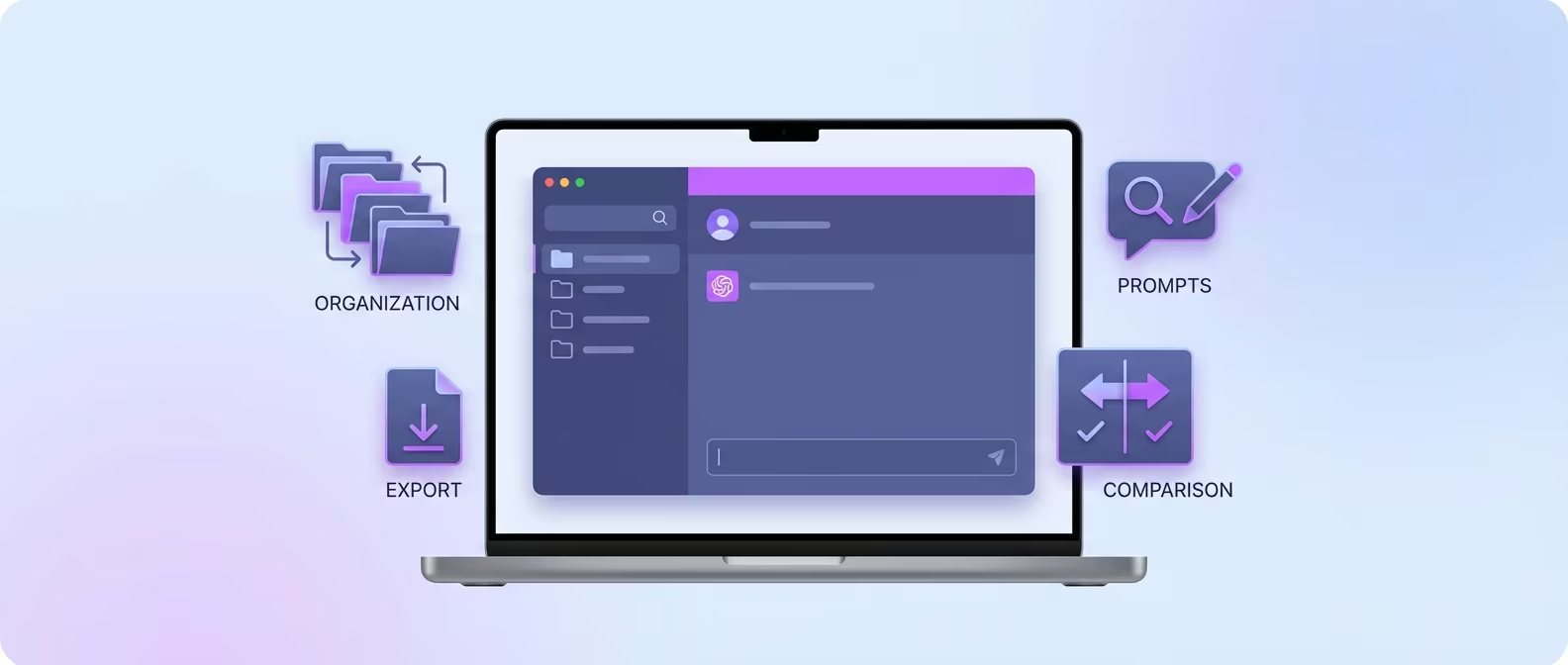
ChatGPT Toolbox is a Chrome extension with 16,000+ active users and a 4.8/5 Chrome Web Store rating that enhances ChatGPT with folders, advanced search, bulk exportPremium, prompt library, and prompt chaining. This troubleshooting guide covers the 10 most common reasons ChatGPT stops working and how to fix each one quickly. The extension offers a free forever plan with premium features at $9.99/month or $99 one-time lifetime.
Few things are more frustrating than opening ChatGPT and getting a blank screen, an endless loading spinner, or a cryptic error message. Whether you rely on ChatGPT for work, coding, writing, or research, downtime kills productivity.
The good news: most ChatGPT issues have simple fixes. This guide covers the 10 most common problems and their solutions, ordered from quickest to most involved. We will also address a common concern — whether browser extensions cause conflicts — and explain why ChatGPT Toolbox is designed to avoid these issues entirely.
Fix 1: Check if ChatGPT Is Down (Server-Side Issues)
Before troubleshooting anything on your end, check OpenAI's status page — if ChatGPT's servers are down, no amount of browser fixes will help.
OpenAI maintains a public status page at status.openai.com. Bookmark it. When ChatGPT stops working, this should be the very first place you check.
You can also check:
- Downdetector — crowd-sourced outage reports.
- OpenAI's X (Twitter) account — they post about major outages.
- r/ChatGPT on Reddit — users report issues in real-time.
If the status page shows degraded performance or an active incident, the only fix is to wait. OpenAI's engineering team typically resolves outages within 30 minutes to a few hours. During high-traffic periods (weekday mornings in US time zones), slowdowns are more common.
Fix 2: Clear Your Browser Cache and Cookies
A corrupted cache is the single most common browser-side cause of ChatGPT issues — clearing it fixes blank screens, infinite loading, and login loops in about 80% of cases.
Your browser stores cached versions of web pages, scripts, and cookies. When ChatGPT updates its frontend (which happens frequently), stale cached files can cause conflicts. Here is how to clear them:
Chrome:
- Press
Ctrl+Shift+Delete(Windows) orCmd+Shift+Delete(Mac). - Set the time range to "All time."
- Check "Cookies and other site data" and "Cached images and files."
- Click "Delete data."
- Reload ChatGPT.
Firefox:
- Press
Ctrl+Shift+Delete(Windows) orCmd+Shift+Delete(Mac). - Select "Everything" for the time range.
- Check "Cookies" and "Cache."
- Click "Clear Now."
Edge:
- Press
Ctrl+Shift+Delete. - Select "All time."
- Check "Cookies" and "Cached images and files."
- Click "Clear now."
Note: clearing cookies will log you out of all websites. If you only want to clear data for ChatGPT, go to your browser settings, find "Site settings" or "Cookies," search for "chat.openai.com" and "chatgpt.com," and delete only those entries.
Fix 3: Try Incognito / Private Browsing Mode
Incognito mode runs a clean browser session with no cache, no extensions, and no stored cookies — if ChatGPT works there, the problem is in your regular browser profile.
Open an incognito window (Ctrl+Shift+N in Chrome, Ctrl+Shift+P in Firefox) and navigate to chat.openai.com. Log in and try using ChatGPT.
If it works in incognito but not in your regular browser, the issue is caused by one of these:
- Cached data (Fix 2 above)
- A browser extension conflict (Fix 4 below)
- A corrupted browser profile (rare but possible — Fix 9 below)
Fix 4: Disable Browser Extensions (Find the Conflict)
Browser extensions that modify web pages — ad blockers, privacy tools, and poorly coded ChatGPT extensions — are a leading cause of ChatGPT breaking.
Some extensions inject JavaScript or CSS into every page you visit, including ChatGPT. This can break the interface, prevent messages from sending, or cause blank screens. Common culprits include:
- Ad blockers (uBlock Origin, AdBlock Plus) — may block ChatGPT's API requests.
- Privacy extensions (Privacy Badger, Ghostery) — may block required cookies or tracking scripts.
- Other ChatGPT extensions — poorly coded extensions that aggressively modify the DOM can cause conflicts.
To find the culprit, disable all extensions, confirm ChatGPT works, then re-enable them one by one until the issue returns. The last extension you enabled is the problem.
Note on ChatGPT Toolbox: ChatGPT Toolbox is built specifically to avoid these conflicts. It is designed as a lightweight overlay that does not modify ChatGPT's core DOM elements or interfere with API requests. With 16,000+ active users and a 4.8/5 Chrome Web Store rating, it is one of the most reliable ChatGPT extensions available. If you experience issues with other ChatGPT extensions, Toolbox is a safe alternative.
Need a ChatGPT extension that does not cause conflicts?
ChatGPT Toolbox is lightweight, conflict-free, and trusted by 16,000+ active users with a 4.8/5 Chrome Web Store rating. Install free.
Fix 5: Switch to a Different Browser
If ChatGPT works in one browser but not another, the issue is browser-specific — try Chrome, Firefox, Edge, or Brave to isolate the problem.
ChatGPT is optimized for modern Chromium-based browsers (Chrome, Edge, Brave) and Firefox. If you are experiencing issues:
- Try a different browser entirely.
- If it works, the issue is likely in your original browser's cache, extensions, or settings.
- Make sure your browser is updated to the latest version — ChatGPT uses modern web features that older browser versions may not support.
Safari on macOS generally works but has occasionally shown compatibility issues with ChatGPT's real-time streaming. If you use Safari and experience problems, switching to Chrome or Firefox usually resolves them.
Fix 6: Check Your Internet Connection
ChatGPT requires a stable internet connection with low latency — VPNs, corporate firewalls, and unstable Wi-Fi are common network-level culprits.
ChatGPT streams responses in real-time, which requires a persistent connection. If your connection drops or has high latency, you may see:
- Responses stopping mid-sentence
- "Network error" messages
- Messages failing to send
- The chat interface loading but not responding
Quick network checks:
- Run a speed test at speedtest.net. You need at least 5 Mbps for smooth ChatGPT use.
- Disable your VPN temporarily. Some VPNs route traffic through regions where OpenAI's servers have higher latency, or they may be blocked entirely.
- Switch networks: Try mobile data instead of Wi-Fi, or vice versa.
- Check corporate firewalls: Some company networks block access to chat.openai.com or its API endpoints.
Fix 7: Handle Rate Limits and "Too Many Requests" Errors
ChatGPT imposes rate limits on all plans — if you see "Too many requests" or "You've reached the limit," you have hit your plan's usage cap.
Rate limits vary by plan and model:
| ChatGPT Plan | GPT-4o Limit | GPT-4.5 Limit | What Happens |
|---|---|---|---|
| Free | Limited messages/day | Not available | Falls back to GPT-4o mini |
| Plus ($20/mo) | 80 messages/3 hours | Limited | Falls back to lower model |
| Pro ($200/mo) | Unlimited | Higher limits | Rarely rate-limited |
| Team ($25/user/mo) | Higher than Plus | Limited | Falls back to lower model |
When you hit a rate limit, your options are:
- Wait for the cooldown period (usually 1–3 hours).
- Switch to a lighter model like GPT-4o mini, which has higher rate limits.
- Upgrade your plan if you consistently hit limits.
Fix 8: Log Out and Log Back In
Authentication token expiration causes "session expired" errors and unexpected logouts — a clean re-login refreshes your session.
ChatGPT uses authentication tokens that expire periodically. If your session becomes stale, you may experience:
- Being logged out unexpectedly
- "Something went wrong" errors
- The sidebar loading but the chat area remaining blank
To fix: log out completely from ChatGPT (click your profile icon, then "Log out"), close the tab, reopen it, and log back in. If you use multiple OpenAI accounts, make sure you are logging into the correct one.
Fix 9: Update Your Browser or Try a Fresh Profile
An outdated browser or a corrupted user profile can cause persistent issues that cache clearing alone does not fix.
Check your browser version:
- Chrome: Go to
chrome://settings/help— it will update automatically if needed. - Firefox: Go to
about:preferencesand check for updates. - Edge: Go to
edge://settings/help.
If updating does not help, try creating a new browser profile. In Chrome, click your profile icon in the top-right corner and select "Add." A fresh profile has no extensions, no cache, and no corrupted data. If ChatGPT works perfectly in the new profile, the issue is in your old profile — consider migrating.
Fix 10: Disable Hardware Acceleration
Hardware acceleration offloads rendering to your GPU, but on some systems it causes rendering glitches, blank screens, and frozen pages in web apps like ChatGPT.
This is a less common fix but worth trying if nothing else works:
Chrome:
- Go to
chrome://settings/system. - Toggle off "Use hardware acceleration when available."
- Restart Chrome.
Firefox:
- Go to
about:preferences. - Scroll to "Performance."
- Uncheck "Use recommended performance settings."
- Uncheck "Use hardware acceleration when available."
- Restart Firefox.
If disabling hardware acceleration fixes the issue, it likely indicates a GPU driver problem. Updating your graphics drivers may allow you to re-enable it later.
Quick Reference: Troubleshooting Checklist
Run through this checklist in order — most issues are resolved within the first three steps.
| # | Fix | Time | Resolves |
|---|---|---|---|
| 1 | Check status.openai.com | 10 seconds | Server outages |
| 2 | Clear browser cache and cookies | 1 minute | Blank screens, login loops, stale UI |
| 3 | Try incognito mode | 30 seconds | Identifies extension or cache issue |
| 4 | Disable extensions one by one | 5 minutes | Extension conflicts |
| 5 | Switch browsers | 1 minute | Browser-specific bugs |
| 6 | Check internet connection / disable VPN | 2 minutes | Network errors, timeouts |
| 7 | Wait out rate limits | 1–3 hours | "Too many requests" errors |
| 8 | Log out and log back in | 30 seconds | Session expired, auth errors |
| 9 | Update browser or try new profile | 5 minutes | Persistent issues from corrupted profile |
| 10 | Disable hardware acceleration | 2 minutes | Rendering glitches, frozen pages |
Frequently Asked Questions
Why does ChatGPT show a blank screen?
A blank screen is almost always caused by a stale browser cache or an extension conflict. Clear your cache (Fix 2) and try incognito mode (Fix 3). If incognito works, disable extensions one by one to find the culprit (Fix 4).
Does ChatGPT Toolbox cause conflicts with ChatGPT?
No. ChatGPT Toolbox is built as a lightweight overlay that does not modify ChatGPT's core interface or intercept API requests. It is specifically engineered to coexist with ChatGPT without causing blank screens, slowdowns, or errors. With 16,000+ active users and a 4.8/5 rating, conflict reports are exceptionally rare.
Why does ChatGPT keep logging me out?
Frequent logouts are caused by expired authentication tokens, which can happen if you clear cookies automatically (via a privacy extension), use multiple devices, or have an unstable connection. Disable any automatic cookie-clearing tools and ensure your browser allows cookies from chatgpt.com and auth0.openai.com.
What does "Something went wrong" mean?
This is a generic error that can mean almost anything — server overload, a failed API call, or a corrupted session. Try refreshing the page first. If it persists, log out and back in (Fix 8) and clear your cache (Fix 2). If it only happens on long conversations, start a new chat — very long threads sometimes exceed context limits.
ChatGPT is slow — how do I speed it up?
Slowness is usually server-side during peak hours (weekday mornings/afternoons in US time zones). On your end: close unnecessary tabs, disable heavy extensions, and ensure a stable connection. Switching to GPT-4o mini also produces faster responses since it is a lighter model.
Conclusion
Most ChatGPT issues boil down to three categories: server outages (wait it out), browser problems (clear cache or disable extensions), and network issues (check your connection). Working through the 10 fixes in this guide will resolve the vast majority of problems in minutes.
If you are looking for a ChatGPT extension that enhances your workflow without causing conflicts, try ChatGPT Toolbox. It is lightweight, tested with 16,000+ active users, and designed to add folders, search, and productivity features without interfering with ChatGPT's core functionality. Download it free from the Chrome Web Store.
Last updated: February 14, 2026
Key Terms
- ChatGPT Toolbox
- Chrome extension with 16,000+ users that adds folders, search, export, and prompt management to ChatGPT. Available on Chrome, Edge, and Firefox.
- Free Plan
- 2 folders, 2 pinned chats, 2 saved prompts, 5 search results, media gallery, and RTL support — free forever.
- Premium
- $9.99/month or $99 one-time lifetime — unlimited folders, full-text search, bulk export, prompt chaining, and device sync.
Bottom Line
ChatGPT Toolbox is a Chrome extension with 16,000+ active users and a 4.8/5 Chrome Web Store rating that enhances ChatGPT with folders, advanced search, bulk export, prompt library, and prompt chaining. It is built to be lightweight and conflict-free, making it a safe choice alongside this troubleshooting guide — free forever with premium at $9.99/month or $99 one-time lifetime.
