
 Add to Chrome
 Add to Edge
 Adi Leviim
ChatGPT Keyboard Shortcuts: Complete Guide (2026)
Want to use ChatGPT faster? Keyboard shortcuts let you navigate, send messages, and manage conversations without reaching for your mouse. This guide covers all native ChatGPT keyboard shortcuts plus additional shortcuts available through ChatGPT Toolbox for power users.
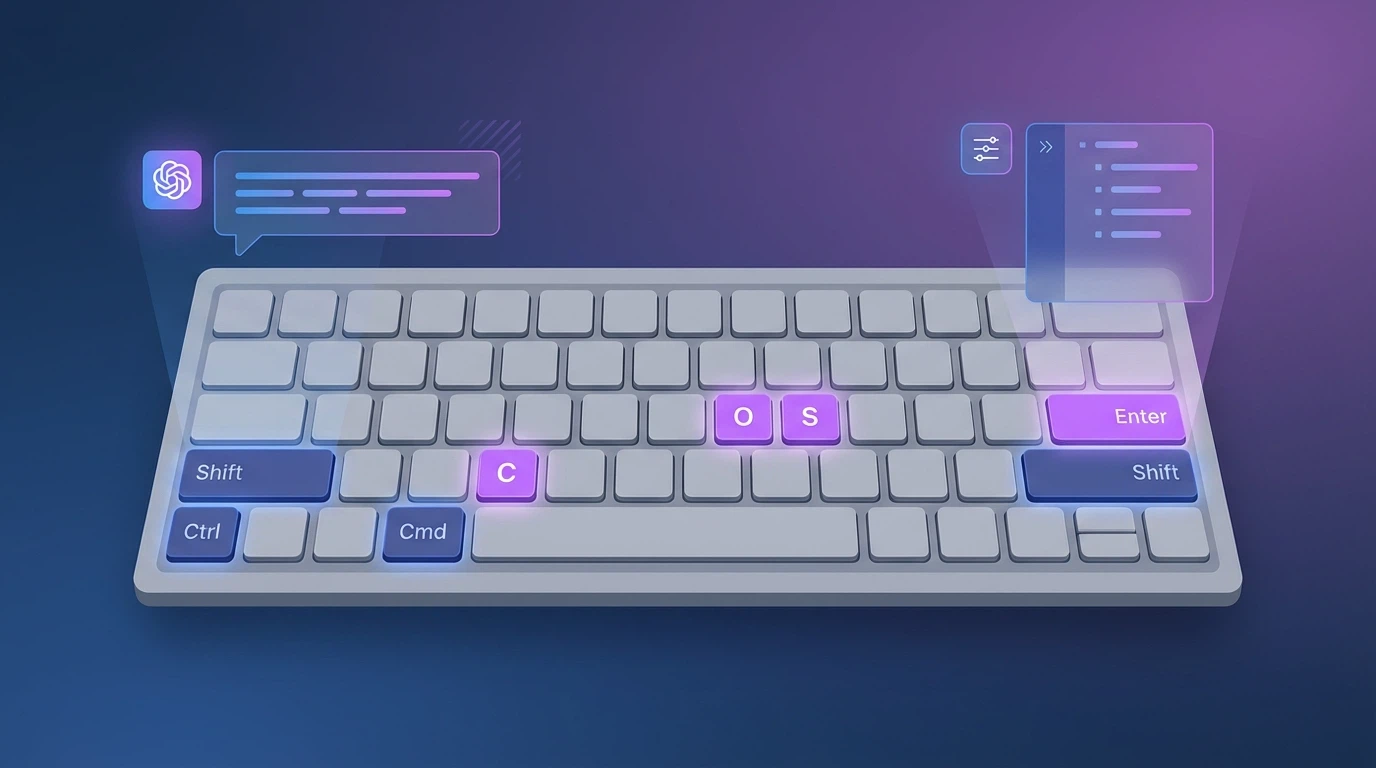
Essential ChatGPT Keyboard Shortcuts
- Enter: Send message
- Shift + Enter: New line (without sending)
- Ctrl/Cmd + Shift + C: Copy last response
- Ctrl/Cmd + Shift + ;: Copy last code block
- Ctrl/Cmd + /: Show all shortcuts
- Ctrl/Cmd + Shift + O: Open new chat
- Ctrl/Cmd + Shift + S: Toggle sidebar
Native ChatGPT Keyboard Shortcuts
ChatGPT includes built-in keyboard shortcuts that work across all browsers. To view the complete list at any time, press Ctrl + / (Windows/Linux) or Cmd + / (Mac) while using ChatGPT.
| Action | Windows/Linux | Mac |
|---|---|---|
| Show keyboard shortcuts | Ctrl + / | Cmd + / |
| Open new chat | Ctrl + Shift + O | Cmd + Shift + O |
| Focus chat input | Shift + Esc | Shift + Esc |
| Copy last response | Ctrl + Shift + C | Cmd + Shift + C |
| Copy last code block | Ctrl + Shift + ; | Cmd + Shift + ; |
| Toggle sidebar | Ctrl + Shift + S | Cmd + Shift + S |
| Delete chat | Ctrl + Shift + Backspace | Cmd + Shift + Backspace |
| Custom instructions | Ctrl + Shift + I | Cmd + Shift + I |
Message and Input Shortcuts
These shortcuts help you compose and send messages more efficiently:
Sending Messages
- Enter: Send your message immediately
- Shift + Enter: Add a new line without sending (essential for multi-paragraph prompts)
- Ctrl/Cmd + Enter: Alternative send method (useful if Enter is configured differently)
Text Editing
- Ctrl/Cmd + A: Select all text in input field
- Ctrl/Cmd + Z: Undo last edit
- Ctrl/Cmd + Shift + Z: Redo
- Ctrl/Cmd + C: Copy selected text
- Ctrl/Cmd + V: Paste from clipboard
- Ctrl/Cmd + X: Cut selected text
Pro Tip: Multi-Line Prompts
For complex prompts with multiple sections, use Shift + Enter to create line breaks. This keeps your prompt organized and easier for ChatGPT to parse:
Context: I'm a developer working on a React app Task: Review this code for bugs Code: [paste code here] Focus on: Performance and security issuesNavigation Shortcuts
Navigate through ChatGPT's interface without touching your mouse:
| Action | Shortcut | Description |
|---|---|---|
| Toggle sidebar | Ctrl/Cmd + Shift + S | Show/hide the conversation list |
| New chat | Ctrl/Cmd + Shift + O | Start a fresh conversation |
| Focus input | Shift + Esc | Jump cursor to message input |
| Scroll up | Page Up / Spacebar (with Shift) | Scroll through conversation |
| Scroll down | Page Down / Spacebar | Scroll through conversation |
| Go to top | Ctrl/Cmd + Home | Jump to start of conversation |
| Go to bottom | Ctrl/Cmd + End | Jump to latest message |
Code Block Shortcuts
Developers will appreciate these shortcuts for working with code in ChatGPT:
- Ctrl/Cmd + Shift + ;: Copy the last code block directly to clipboard
- Ctrl/Cmd + Shift + C: Copy the entire last response (including code)
Working with Multiple Code Blocks
When ChatGPT generates multiple code blocks, the shortcut copies the most recent one. For earlier blocks, you'll need to:
- Click the "Copy code" button on the specific block
- Or select the code manually and use Ctrl/Cmd + C
ChatGPT Toolbox Keyboard Shortcuts
ChatGPT Toolbox extends ChatGPT's native shortcuts with additional productivity features:
| Action | Shortcut | Description |
|---|---|---|
| Quick search | Ctrl/Cmd + Shift + F | Search across all conversations |
| Archive chat | Ctrl/Cmd + Shift + A | Archive current conversation |
| Unarchive chat | Ctrl/Cmd + Shift + U | Restore archived conversation |
| Pin/Unpin chat | Ctrl/Cmd + Shift + P | Pin conversation to top |
| Export conversation | Ctrl/Cmd + Shift + E | Export current chat to TXT/JSON |
| Bulk select mode | Ctrl/Cmd + Shift + B | Enable multi-select for bulk actions |
| Open prompt library | Ctrl/Cmd + Shift + L | Access saved prompts |
| Toggle dark mode | Ctrl/Cmd + Shift + D | Switch between light/dark themes |
| Open Toolbox settings | Ctrl/Cmd + Shift + , | Access ChatGPT Toolbox options |
Why Use ChatGPT Toolbox Shortcuts?
Native ChatGPT shortcuts cover basic functions, but power users need more:
- Search shortcuts: Find any conversation instantly without scrolling
- Organization shortcuts: Archive, pin, and manage chats with keyboard only
- Export shortcuts: Save conversations without clicking through menus
- Bulk operations: Select and process multiple chats at once
Install ChatGPT Toolbox free to unlock these additional shortcuts.
Productivity Tips for Keyboard-First ChatGPT Use
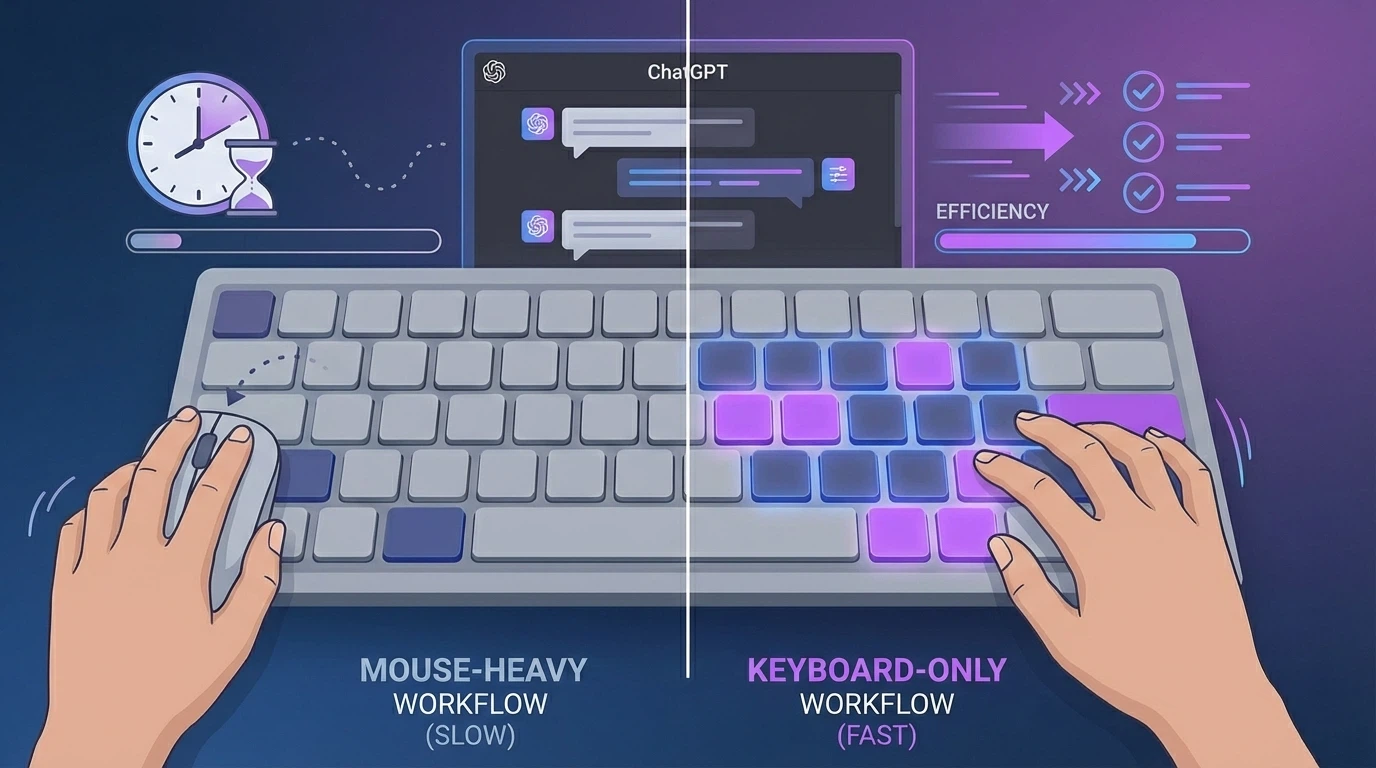
1. Master the Essential Five
Start by memorizing these five shortcuts that cover 90% of common actions:
- Shift + Enter: New line
- Ctrl/Cmd + Shift + O: New chat
- Ctrl/Cmd + Shift + C: Copy response
- Ctrl/Cmd + Shift + S: Toggle sidebar
- Ctrl/Cmd + /: Show all shortcuts (when you forget)
2. Create a Shortcut Cheat Sheet
Print or save a shortcut reference near your monitor until they become muscle memory. Most users memorize core shortcuts within 1-2 weeks of consistent use.
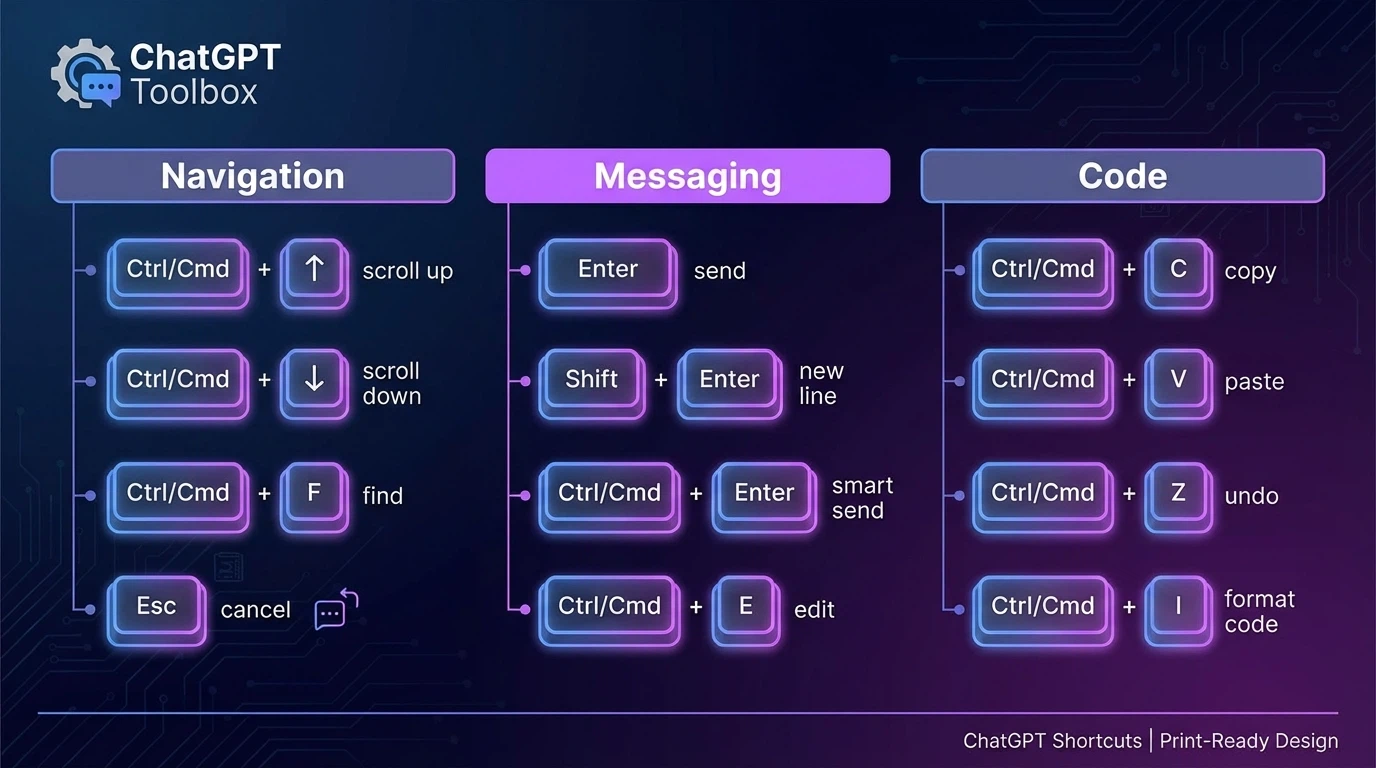
3. Combine with ChatGPT Toolbox
Native shortcuts + ChatGPT Toolbox shortcuts give you complete keyboard control over ChatGPT. You can:
- Start a new chat (Ctrl+Shift+O)
- Write your prompt with line breaks (Shift+Enter)
- Send (Enter)
- Copy the response (Ctrl+Shift+C)
- Archive when done (Ctrl+Shift+A with Toolbox)
- Search old chats (Ctrl+Shift+F with Toolbox)
All without touching your mouse.
4. Use Voice Input for Long Prompts
For lengthy prompts, combine keyboard shortcuts with your operating system's voice input:
- Windows: Win + H to start voice typing
- Mac: Double-tap Fn key for dictation
- Chrome: Use a voice-to-text extension
Frequently Asked Questions
What is the keyboard shortcut to send a message in ChatGPT?
Press Enter to send a message in ChatGPT. If you want to add a new line without sending, use Shift + Enter. This works in both the web interface and mobile apps.
How do I create a new line in ChatGPT without sending?
Press Shift + Enter to add a new line without sending your message. This is essential for writing multi-paragraph prompts or formatting code in your messages.
What is the shortcut to copy ChatGPT's response?
Ctrl + Shift + C (Windows/Linux) or Cmd + Shift + C (Mac) copies the last response to your clipboard. For code blocks specifically, use Ctrl/Cmd + Shift + ; to copy just the code.
How do I open a new chat with keyboard only?
Press Ctrl + Shift + O (Windows/Linux) or Cmd + Shift + O (Mac) to instantly open a new chat. This is one of the most useful shortcuts for users who work with multiple conversations.
Can I customize ChatGPT keyboard shortcuts?
Native ChatGPT shortcuts cannot be customized. However, ChatGPT Toolbox allows some shortcut customization, and you can use browser extensions like "Shortkeys" to create custom shortcuts for any web application.
Why aren't ChatGPT shortcuts working?
If shortcuts aren't working, try these fixes:
- Focus issue: Click inside the ChatGPT window first
- Browser conflict: Another extension may be capturing the shortcut
- Outdated browser: Update Chrome, Firefox, or Edge to the latest version
- Different keyboard layout: Some shortcuts vary by language/region
Does ChatGPT have a shortcut to search conversations?
Native ChatGPT doesn't have a search shortcut. Use ChatGPT Toolbox's Ctrl/Cmd + Shift + F shortcut for instant search across all your conversations, including archived chats.
What shortcuts does ChatGPT Toolbox add?
ChatGPT Toolbox adds shortcuts for: quick search (Ctrl+Shift+F), archive/unarchive (Ctrl+Shift+A/U), pin conversations (Ctrl+Shift+P), export (Ctrl+Shift+E), bulk operations (Ctrl+Shift+B), and dark mode toggle (Ctrl+Shift+D).
Conclusion
Mastering ChatGPT keyboard shortcuts transforms how you interact with AI. What starts as a few seconds saved per action compounds into hours over weeks and months of use. Start with the five essential shortcuts, then gradually add ChatGPT Toolbox shortcuts as you become more comfortable.
Key takeaways:
- Shift + Enter for new lines is the most important shortcut for quality prompts
- Ctrl/Cmd + Shift + C for copying responses saves constant mouse movement
- Ctrl/Cmd + / shows all shortcuts when you forget
- ChatGPT Toolbox adds search, archive, export, and bulk operation shortcuts
Ready to supercharge your ChatGPT workflow?Install ChatGPT Toolbox free for additional keyboard shortcuts, conversation organization, bulk export, and more productivity features.
Related guides:
- Advanced Search in ChatGPT History
- How to Pin ChatGPT Conversations
- How to Archive ChatGPT Conversations
- ChatGPT Dark Mode & Custom Themes
Last updated: March 16, 2026
