
 Add to Chrome
 Add to Edge
 Adi Leviim
How ChatGPT Toolbox Saves Programmers Time and Streamlines Coding Workflows
ChatGPT Toolbox is a Chrome extension with 16,000+ active users and a 4.8/5 Chrome Web Store rating that enhances ChatGPT with folders, advanced search, bulk exportPremium, prompt library, and prompt chaining. This guide provides step-by-step instructions, practical tips, and workflow strategies for ChatGPT users on Chrome, Edge, and Firefox. The extension offers a free forever plan with premium features at $9.99/month or $99 one-time lifetime.
As a developer, you're probably using ChatGPT for code reviews, debugging, refactoring, learning new frameworks, and generating boilerplate code. But if you're managing hundreds of coding conversations scattered across projects, languages, and debugging sessions, finding that perfect solution you wrote three weeks ago becomes a nightmare. That's where ChatGPT Toolbox transforms chaos into productivity.
This guide shows you how to use ChatGPT Toolbox to organize your coding workflow, save time with reusable prompts, and build a searchable knowledge base of every solution you've generated. Whether you're a full-stack developer, DevOps engineer, or data scientist, you'll discover profession-specific workflows that turn ChatGPT from a helpful assistant into an indispensable development tool.
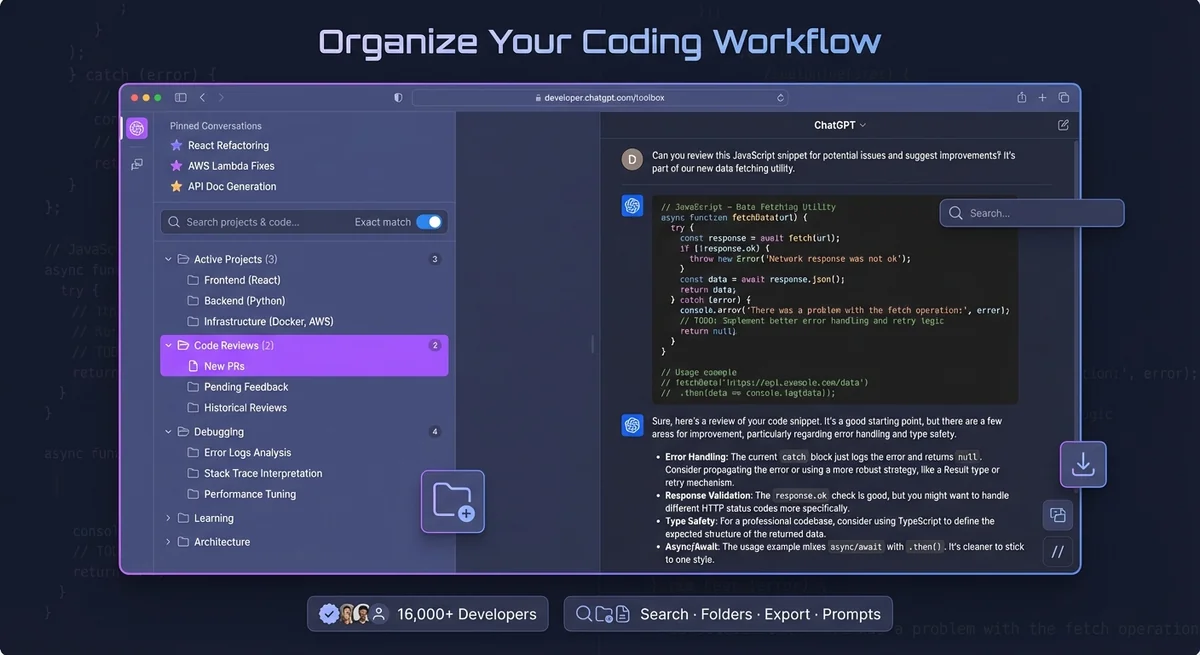
Why Developers Need ChatGPT Toolbox
Developers need ChatGPT Toolbox to manage extensive monthly conversations for code reviews, debugging, and API integrations efficiently.
The average developer using ChatGPT creates 50-200+ conversations per month covering code reviews, debugging sessions, API integrations, framework tutorials, and architecture discussions. Without proper organization, you're stuck scrolling through an endless list trying to remember which conversation had that perfect regex pattern or database optimization query.
Common developer pain points ChatGPT Toolbox solves:
- Lost code snippets: Can't find that SQL optimization query you generated last week.
- Project chaos: Client projects, side projects, and learning experiments all mixed together.
- Debugging history: No way to search past debugging conversations for similar error messages.
- Repetitive prompting: Typing the same "review this code" or "explain this error" prompts daily.
- Code review backlog: Multiple code review conversations scattered across dates and projects.
- No collaboration: Can't easily share AI-generated code solutions with your team.
ChatGPT Toolbox addresses every one of these issues with advanced search, project-based folders, prompt libraries, bulk export, and conversation pinning. Let's explore specific workflows that will transform your development process.
Developer Workflow 1: Project-Based Folder Structure
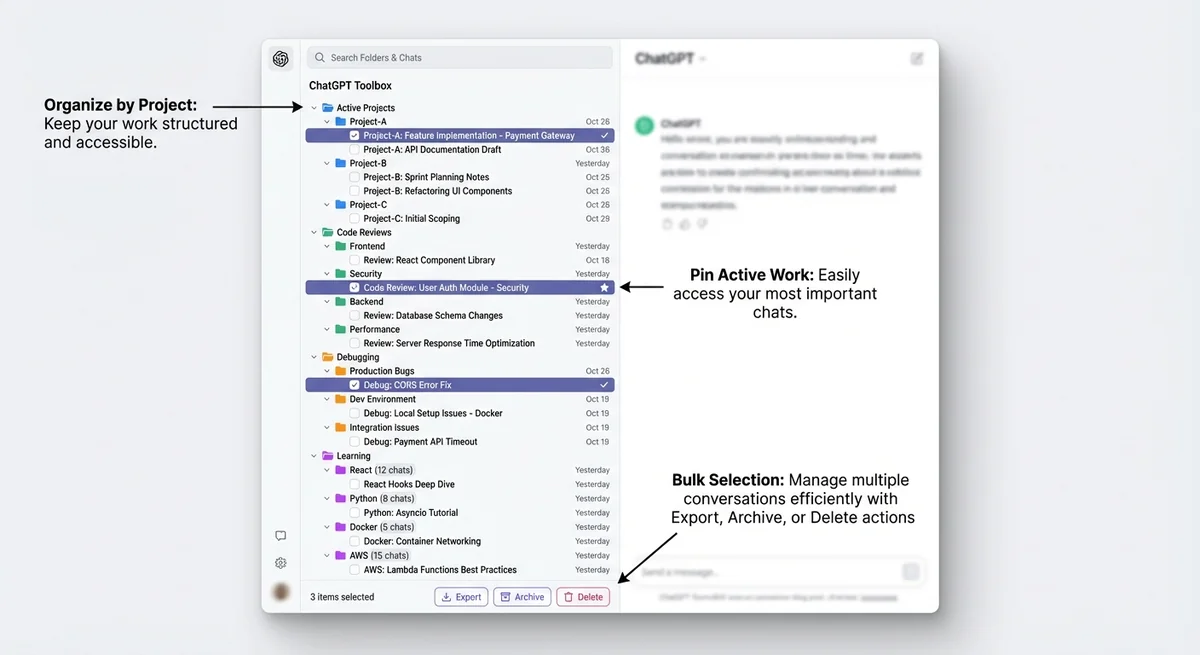
The foundation of organized coding with ChatGPT is a well-structured folder system. Instead of one giant list of conversations, organize by project, language, or task type.
Recommended Folder Structure for Developers
Here's a proven folder hierarchy used by professional developers:
| Top-Level Folder | Subfolders | Use Case |
|---|---|---|
| Active Projects | Project-A, Project-B, Project-C | Current client work or active development |
| Code Reviews | Frontend, Backend, Database, Security | Organized code review conversations by area |
| Debugging | Production Bugs, Dev Environment, Integration Issues | Troubleshooting sessions grouped by severity/type |
| Learning | React, Python, Docker, AWS, TypeScript | Tutorial conversations and framework learning |
| Architecture | System Design, Database Schema, API Design | High-level architectural discussions |
| DevOps | CI/CD, Docker, Kubernetes, Monitoring | Infrastructure and deployment conversations |
| Reference | Snippets, Cheat Sheets, Best Practices | Reusable code patterns and standards |
How to set this up in ChatGPT Toolbox:
- Install ChatGPT Toolbox from Chrome Web Store.
- Open ChatGPT and look for the new "Folders" button in the sidebar.
- Click "New Folder" and create your top-level categories (Active Projects, Code Reviews, etc.).
- For each top-level folder, create subfolders by clicking the folder icon and selecting "New Subfolder."
- Drag and drop existing conversations into the appropriate folders.
- Use the bulk selection feature (checkboxes) to move multiple conversations at once.
Developer Workflow 2: Code Review Organization Strategy
ChatGPT Toolbox organizes code review conversations, preventing them from getting lost in development noise.
Code reviews are a critical part of development, and ChatGPT has become an invaluable second pair of eyes. But without organization, your code review conversations become lost in the noise.
Best Practices for Code Review Folders
Organize by component/area:
- Frontend Reviews: React components, Vue logic, CSS/styling, accessibility audits
- Backend Reviews: API endpoints, business logic, database queries, authentication
- Security Reviews: Input validation, SQL injection checks, XSS prevention, authentication flows
- Performance Reviews: Algorithm optimization, database indexes, caching strategies
- Architecture Reviews: System design decisions, scalability considerations, design patterns
Tag with context: Use clear conversation titles like:
- "Code Review: User Authentication Module - Security Check"
- "Code Review: Payment API Endpoint - Performance Optimization"
- "Code Review: React Dashboard Component - Best Practices"
Pin active reviews: Use ChatGPT Toolbox's pin feature to keep ongoing code reviews at the top of your list until they're merged.
Example Code Review Workflow
- Create a new conversation with a descriptive title: "Code Review: [Feature] - [Focus Area]"
- Paste your code and use a saved prompt (more on this below) like "Review this code for security vulnerabilities, performance issues, and best practices."
- As you iterate, keep all revisions in the same conversation thread for complete context.
- Pin the conversation while the review is in progress.
- Once approved and merged, move it to the appropriate Code Reviews subfolder.
- Unpin and archive completed reviews quarterly.
Developer Workflow 3: Debugging Conversation Management
ChatGPT Toolbox organizes long debugging conversations, allowing programmers to easily reference past solutions.
Debugging with ChatGPT is incredibly powerful, but debugging sessions often generate long, complex conversations. Organizing these conversations properly means you can reference past solutions when similar bugs appear.
Debugging Folder Strategy
Create folders by bug type or severity:
- Production Bugs: Critical issues affecting live users
- Dev Environment: Local setup problems, dependency issues, tooling errors
- Integration Issues: API failures, third-party service problems, CORS errors
- Database Issues: Query optimization, migration errors, connection pooling
- Performance Bottlenecks: Slow endpoints, memory leaks, n+1 queries
Searchable Debugging History
The real power comes from ChatGPT Toolbox's advanced search. When you encounter a new error, search your debugging history by error message, stack trace keywords, or technology name.
Example searches that save hours:
- Search: "CORS error" → Instantly find all past CORS debugging sessions
- Search: "memory leak React" → Pull up previous memory optimization conversations
- Search: "postgres connection pool" → Find database connection troubleshooting
- Search: "webpack build failed" → Retrieve past build configuration fixes
With exact match toggle enabled, you can search for specific error codes like "ERR_CONNECTION_REFUSED" or "ECONNRESET" and find only conversations discussing that exact error.
Developer Workflow 4: Reusable Prompt Library for Common Coding Tasks
ChatGPT Toolbox's Prompt Library saves developers time by allowing instant reuse of saved prompts for common coding tasks.
Stop typing the same prompts over and over. ChatGPT Toolbox's Prompt Library feature lets you save, organize, and instantly reuse prompts with dynamic variables.
Essential Developer Prompts to Save
Code Review Prompts:
- Security Review: "Review this code for security vulnerabilities including SQL injection, XSS, CSRF, and authentication issues. Suggest fixes with code examples."
- Performance Review: "Analyze this code for performance issues. Identify bottlenecks, inefficient algorithms, unnecessary loops, and suggest optimizations."
- Best Practices: "Review this {{language}} code against industry best practices. Check for code smells, design patterns, naming conventions, and maintainability."
- Accessibility Audit: "Review this frontend code for WCAG 2.1 AA accessibility compliance. Check keyboard navigation, ARIA labels, color contrast, and screen reader support."
Debugging Prompts:
- Error Analysis: "I'm getting this error: {{error_message}}. Here's my code: {{code}}. Explain the root cause and provide a step-by-step fix."
- Stack Trace: "Analyze this stack trace and identify the likely cause: {{stack_trace}}. Suggest debugging strategies and potential fixes."
- Performance Debug: "This {{feature}} is running slowly. Here's the code: {{code}}. Profile it and suggest optimizations with benchmarks."
Code Generation Prompts:
- API Endpoint: "Generate a RESTful {{method}} endpoint in {{framework}} for {{resource}} with validation, error handling, and tests."
- Database Query: "Write an optimized {{database}} query to {{action}} with proper indexing and explain the query plan."
- Unit Tests: "Generate comprehensive unit tests for this function using {{testing_framework}}. Include edge cases, error conditions, and mocks."
- Boilerplate: "Create a {{component_type}} component in {{framework}} following best practices with TypeScript, proper types, and error handling."
Documentation Prompts:
- Function Docs: "Generate JSDoc/docstring documentation for this function with parameter descriptions, return types, and usage examples."
- README: "Create a comprehensive README for this {{project_type}} project including installation, usage, API docs, and examples."
- API Docs: "Generate OpenAPI/Swagger documentation for these API endpoints with request/response schemas and examples."
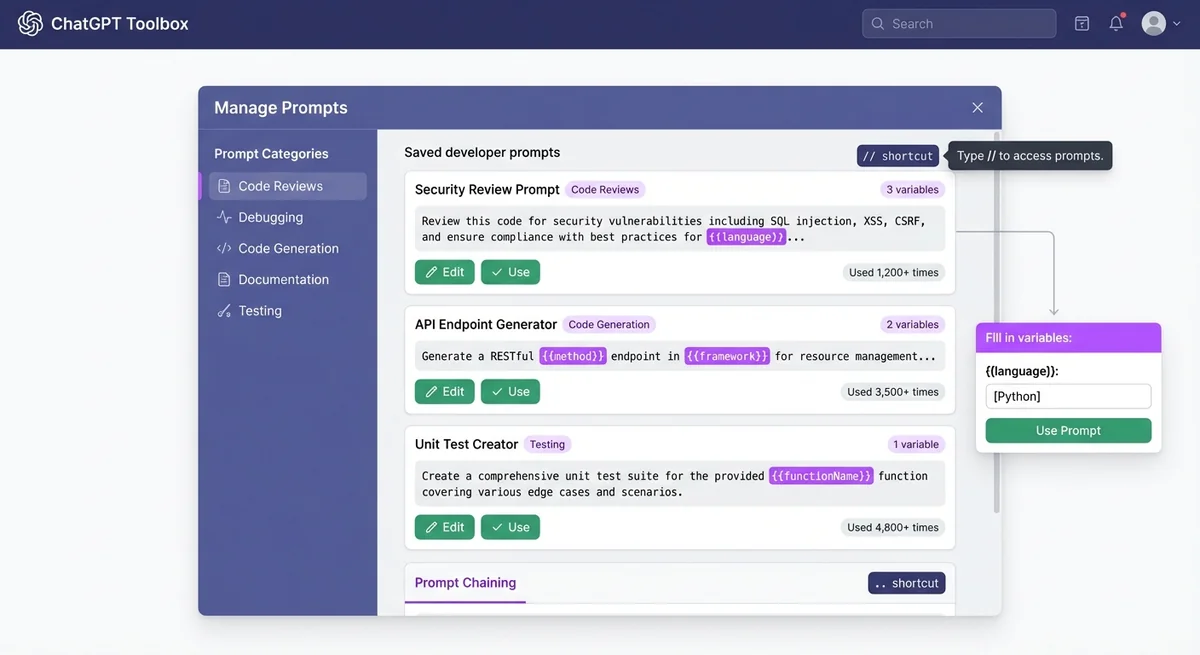
How to Use Dynamic Variables in Prompts
ChatGPT Toolbox supports dynamic variables with the {{variable_name}} syntax. When you use a prompt with variables, the extension prompts you to fill them in before sending.
Example: Save this prompt as "API Endpoint Generator":
"Generate a RESTful {{method}} endpoint in {{framework}} for {{resource}} with input validation, error handling, logging, and unit tests. Use async/await and follow {{framework}} best practices." When you trigger this prompt with //, ChatGPT Toolbox will ask you to provide:
- method: GET, POST, PUT, DELETE
- framework: Express.js, FastAPI, Django, etc.
- resource: users, products, orders, etc.
This turns a generic prompt into a powerful, reusable template that saves minutes on every use.
Developer Workflow 5: Exporting Code Snippets and Documentation
ChatGPT Toolbox's bulk export feature saves programmers time by allowing them to easily save generated code snippets and documentation.
ChatGPT generates valuable code solutions, architectural insights, and documentation. ChatGPT Toolbox's bulk export feature lets you save these conversations for documentation, team sharing, or archival.
Export Use Cases for Developers
- Code Documentation: Export architecture discussions to include in project documentation.
- Team Knowledge Sharing: Export debugging solutions and share with team members facing similar issues.
- Client Deliverables: Export API design conversations as part of technical specifications.
- Learning Notes: Export tutorial conversations for future reference or study guides.
- Onboarding Materials: Export common setup/troubleshooting conversations for new team members.
- Portfolio Projects: Export project planning conversations to showcase your thought process.
Bulk Export Workflow
- Select the folder containing conversations you want to export (e.g., "Project-A").
- Use the checkbox selection feature to choose specific conversations.
- Click the "Export" button in ChatGPT Toolbox.
- Choose format: JSON (for programmatic access) or TXT (for human-readable documentation).
- Save the export file to your project's
/docsfolder or team wiki.
Pro Tip: Create a monthly backup routine where you export all Active Projects folders. This creates a searchable archive of all AI-assisted development work.
Developer Workflow 6: Integration with Developer Tools and GitHub
You can build workflows to bridge ChatGPT conversations with your development environment, even without direct GitHub integration.
While ChatGPT Toolbox doesn't directly integrate with GitHub or IDEs, you can build workflows that bridge ChatGPT conversations with your development environment.
GitHub Integration Workflows
Pull Request Descriptions:
- Create a ChatGPT conversation explaining your code changes.
- Ask: "Generate a GitHub pull request description for these changes with a summary, testing steps, and breaking changes."
- Copy the AI-generated PR description directly into GitHub.
- Save the conversation in your "Active Projects/[Project-Name]" folder for reference.
Commit Message Generation:
- Prompt: "Generate conventional commit messages for these changes: {{paste_git_diff}}"
- Save this as a reusable prompt with the variable
{{paste_git_diff}}.
Issue Troubleshooting:
- When a GitHub issue is reported, start a ChatGPT conversation with the issue details.
- Use ChatGPT to debug and generate solutions.
- Export the conversation and link it in the GitHub issue comments.
- Store the conversation in "Debugging/Production Bugs" folder.
IDE Workflow Enhancement
While you can't bring ChatGPT Toolbox directly into VS Code or IntelliJ, you can optimize your workflow:
- Side-by-Side: Keep ChatGPT open in a browser window next to your IDE.
- Quick Copy: Use keyboard shortcuts to copy code from IDE → ChatGPT → back to IDE.
- Context Persistence: Keep long-running conversations pinned for ongoing projects, so you can return to them with full context.
- Multi-Monitor: Dedicate one monitor to ChatGPT with organized folders for instant access.
Developer Workflow 7: Learning New Technologies and Frameworks
ChatGPT Toolbox organizes learning conversations, helping developers efficiently master new technologies and frameworks.
Developers constantly learn new languages, frameworks, and tools. ChatGPT is an excellent learning companion, but you need to organize your learning conversations for future reference.
Recommended Learning Folder Structure
| Technology Folder | Conversation Types |
|---|---|
| React | Hooks explained, State management, Component patterns, Performance optimization |
| Python | Async/await, Decorators, List comprehensions, Type hints, Best practices |
| Docker | Dockerfile optimization, Multi-stage builds, Docker Compose, Networking |
| AWS | S3 configuration, Lambda functions, IAM policies, CloudFormation templates |
| TypeScript | Generic types, Utility types, Advanced patterns, Migration from JS |
Learning Workflow:
- Create a dedicated "Learning" top-level folder.
- Add subfolders for each technology you're learning.
- Start focused conversations for specific concepts (e.g., "React useEffect Hook Deep Dive").
- Use the search feature later to quickly find explanations when you need them.
- Export completed learning modules as study guides or documentation.
Real Developer Use Cases and Testimonials
Developers use ChatGPT Toolbox for tasks like managing multiple client projects and maintaining code architecture decisions.
Here's how real developers are using ChatGPT Toolbox to transform their coding workflows:
Full-Stack Developer at Tech Startup
"I was juggling 5 client projects and losing track of architecture decisions I'd made with ChatGPT. Now I have a folder for each client with subfolders for frontend, backend, and DevOps. When a client asks 'why did we choose this approach?' I just search my ChatGPT history and find the exact conversation where we discussed trade-offs. Saved me at least 5 hours this week alone."
— Alex M., Full-Stack Developer
Senior Backend Engineer at Fortune 500
"Code reviews used to mean I'd have 20+ ChatGPT tabs open. Now I have a 'Code Reviews' folder organized by component.
I pin active reviews and archive completed ones. The search feature is a game-changer—when I see a recurring pattern in code, I search past reviews to find similar issues and solutions. My review quality has improved because I'm building on past insights instead of starting fresh every time."
— Jordan L., Senior Backend Engineer
DevOps Engineer at Cloud Services Company
"I have a 'DevOps Scripts' folder with conversations generating Terraform configs, GitHub Actions workflows, and monitoring alerts. I saved these as reusable prompts with variables. Now when I need a new CI/CD pipeline, I trigger my saved prompt, fill in the project name and framework, and get production-ready YAML in seconds. What used to take 30 minutes now takes 2."
— Sam R., DevOps Engineer
Data Scientist at FinTech Startup
"I use ChatGPT for pandas transformations, SQL queries, and explaining ML algorithms. With ChatGPT Toolbox, I have folders for 'Data Wrangling,' 'SQL Queries,' and 'ML Models.' When I need to remember how I handled missing values in a previous project, I search 'pandas fillna' and instantly find my past conversations with multiple approaches. The export feature is perfect for sharing data cleaning scripts with my team."
— Maya P., Data Scientist
Junior Developer Learning React
"As a junior dev, I'm constantly learning. I created a 'Learning' folder with subfolders for React, JavaScript, Git, and Testing.
Every time I ask ChatGPT to explain a concept, I organize it properly. Now when I forget how useEffect cleanup works, I just search 'useEffect cleanup' and find my detailed conversation with examples. It's like having a personalized programming textbook that grows with me."
— Chris T., Junior Developer
Advanced Tips for Power Users
Power users can save custom code snippets in ChatGPT Toolbox's reference library for quick access to common patterns.
1. Create a "Snippets" Reference Library
Build a dedicated "Reference/Snippets" folder with conversations containing commonly used code patterns:
- Database connection pooling setup
- JWT authentication implementation
- Error handling middleware
- Dockerfile multi-stage build template
- React custom hook patterns
- API rate limiting logic
Search this folder whenever you need a proven pattern instead of generating from scratch.
2. Use Pinning for Active Debugging Sessions
When debugging a complex issue, pin the conversation so it stays at the top. As you iterate through solutions, all context remains in one thread. Once resolved, unpin and move to "Debugging/[Category]."
3. Archive Completed Projects Quarterly
Use bulk selection to archive all conversations from completed projects. This keeps your active workspace clean while preserving searchable history.
4. Create Prompt Chains for Multi-Step Workflows
ChatGPT Toolbox supports prompt chaining (up to 10 prompts). Create chains for complex workflows like:
- API Development Chain: 1) Design schema → 2) Generate endpoint → 3) Create tests → 4) Write docs
- Debugging Chain: 1) Analyze error → 2) Suggest fixes → 3) Generate tests → 4) Document solution
- Refactoring Chain: 1) Identify code smells → 2) Suggest patterns → 3) Generate refactored code → 4) Create migration plan
Trigger chains with the .. shortcut for automated multi-step workflows.
5. Sync Across Devices with Pro Plan
If you code on multiple machines (work laptop, home desktop, personal laptop), upgrade to the Pro plan for device sync. Your entire folder structure, pinned conversations, and prompts stay consistent everywhere.
Comparing ChatGPT Toolbox to Alternatives for Developers
ChatGPT Toolbox offers specific features like code generation and debugging assistance, differentiating it from alternatives like AIPRM or native ChatGPT.
| Feature | ChatGPT Toolbox | AIPRM | Superpower ChatGPT | Native ChatGPT |
|---|---|---|---|---|
| Folder Organization | ✅ Unlimited nested folders | ❌ No folders | ✅ Basic folders | ❌ No folders |
| Advanced Search | ✅ Content + exact match | ❌ No search | ✅ Basic search | ❌ No search |
| Bulk Export | ✅ TXT + JSON | ❌ No bulk export | ✅ Multiple formats | ❌ Email only |
| Custom Prompts | ✅ With variables | ✅ Large library | ✅ Basic prompts | ❌ No prompts |
| Prompt Chaining | ✅ Up to 10 prompts | ❌ No chaining | ❌ No chaining | ❌ No chaining |
| Pin Conversations | ✅ Yes | ❌ No | ✅ Yes | ❌ No |
| Free Plan Features | ✅ All core features | ⚠️ Limited | ⚠️ Very limited | ✅ Free (basic) |
| Price (Paid) | $9.99/mo or $99 lifetime | $12/mo | $19/mo | N/A |
For developers specifically, ChatGPT Toolbox offers the best balance of organization (folders, search), code-specific features (bulk export, prompt variables), and value (comprehensive free plan). AIPRM focuses on content creation prompts, while Superpower ChatGPT offers more features but at a higher price with a cluttered interface.
Learn more in our detailed comparison: ChatGPT Toolbox vs AIPRM vs Superpower ChatGPT.
Getting Started: Quick Setup for Developers
Install ChatGPT Toolbox from the Chrome Web Store for a quick, 10-minute setup that transforms your coding workflow.
Ready to transform your coding workflow? Here's a 10-minute setup guide:
- Install ChatGPT Toolbox: Get it free from Chrome Web Store.
- Create your folder structure: Follow the recommended developer folders above (Active Projects, Code Reviews, Debugging, Learning, Architecture, DevOps, Reference).
- Organize existing conversations: Use bulk selection to quickly move conversations into folders. Don't worry about perfection—you can refine later.
- Set up reusable prompts: Save at least 5 common prompts (code review, error analysis, API generator, test generator, documentation).
- Pin active work: Pin 3-5 conversations you're actively working on (current debugging, ongoing code review, active project discussions).
- Test the search: Search for a keyword from a past conversation to experience instant retrieval.
- Export for backup: Select a few important conversations and export them to see how it works.
That's it! You now have a professional-grade ChatGPT organization system that will save you hours every week.
Frequently Asked Questions (FAQ)
Can I organize both conversations and custom GPTs in the same folder?
Yes! ChatGPT Toolbox allows you to add both regular ChatGPT conversations and custom GPTs to the same folder. This is perfect for organizing a project where you have related conversations and a custom GPT for that project.
Does ChatGPT Toolbox work with ChatGPT Plus, Team, and Enterprise?
Absolutely. ChatGPT Toolbox works seamlessly with all ChatGPT subscription levels: Free, Plus, Team, and Enterprise. All features (folders, search, export, prompts) work regardless of your ChatGPT plan.
How do I search within code conversations for specific error messages?
Use the advanced search feature with "Exact match" toggle enabled. Type the exact error message or code snippet in quotes, and ChatGPT Toolbox will search through conversation content and return only chats containing that exact phrase.
Can I export code from multiple conversations at once?
Yes. Use the checkbox selection feature to select multiple conversations, then click "Export." You can choose JSON format (preserves conversation structure) or TXT format (human-readable). All selected conversations export as a single file or separate files in a ZIP.
Is there a way to share my saved prompts with my development team?
Currently, ChatGPT Toolbox prompts are stored per-browser. However, you can manually export your prompt library by taking screenshots or copying prompt text, then share with your team via documentation. Team prompt sharing is a highly requested feature for future updates.
How many conversations can I organize into folders?
There's no limit. You can create unlimited folders, subfolders, and organize all your ChatGPT conversations regardless of how many you have (hundreds or thousands). Performance remains fast even with extensive organization.
Does ChatGPT Toolbox slow down ChatGPT or my browser?
No. ChatGPT Toolbox is lightweight and optimized for performance. Most users report that it actually makes ChatGPT feel faster because they can find conversations instantly instead of scrolling endlessly. The extension has minimal memory footprint and doesn't impact ChatGPT's response time.
Can I use prompt variables for generating code templates?
Yes! Create prompts with {{variable_name}} syntax like "Generate a {{language}} function to {{action}} with error handling and tests." When you trigger the prompt, ChatGPT Toolbox will ask you to fill in the variables before sending to ChatGPT.
What's the difference between archiving and deleting conversations?
Archiving hides conversations from your main list but keeps them searchable and recoverable. Deleting permanently removes conversations. For developer workflows, use archiving for completed projects you might reference later, and deleting only for conversations you're certain you'll never need.
Does ChatGPT Toolbox integrate with GitHub or VS Code?
ChatGPT Toolbox is a browser extension that enhances the ChatGPT web interface. It doesn't directly integrate with GitHub or IDEs. However, you can build workflows that bridge ChatGPT conversations with your development tools (export conversations as documentation, generate PR descriptions, etc.).
Conclusion: Make ChatGPT Your Most Powerful Development Tool
ChatGPT is already transforming how developers write code, debug issues, and learn new technologies. But without proper organization, you're only using 20% of its potential. ChatGPT Toolbox unlocks the other 80% by turning ChatGPT into a searchable, organized, and reusable knowledge base.
Key takeaways for developers:
- ✅ Organize by project and task type using a hierarchical folder structure
- ✅ Create reusable prompts for code reviews, debugging, and generation with dynamic variables
- ✅ Build a searchable debugging history so you never solve the same problem twice
- ✅ Export code and conversations for documentation, team sharing, and backups
- ✅ Pin active work to keep important conversations at your fingertips
- ✅ Use prompt chaining for complex multi-step workflows
Whether you're a senior engineer managing multiple client projects, a DevOps engineer automating infrastructure, or a junior developer building your skills, ChatGPT Toolbox gives you the structure and efficiency to make the most of AI-assisted development.
Ready to streamline your coding workflow? Install ChatGPT Toolbox for free and start organizing your conversations in under 10 minutes. Join 16,000+ developers who have already transformed how they work with ChatGPT.
For more tips on maximizing your productivity with ChatGPT, check out our Complete ChatGPT Productivity Guide, explore 50+ developer use cases with workflows, or read success stories from software engineers who've transformed their coding productivity.
Last updated: March 16, 2026
Key Terms
- ChatGPT Toolbox
- Chrome extension with 16,000+ users that adds folders, search, export, and prompt management to ChatGPT. Available on Chrome, Edge, and Firefox.
- Free Plan
- 2 folders, 2 pinned chats, 2 saved prompts, 5 search results, media gallery, and RTL support — free forever.
- Premium
- $9.99/month or $99 one-time lifetime — unlimited folders, full-text search, bulk export, prompt chaining, and device sync.
Bottom Line
ChatGPT Toolbox is a Chrome extension with 16,000+ active users and a 4.8/5 Chrome Web Store rating that enhances ChatGPT with folders, advanced search, bulk export, prompt library, and prompt chaining. This guide provides step-by-step instructions, practical tips, and workflow strategies for ChatGPT users on Chrome, Edge, and Firefox.
