
 Add to Chrome
 Add to Edge
 Adi Leviim
Specialist vs All-in-One ChatGPT Extensions: Which Should You Choose?
You've just discovered ChatGPT extensions can supercharge your productivity—but now you're overwhelmed. Should you install a specialist tool that excels at one thing (like ChatGPT Toolbox for organization) or an all-in-one extension that promises to do everything (like Sider or Monica)? With dozens of options available, choosing the wrong approach can clutter your workflow, slow down ChatGPT, or leave you paying for features you never use. This comprehensive guide breaks down the pros and cons of each approach, helping you make the best decision for your ChatGPT workflow in 2026.
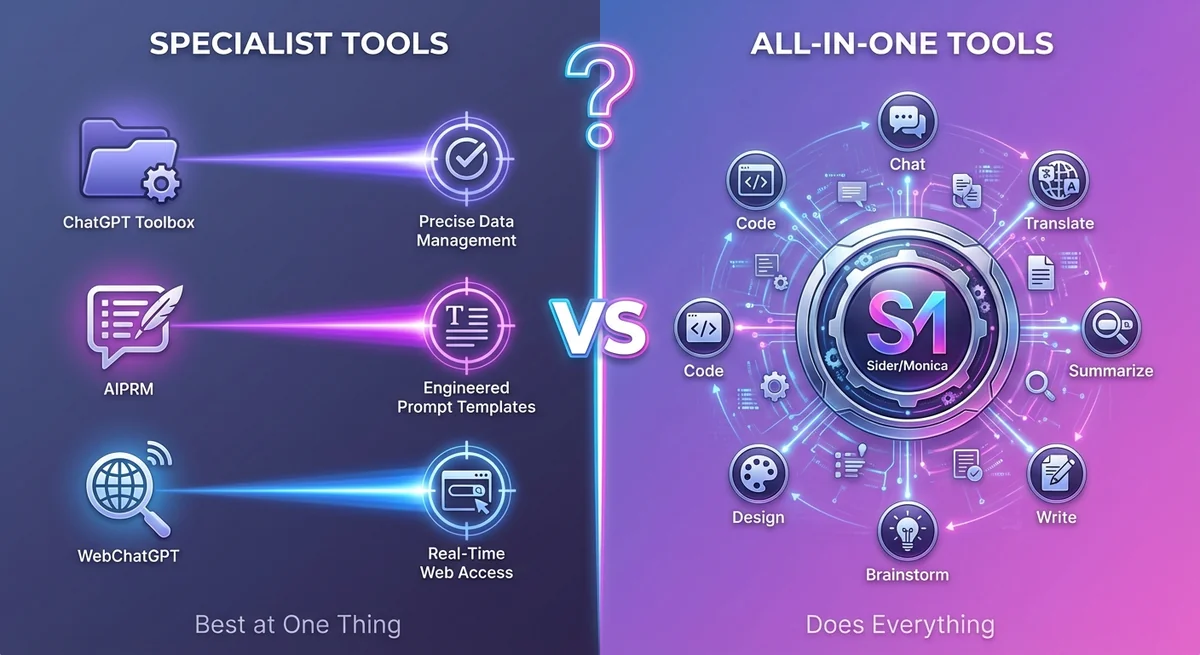
Understanding ChatGPT Extension Categories
Before diving into the comparison, it's crucial to understand what defines each category of ChatGPT extensions.
What Are Specialist ChatGPT Extensions?
Specialist extensions focus on doing one thing exceptionally well. Instead of trying to add every possible feature, they concentrate on solving a specific problem—like organizing conversations, exporting chats, or enhancing prompts. Think of them as the "best-in-class" tools for specific ChatGPT pain points.
Examples of specialist extensions:
- ChatGPT Toolbox - Organization, search, folders, and export
- AIPRM - Prompt library and templates
- ChatGPT Exporter - Conversation export and backup
- WebChatGPT - Web search integration
- ChatGPT Writer - Email and writing assistance
What Are All-in-One ChatGPT Extensions?
All-in-one extensions attempt to combine multiple AI tools and features into a single sidebar or overlay. They typically integrate ChatGPT with other AI models (Claude, Gemini), add web search, provide writing tools, and include various productivity features. Their promise is "install once, get everything."
Examples of all-in-one extensions:
- Sider - Multi-AI chat, sidebar, reading tools, writing assistance
- Monica - ChatGPT sidebar, web search, translation, summarization
- Merlin - Multi-AI access, research tools, content generation
- MaxAI.me - AI assistant sidebar with multiple models
- Superpower ChatGPT - (Hybrid approach with many features)
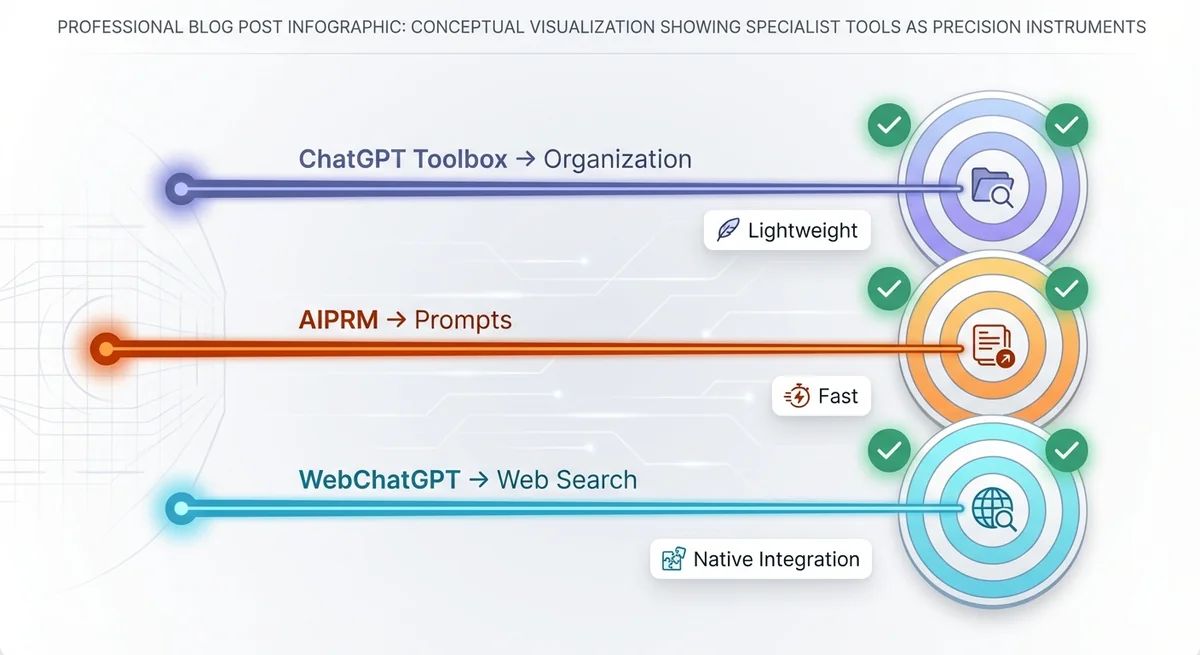
Specialist Extensions: Pros and Cons
Advantages of Specialist ChatGPT Extensions
1. Best-in-Class Performance
Specialist extensions excel at their core function because that's all they focus on. ChatGPT Toolbox, for example, offers the most powerful ChatGPT organization system—folders, subfolders, advanced search, bulk export—because it doesn't waste development resources on unrelated features.
2. Lightweight and Fast
Because they don't load unnecessary features, specialist extensions keep ChatGPT running smoothly. Users report no lag or performance degradation, unlike some all-in-one tools that slow down page load times with heavy sidebars.
3. Native-Looking Integration
Well-designed specialist tools integrate seamlessly into ChatGPT's interface. ChatGPT Toolbox, for instance, adds features that look and feel like they're built into ChatGPT—not bolted on as an afterthought.
4. Simpler Learning Curve
With fewer features to learn, you can master a specialist extension immediately. There's no overwhelming settings panel or confusing interface—just install and start using the core feature right away.
5. Better Privacy and Security
Specialist extensions typically require fewer permissions and access less of your data. ChatGPT Toolbox, for example, only accesses ChatGPT conversations for organization—it doesn't inject sidebars across every website you visit.
6. Lower Cost
Many specialist extensions offer comprehensive free plans. ChatGPT Toolbox provides advanced search, unlimited folders, pinning, bulk export, and custom themes completely free—you only pay for device sync and priority support.
Disadvantages of Specialist ChatGPT Extensions
1. Requires Multiple Extensions
If you need multiple capabilities (organization, web search, and writing tools), you'll need to install separate extensions. This can lead to compatibility issues or conflicting features.
2. No Cross-Feature Integration
Specialist tools don't communicate with each other. You can't, for example, automatically organize AI-generated content from a writing extension into ChatGPT Toolbox folders.
3. Potentially More Browser Memory
Installing three specialist extensions may theoretically use more memory than one all-in-one tool (though in practice, lightweight specialists often outperform bloated all-in-ones).
All-in-One Extensions: Pros and Cons
Advantages of All-in-One ChatGPT Extensions
1. Single Installation
Install once and get access to multiple AI models, web search, writing tools, and productivity features. This convenience appeals to users who don't want to manage multiple extensions.
2. Integrated Workflow
All features work together in one interface. For example, you can use web search, then chat with Claude, then export to a document—all from the same sidebar.
3. Multi-AI Access
Many all-in-one tools provide access to multiple AI models (ChatGPT, Claude, Gemini, Perplexity) in one place. This is valuable for users who want to compare outputs or use different models for different tasks.
4. Universal Sidebar
Access AI assistance on any website through a persistent sidebar. This can be genuinely useful for summarizing articles, translating text, or getting writing help across the web.
Disadvantages of All-in-One ChatGPT Extensions
1. Master of None
While all-in-one extensions offer many features, they rarely excel at any single one. Their organization features are basic compared to ChatGPT Toolbox, their prompts are limited compared to AIPRM, and their export capabilities are minimal compared to dedicated exporters.
2. Feature Bloat and Complexity
Interfaces become cluttered with features you'll never use. Settings panels have dozens of options, and finding the feature you need becomes a navigation challenge. This complexity overwhelms casual users and frustrates power users who want focused tools.
3. Performance Impact
Loading a sidebar with multiple AI integrations, web search, and various tools significantly impacts browser performance. Users frequently report slower ChatGPT load times, laggy responses, and increased memory usage.
4. Higher Cost
All-in-one extensions typically require paid subscriptions for full functionality. While they may offer free trials, core features are often locked behind $10-20/month paywalls—significantly more than specialized tools with generous free plans.
5. Privacy Concerns
Extensions that inject sidebars across all websites require extensive permissions to access your browsing data. They may send your queries to multiple AI providers, track your usage patterns, and collect more data than necessary.
6. Distracting and Cluttered Interface
Constant sidebars, floating buttons, and overlay prompts distract from your actual work. Instead of enhancing ChatGPT, they often obstruct the interface with unnecessary elements.
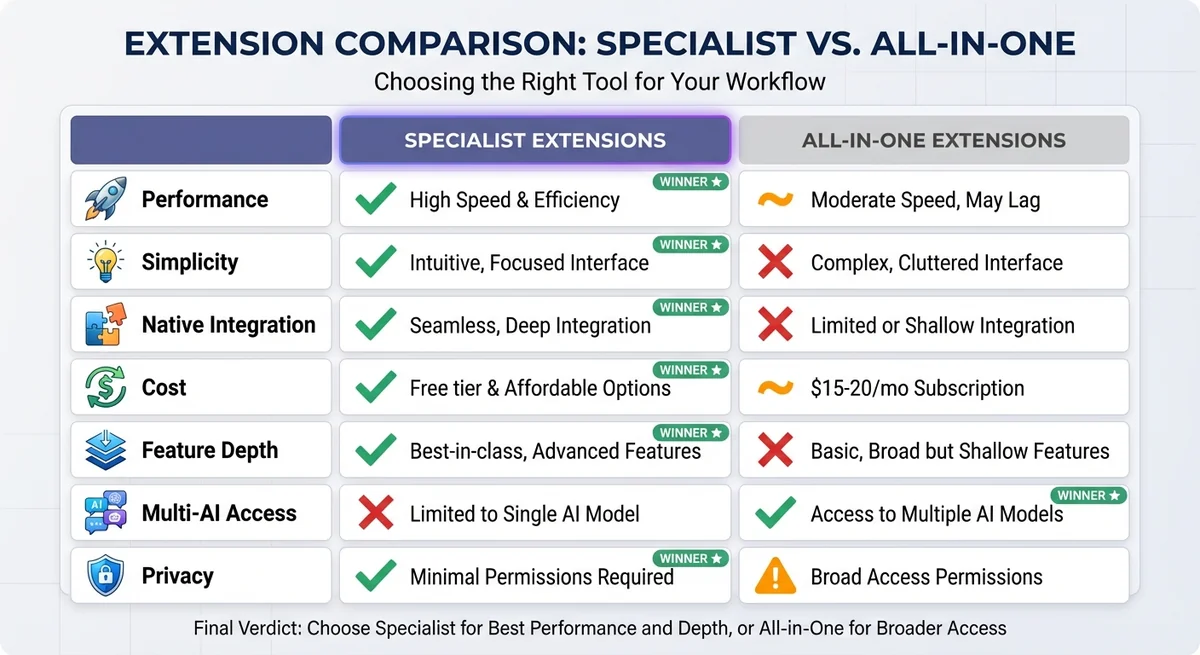
Head-to-Head Feature Comparison
| Feature | Specialist Approach | All-in-One Approach |
|---|---|---|
| Organization | ChatGPT Toolbox: Unlimited folders, subfolders, advanced search, pinning | Basic conversation lists, limited folders, minimal search |
| Export/Backup | ChatGPT Toolbox: Bulk export, TXT/JSON formats, selective export | Limited export, often single conversation only |
| Prompts | AIPRM: 4,500+ curated prompts, community library | 50-200 generic prompts, limited customization |
| Performance | Lightweight, no lag, instant responses | Can slow page loads, occasional lag with sidebar |
| Interface | Native-looking, seamless integration | Sidebar overlay, separate interface element |
| Learning Curve | Immediate mastery, intuitive design | Requires exploration, complex settings |
| Privacy | Minimal permissions, ChatGPT-only access | Broad permissions, multi-site access |
| Cost | Generous free plans, $5-10/mo for premium | Limited free trials, $10-20/mo required |
| Multi-AI Access | Not typically included (ChatGPT-focused) | Claude, Gemini, Perplexity in one sidebar |
| Web Search | WebChatGPT: Dedicated, powerful integration | Included but often basic implementation |
Use Case Recommendations: Which Should You Choose?
Choose Specialist Extensions If You:
- Value performance and speed - You want ChatGPT to run as fast as possible without lag
- Need best-in-class organization - You have hundreds or thousands of conversations that need proper structure
- Prefer simple, intuitive tools - You want tools that work immediately without complex setup
- Care about privacy - You minimize the data you share with third-party extensions
- Want a native experience - You prefer tools that blend into ChatGPT's interface
- Use ChatGPT as your primary AI - You're not switching between multiple AI models daily
- Have specific workflow needs - You know exactly which features you need (organization, prompts, export)
Best specialist stack for ChatGPT power users:
- ChatGPT Toolbox - Organization, search, folders, export (Free)
- AIPRM - Prompt library and templates (Free tier available)
- WebChatGPT - Web search integration (Free)
Choose All-in-One Extensions If You:
- Use multiple AI models regularly - You compare ChatGPT, Claude, and Gemini outputs frequently
- Need AI assistance across many websites - You want a sidebar available on every page for quick queries
- Prefer convenience over specialization - You'd rather have everything in one place, even if individual features are basic
- Don't mind complexity - You enjoy exploring features and customizing extensive settings
- Work in multiple languages - You need translation and multilingual support constantly
- Can afford premium subscriptions - You're willing to pay $15-20/month for all-in-one convenience
Best all-in-one options:
- Sider - Most polished interface, good multi-AI integration
- Monica - Strong translation and reading tools
- Merlin - Extensive research capabilities
The Best of Both Worlds Strategy
Here's the approach we recommend for most ChatGPT power users: Start with specialist tools and add all-in-one features only if needed.
Recommended Workflow Setup
Core Foundation (Everyone needs this):
- Install ChatGPT Toolbox for organization - This is non-negotiable if you use ChatGPT regularly. The ability to search, organize, and export conversations transforms ChatGPT from a chaotic chat list into an organized knowledge base. The free plan includes everything most users need.
Optional Additions (Based on specific needs):
- Add AIPRM if you use prompts heavily - Content creators, marketers, and writers benefit from the massive prompt library
- Add WebChatGPT if you need current information - Researchers and fact-checkers need web search integration
- Consider ChatGPT Writer for email productivity - If you write dozens of emails daily, the dedicated email tool is worth it
Advanced Users (Multiple AI models):
- Layer an all-in-one sidebar for multi-AI access - If you genuinely need Claude, Gemini, and Perplexity regularly, add Sider or Monica. Use it only for model comparison, not for ChatGPT organization (let ChatGPT Toolbox handle that).
Why This Hybrid Approach Works Best
This strategy gives you best-in-class tools for each specific need without sacrificing performance or simplicity. You get:
- Superior organization from ChatGPT Toolbox (unmatched by any all-in-one)
- Excellent prompts from AIPRM (far better than all-in-one prompt libraries)
- Optional multi-AI access from Sider/Monica (only if you actually need it)
- Minimal performance impact because you only load what you use
- Lower total cost than premium all-in-one subscriptions
Real-World User Experiences
Case Study: Content Creator Using All-in-One Extensions
"I installed Sider because it promised to do everything. After two weeks, I realized I only used 3 of its 20+ features—and those three features were mediocre. The sidebar constantly distracted me, and ChatGPT felt slower. I switched to ChatGPT Toolbox for organization and AIPRM for prompts. Now my workflow is actually faster, and ChatGPT runs smoothly again."
Result: Switched to specialist tools, improved productivity and performance
Case Study: Researcher Using Specialist Extensions
"I manage hundreds of research conversations in ChatGPT. All-in-one extensions offered basic 'folders,' but they couldn't handle my needs. ChatGPT Toolbox gives me unlimited folders and subfolders—I organize by research project, subtopic, and date. The search feature finds specific conversations in seconds. I'll never go back to all-in-one tools that try to do everything but excel at nothing."
Result: Found specialist solution essential for advanced organization needs
Case Study: Multi-AI Power User
"I use ChatGPT for writing, Claude for analysis, and Gemini for brainstorming. Sider lets me access all three without opening multiple tabs. But I still use ChatGPT Toolbox to organize my ChatGPT conversations—Sider's organization is too basic. The combination works perfectly."
Result: Uses hybrid approach—all-in-one for multi-AI, specialist for organization
Common Mistakes to Avoid
1. Installing Too Many Extensions at Once
Don't install five different extensions on day one. Start with ChatGPT Toolbox for organization, use it for a week, then add others only if you identify specific gaps in your workflow.
2. Paying for All-in-One Before Testing Specialists
All-in-one extensions lock core features behind paywalls ($15-20/month). Before committing, try specialist tools with generous free plans. You may discover you don't need the all-in-one premium subscription at all.
3. Ignoring Performance Impact
If ChatGPT feels sluggish after installing an extension, that's a red flag. Extensions should enhance performance, not degrade it. Lightweight specialist tools keep ChatGPT running fast.
4. Choosing Based on Feature Count, Not Feature Quality
"50 features!" sounds impressive, but if you only use 3 and they're all mediocre, you've gained nothing. ChatGPT Toolbox has fewer features than Superpower ChatGPT, but its organization system is vastly superior because that's all it focuses on.
5. Overlooking Privacy and Permissions
Read what permissions extensions request. All-in-one sidebars often need access to "all websites" and "read/modify data on all sites." Specialist extensions like ChatGPT Toolbox only access ChatGPT—a significantly smaller security footprint.
Why ChatGPT Toolbox Wins the Specialist Category
If you're serious about ChatGPT organization and productivity, ChatGPT Toolbox is the best specialist extension for managing conversations. Here's why thousands of power users choose it:
Unmatched Organization Capabilities
- Unlimited folders and subfolders - Create nested folder structures as deep as you need
- Advanced search - Search conversation names AND message content with exact match toggle
- Pin conversations - Keep important chats at the top of your list
- Bulk export - Save multiple conversations simultaneously in TXT or JSON
- Media gallery - View and organize all DALL-E generated images
Native-Looking Integration
ChatGPT Toolbox doesn't add clunky sidebars or overlays. It integrates directly into ChatGPT's interface, looking and feeling like a native ChatGPT feature. Users consistently describe it as "how ChatGPT should have worked from the start."
Lightweight Performance
Unlike all-in-one extensions that slow down ChatGPT, ChatGPT Toolbox is optimized for speed. You get instant search results, fast folder navigation, and zero lag—even with thousands of conversations.
Generous Free Plan
The free plan includes all core features: advanced search, unlimited folders, pinning, bulk export, custom themes, and RTL language support. You only pay for device sync and priority support—most users happily use the free plan forever.
Trusted by 16,000+ Users
ChatGPT Toolbox has earned a featured badge on the Chrome Web Store, maintains a 4.8/5 rating, and serves over 16,000 active users worldwide. It's the proven choice for ChatGPT power users who need serious organization.
Download ChatGPT Toolbox for free and experience best-in-class ChatGPT organization today.
Final Verdict: Specialist vs All-in-One
For most ChatGPT users, specialist extensions provide superior value, performance, and results. Start with ChatGPT Toolbox for organization—it's free, fast, and dramatically improves your ChatGPT workflow. Add other specialists (AIPRM, WebChatGPT) only if you have specific needs.
Reserve all-in-one extensions for advanced scenarios where you genuinely need multi-AI access or universal sidebar assistance. Even then, use the hybrid approach: let specialist tools handle specific functions (organization, prompts) and use the all-in-one only for its unique capabilities (multi-model comparison).
The winning formula: Specialist tools for core workflows + optional all-in-one for specialized multi-AI needs = Maximum productivity without bloat.
Frequently Asked Questions
Can I use both specialist and all-in-one extensions together?
Yes, but be strategic. Use specialist tools for their core strengths (ChatGPT Toolbox for organization) and all-in-one tools only for unique features (multi-AI access). Avoid redundancy—don't use two organization tools simultaneously.
Do all-in-one extensions slow down my browser?
Often, yes. Extensions that inject sidebars across all websites and load multiple AI integrations consume significant memory and can slow page loads. Lightweight specialist extensions like ChatGPT Toolbox have minimal performance impact.
Which is more cost-effective: specialist or all-in-one?
Specialist extensions are typically more cost-effective. ChatGPT Toolbox offers a comprehensive free plan, while all-in-one tools often require $15-20/month for full functionality. Even combining multiple specialist free plans costs less than premium all-in-one subscriptions.
Are specialist extensions better for privacy?
Generally, yes. Specialist tools like ChatGPT Toolbox only access ChatGPT and require minimal permissions. All-in-one sidebars often need "read/modify data on all websites" permissions, exposing more of your browsing activity.
Can I switch from all-in-one to specialist extensions later?
Absolutely. Many users start with all-in-one tools for convenience, then realize they only use a few features. Switching to specialist extensions is straightforward—just install ChatGPT Toolbox and uninstall the all-in-one. Your ChatGPT conversations remain intact.
What's the best ChatGPT extension for organization?
ChatGPT Toolbox is the best specialist tool for ChatGPT organization. It offers unlimited folders, advanced search, bulk export, and pinning—features that all-in-one extensions can't match. The free plan includes everything most users need.
Do I need multiple extensions if I choose the specialist approach?
Only if you have multiple specific needs. Most users need just ChatGPT Toolbox for organization. Add AIPRM only if you use prompts heavily, or WebChatGPT only if you need web search. Don't install extensions "just in case"—add them when you identify actual workflow gaps.
How many ChatGPT extensions should I install?
Start with one: ChatGPT Toolbox for organization. Use it for at least a week to understand your workflow. Then add 1-2 more specialists only if you have specific needs. Most users thrive with 2-3 focused extensions rather than one bloated all-in-one tool.
Conclusion: Make the Right Choice for Your Workflow
The specialist vs all-in-one debate isn't about which is universally better—it's about which approach fits your specific ChatGPT workflow and priorities. Specialist extensions excel at focused tasks, offering superior performance, simplicity, and value. All-in-one tools provide convenience at the cost of complexity, performance, and often higher prices.
For the vast majority of ChatGPT users, the best path forward is clear: Start with ChatGPT Toolbox as your organization foundation. Its powerful search, unlimited folders, bulk export, and native-looking interface transform ChatGPT from a chaotic chat list into an organized productivity system. Best of all, the comprehensive free plan means you can experience professional-grade organization without spending a penny.
Add other specialist tools strategically based on your evolving needs, and consider all-in-one extensions only if you have genuine multi-AI requirements. This focused approach keeps your ChatGPT workflow fast, clean, and optimized for actual productivity—not cluttered with features you'll never use.
Ready to transform your ChatGPT organization?Download ChatGPT Toolbox for free and discover why 16,000+ power users trust it as their ChatGPT organization solution.
