
 Add to Chrome
 Add to Edge
 Adi Leviim
Complete ChatGPT Extension Stack: Power User Guide (2026)
If you're serious about maximizing ChatGPT's potential, using multiple extensions strategically can transform your AI workflow. But here's the challenge: not all extensions work well together, and choosing the wrong combination can lead to conflicts, performance issues, or redundant features that waste time and money. This comprehensive guide shows you how to build the perfect ChatGPT extension stack for your specific needs, from free setups to premium power user configurations.
Whether you're a researcher juggling hundreds of conversations, a developer managing code snippets, or a content creator optimizing your prompts, the right extension combination can save you hours every week. We'll cover proven extension stacks, compatibility insights, performance optimization tips, and cost-effective strategies to help you work smarter with ChatGPT.
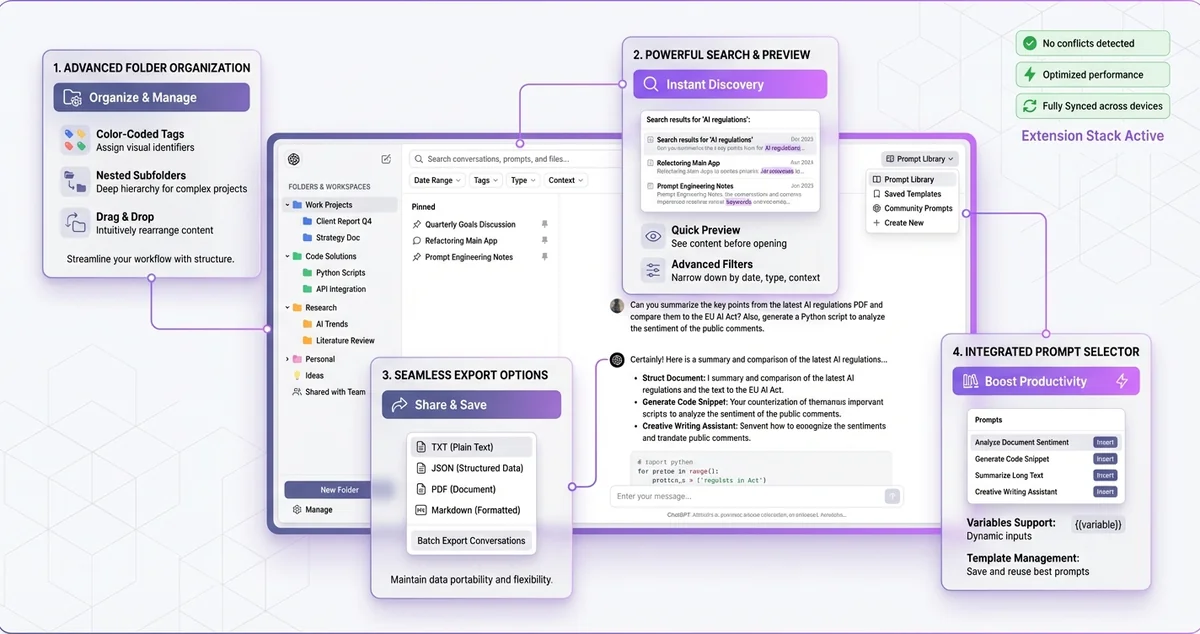
Understanding the ChatGPT Extension Ecosystem
Before building your extension stack, it's crucial to understand the four main categories of ChatGPT extensions and how they complement each other. Each category serves a distinct purpose, and the most powerful setups combine tools from multiple categories strategically.
The Four Extension Categories
| Category | Purpose | Key Functions | Essential For |
|---|---|---|---|
| Organization Tools | Manage conversations efficiently | Folders, search, pin, archive, bulk actions | Power users with 50+ conversations |
| Prompt Enhancement | Improve prompt quality and reuse | Prompt libraries, templates, variables, chaining | Professionals doing repetitive tasks |
| Export & Backup | Save and share conversations | Export to TXT/JSON/PDF, backup automation | Researchers, teams, compliance needs |
| Interface Enhancement | Customize appearance and UX | Themes, layouts, keyboard shortcuts, sidebar | Users who spend hours daily in ChatGPT |
The foundation of any powerful ChatGPT extension stack is an organization tool. Without proper organization, you'll waste time searching for conversations, duplicating work, and losing track of important insights—no matter how many other extensions you install. That's why we recommend starting with ChatGPT Toolbox as your base layer.
Foundation Layer: Why Organization Comes First
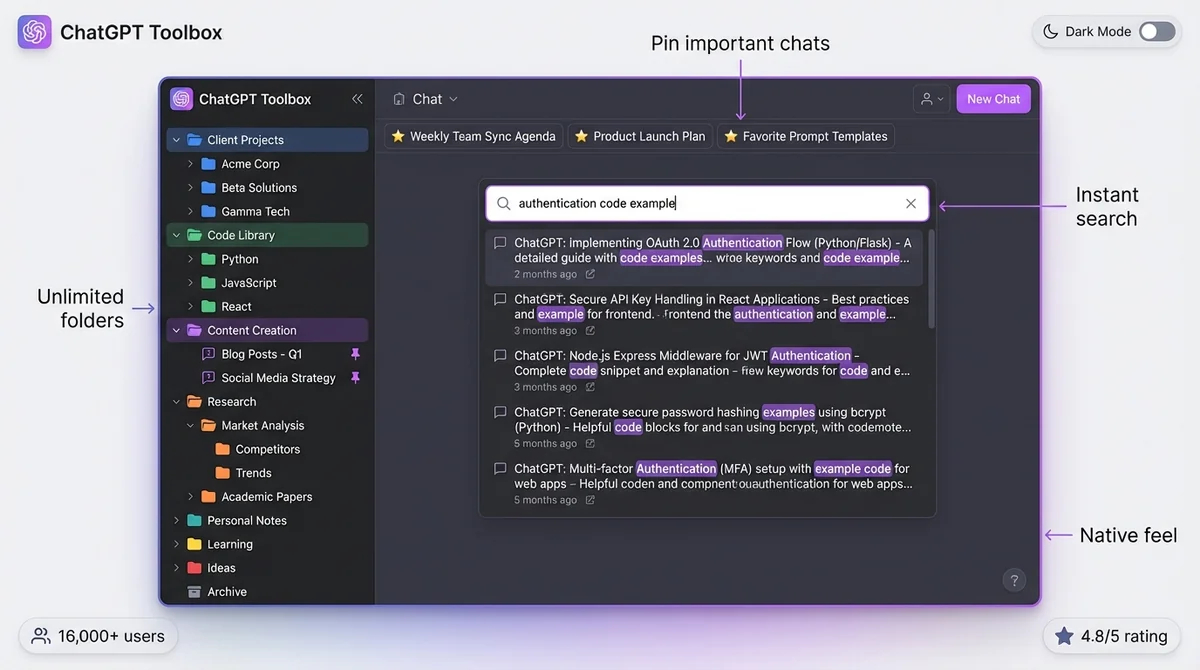
Think of your extension stack like a building: you need a solid foundation before adding upper floors. Organization is that foundation. Without it, advanced prompts, custom themes, and export features become difficult to leverage effectively because you can't find what you need when you need it.
Why ChatGPT Toolbox as Your Foundation
ChatGPT Toolbox provides the complete organization system that every power user needs:
- Advanced Search: Find any conversation by name or content in seconds with exact match toggle
- Folders & Subfolders: Create unlimited nested structures to organize conversations and GPTs by project, client, or topic
- Pin Conversations: Keep frequently accessed chats at the top for instant access
- Bulk Actions: Delete, archive, or export multiple conversations simultaneously
- Media Gallery: View, organize, and download all DALL-E images with metadata
- Sync Across Devices: Keep your organization consistent across all browsers and devices (Pro plan)
Unlike competitors that add cluttered interfaces or overwhelming sidebars, ChatGPT Toolbox blends seamlessly with ChatGPT's native design. It feels like a built-in feature rather than an add-on, which is crucial when you're stacking multiple extensions. Over 16,000 active users trust ChatGPT Toolbox with a 4.8/5 rating on the Chrome Web Store.
Power User Extension Stacks: Proven Combinations
Based on extensive testing and user feedback, here are battle-tested extension combinations that work well together without conflicts or performance issues. Each stack is optimized for specific use cases and user types.
Stack #1: The Researcher's Powerhouse
Best for: Academics, data scientists, and anyone conducting extensive research with ChatGPT
- Foundation:ChatGPT Toolbox (for organizing research by project/paper)
- Enhancement: WebChatGPT (adds web search results to ChatGPT responses)
- Export: Built-in bulk export feature in ChatGPT Toolbox (TXT/JSON formats)
- Interface: Custom theme support in ChatGPT Toolbox (dark mode for long sessions)
Why this works: ChatGPT Toolbox handles all organization needs with folders for different research topics, while WebChatGPT provides real-time web data to supplement ChatGPT's knowledge. The built-in export feature saves conversations for citations and documentation. Total cost: Free basic version or $9.99/month for device sync.
Stack #2: The Content Creator's Toolkit
Best for: Writers, marketers, social media managers, and content professionals
- Foundation:ChatGPT Toolbox (organize by client/campaign/content type)
- Prompts: Built-in Prompt Library in ChatGPT Toolbox (use // shortcut for templates)
- Workflow: Prompt Chaining in ChatGPT Toolbox (automate multi-step content creation with .. shortcut)
- Writing: ChatGPT Writer (compose emails and documents directly)
Why this works: ChatGPT Toolbox provides comprehensive organization plus advanced prompt management with variables and chaining. ChatGPT Writer extends functionality to email clients and docs. This combination eliminates the need for separate prompt management extensions. Total cost: $9.99/month for full ChatGPT Toolbox features + ChatGPT Writer (free/premium options).
Stack #3: The Developer's Command Center
Best for: Programmers, DevOps engineers, and technical professionals
- Foundation:ChatGPT Toolbox (organize by language/project/framework)
- Code: Code syntax highlighting (native ChatGPT feature, no extension needed)
- Export: ChatGPT Toolbox bulk export (save code snippets in organized folders)
- Prompts: Custom coding prompts saved in ChatGPT Toolbox prompt library
Why this works: Developers need organization more than fancy interfaces. ChatGPT Toolbox provides everything necessary: folder organization by language/framework, advanced search to find previous solutions, and bulk export for creating personal code libraries. The minimalist approach prevents interference with ChatGPT's code features. Total cost: Free or $99 lifetime for Pro.
Stack #4: The Business Professional's Suite
Best for: Consultants, project managers, executives, and business analysts
- Foundation:ChatGPT Toolbox (organize by client/project/meeting)
- Prompts: Prompt Chaining in ChatGPT Toolbox (automate report generation workflows)
- Export: Bulk export feature (share insights with team members)
- Productivity: Custom templates in prompt library (standup reports, analysis frameworks)
Why this works: Business professionals need efficiency and professionalism. ChatGPT Toolbox provides a complete solution with organization, prompt management, and export—all in a clean, native-looking interface suitable for client work. Device sync ensures seamless workflow between office and home. Total cost: $9.99/month for Personal or $99 lifetime for Pro.
Stack #5: The Budget Power User (100% Free)
Best for: Students, hobbyists, and users who want maximum features at zero cost
- Foundation:ChatGPT Toolbox Free (includes folders, search, pin, export, themes, prompt library)
- Bonus: All core features available in free plan
- Note: Only missing device sync (upgrade for $9.99/month if needed)
Why this works: ChatGPT Toolbox's free plan is remarkably comprehensive—you get advanced search, unlimited folders, bulk export, media gallery, custom themes, prompt library, and prompt chaining. Most users never need to upgrade unless they work across multiple devices. Total cost: $0.
Extension Compatibility: What Works Together
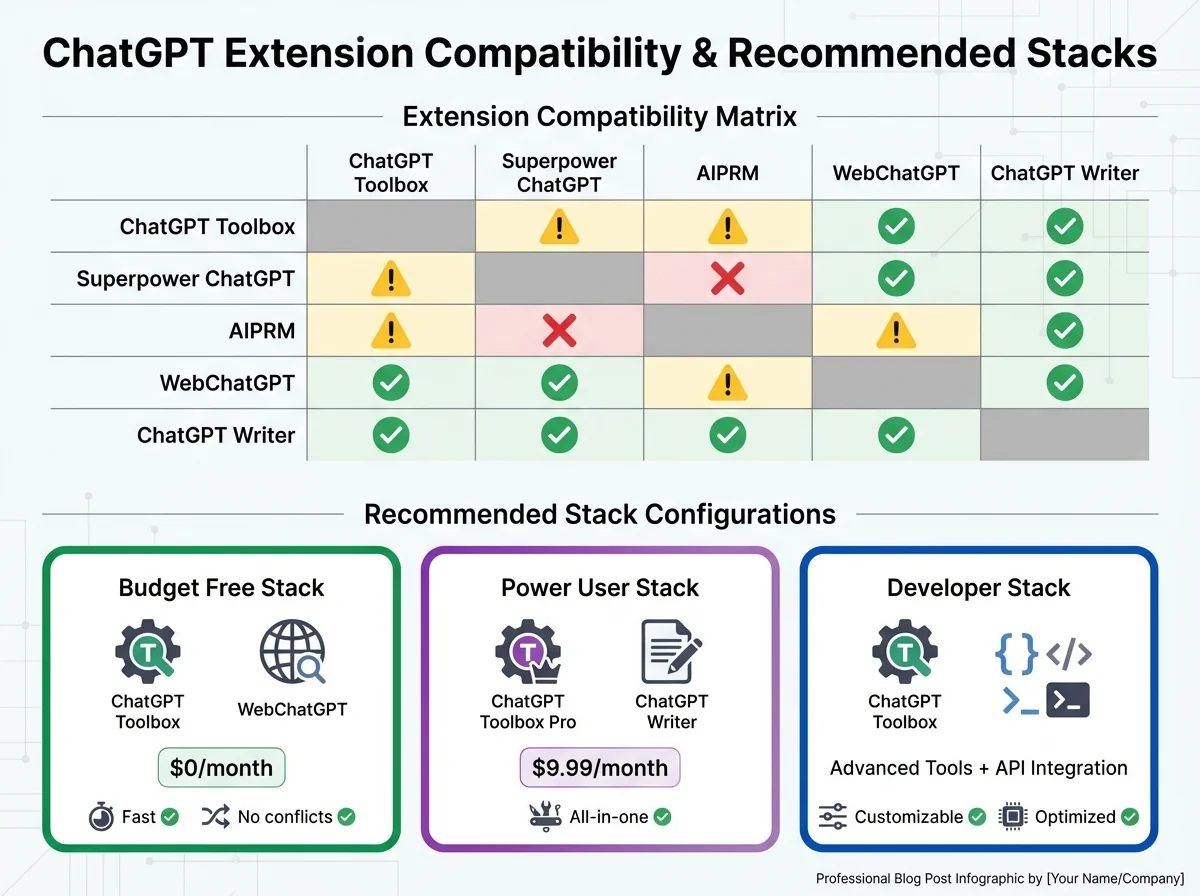
Not all extensions play nicely together. Here's what you need to know about compatibility and conflicts when building your extension stack.
Safe Combinations (No Conflicts)
- ChatGPT Toolbox + WebChatGPT: Perfect pairing—organization plus web search enhancement
- ChatGPT Toolbox + ChatGPT Writer: Works seamlessly—organization plus email/doc integration
- ChatGPT Toolbox + Any Theme Extension: Compatible, though ChatGPT Toolbox has built-in themes
- ChatGPT Toolbox + Keyboard Shortcut Extensions: No interference with keyboard shortcuts
Avoid These Combinations (Conflicts/Redundancy)
- ChatGPT Toolbox + Superpower ChatGPT: Redundant organization features, may cause UI conflicts
- ChatGPT Toolbox + AIPRM: Overlapping prompt libraries and folder systems cause confusion
- ChatGPT Toolbox + ChatGPT Exporter: Redundant—ChatGPT Toolbox already has bulk export
- Multiple Organization Extensions: Never use two folder/organization extensions simultaneously
- Multiple Prompt Libraries: Stick to one prompt management system to avoid duplication
Performance Considerations
Each extension adds overhead to your browser. Follow these performance optimization guidelines:
- Limit to 3-4 extensions maximum: More extensions = slower ChatGPT performance
- Choose all-in-one solutions: ChatGPT Toolbox combines 5+ features in one lightweight extension
- Disable unused extensions: If you're not using a feature, disable that extension temporarily
- Monitor memory usage: Check Chrome Task Manager (Shift+Esc) to identify heavy extensions
- Update regularly: Keep extensions updated for performance improvements and bug fixes
Cost-Effective Stack Strategies
Building a powerful extension stack doesn't have to break the bank. Here's how to maximize value while minimizing costs.
The Free Tier Strategy
Start with free versions and only upgrade when you hit limitations:
- Install ChatGPT Toolbox Free: Get folders, search, export, themes, and prompt library at no cost
- Use for 2-4 weeks: Evaluate whether you need device sync (the main Pro feature)
- Add free complementary extensions: WebChatGPT (free), Keyboard shortcuts (free)
- Total monthly cost: $0
The Budget Conscious Strategy ($9.99/month)
Invest in one comprehensive tool rather than multiple niche extensions:
- ChatGPT Toolbox Personal Plan: $9.99/month gets you everything including device sync
- Skip other paid extensions: ChatGPT Toolbox covers organization, prompts, export, and themes
- Add free tools only: WebChatGPT for web search if needed
- Total monthly cost: $9.99 (compared to $20-30 for multiple premium extensions)
The Lifetime Value Strategy ($99 one-time)
Best ROI for long-term power users:
- ChatGPT Toolbox Pro (Lifetime): $99 one-time payment for lifetime access
- Calculate ROI: Breaks even after 10 months vs. monthly subscription
- Future-proof: All future updates and features included free
- Total lifetime cost: $99 (vs. $119.88 per year for monthly subscriptions)
Cost Comparison Table
| Stack Type | Extensions Included | Monthly Cost | Annual Cost |
|---|---|---|---|
| Budget Free | ChatGPT Toolbox Free + WebChatGPT Free | $0 | $0 |
| Budget Paid | ChatGPT Toolbox Personal | $9.99 | $119.88 |
| Lifetime | ChatGPT Toolbox Pro (one-time) | $0 | $0 (after $99 one-time) |
| Multiple Extensions | AIPRM + Superpower + Others | $20-40 | $240-480 |
The clear winner for value is investing in one comprehensive solution like ChatGPT Toolbox rather than piecing together multiple niche extensions. You'll save money, reduce complexity, and avoid compatibility issues.
Installation and Setup Order
The order you install extensions matters. Follow this step-by-step installation sequence to avoid conflicts and ensure smooth operation.
Step 1: Foundation (Organization)
- Install ChatGPT Toolbox first
- Open ChatGPT and verify the extension loads correctly
- Create your initial folder structure (work, personal, projects, etc.)
- Test search, pin, and basic features to confirm everything works
Step 2: Enhancement Layers (One at a Time)
- If you need web search: Install WebChatGPT and test with ChatGPT Toolbox
- If you need email integration: Install ChatGPT Writer and verify no UI conflicts
- If you need additional themes: Install theme extension (though ChatGPT Toolbox has built-in themes)
Step 3: Configure and Optimize
- Set up prompts: Go to ChatGPT Toolbox settings and add your custom prompts with // trigger
- Create prompt chains: Set up multi-step workflows with .. trigger for common tasks
- Customize themes: Select your preferred theme (light/dark/high contrast)
- Enable device sync (if paid plan): Sign in to sync folders and settings across devices
Critical Setup Tips
- Never install conflicting extensions together: Don't use two organization or two prompt library extensions
- Test after each install: Verify ChatGPT works properly before adding the next extension
- Restart browser: After installing all extensions, restart Chrome for optimal performance
- Check for updates: Update all extensions to latest versions before configuring
Power User Workflows: Combining Extensions Effectively
The true power of an extension stack emerges when you combine features across extensions into efficient workflows. Here are proven workflows that leverage multiple tools simultaneously.
Workflow #1: Research to Publication Pipeline
Scenario: Academic researcher writing a paper with ChatGPT assistance
- Organize: Create folder in ChatGPT Toolbox called "Paper Title" with subfolders for "Literature Review", "Methods", "Results", "Discussion"
- Research: Use WebChatGPT to get current data while ChatGPT analyzes it
- Collaborate: Save key insights in pinned conversations for quick reference
- Export: Bulk export all research conversations to JSON for citations and documentation
- Backup: Regular backups ensure you never lose months of research
Time saved: 5-10 hours per paper vs. manually managing unorganized conversations
Workflow #2: Content Creation Assembly Line
Scenario: Social media manager creating week's worth of content
- Template setup: Create prompt chains in ChatGPT Toolbox for "Blog Outline" → "First Draft" → "SEO Optimization" → "Social Posts"
- Trigger workflow: Type .. in ChatGPT, select content chain, fill variables (topic, keywords, tone)
- Organize output: Save completed content in "Content Library" folder organized by platform (Blog, Twitter, LinkedIn)
- Reuse prompts: Use // shortcut to access proven templates for headlines, CTAs, hooks
- Export for team: Bulk export approved content as TXT files for team review
Time saved: 3-5 hours per week vs. manually retyping prompts and organizing content
Workflow #3: Code Learning and Documentation
Scenario: Developer learning new framework and building code library
- Organize by topic: Create folders in ChatGPT Toolbox: "React", "Node.js", "Python", "DevOps"
- Save solutions: Each coding problem gets its own conversation saved in appropriate folder
- Search when stuck: Use advanced search to find previous solutions: "useState hook error" or "async await pattern"
- Build library: Pin most-used solutions (authentication, database connections, API patterns)
- Export codebase: Bulk export entire folder to create personal code snippet library
Time saved: 2-4 hours per week vs. searching through hundreds of unsorted conversations
Workflow #4: Client Project Management
Scenario: Consultant managing multiple client projects
- Client folders: Create top-level folder for each client with subfolders for "Discovery", "Strategy", "Deliverables", "Communications"
- Prompt templates: Save client-specific prompts with variables: "Create {{document_type}} for {{client_name}} focusing on {{key_objective}}"
- Quick access: Pin active client folders at top for instant access during calls
- Sync across devices: Work on desktop at office, laptop at client site, tablet while traveling—all folders sync automatically
- Share deliverables: Export polished conversations as TXT or JSON to share with clients or team
Time saved: 4-6 hours per week vs. manually managing client work across devices and searching for past conversations
Troubleshooting Common Stack Issues
Even with careful planning, issues can arise. Here are solutions to common problems when using multiple extensions.
Problem: ChatGPT Interface Feels Slow or Laggy
Solution:
- Check Chrome Task Manager (Shift+Esc) to identify which extension uses most memory
- Disable one extension at a time to isolate the culprit
- Update all extensions to latest versions
- Clear browser cache and restart Chrome
- Consider removing resource-heavy extensions and using ChatGPT Toolbox as all-in-one solution
Problem: UI Elements Overlap or Display Incorrectly
Solution:
- Likely caused by conflicting extensions modifying the same UI elements
- Remove all ChatGPT extensions except ChatGPT Toolbox
- Add back extensions one at a time to identify which causes conflict
- Avoid using multiple sidebar or layout-modifying extensions simultaneously
Problem: Features Not Working as Expected
Solution:
- Verify you're on the latest version of each extension
- Check if OpenAI rolled out ChatGPT interface changes (extensions need updates after major ChatGPT redesigns)
- Disable extensions one at a time to see if another extension is interfering
- Clear extension data and reconfigure settings
- Contact extension support—ChatGPT Toolbox offers 24/7 support for paid plans
Problem: Can't Remember Which Extension Does What
Solution:
- This is a sign you have too many extensions—simplify your stack
- Switch to ChatGPT Toolbox which combines organization, prompts, export, themes, and more in one interface
- Create a simple document listing your essential extensions and their purposes
- Remove any extension you haven't actively used in the past month
Upgrading Your Stack Over Time
Your extension needs will evolve as you become more proficient with ChatGPT. Here's how to strategically upgrade your stack as your usage grows.
Beginner to Intermediate (First 3 Months)
- Start with: ChatGPT Toolbox Free for basic organization
- Focus on: Learning to use folders, search, and pinning effectively
- Add if needed: WebChatGPT if you need current information regularly
- Cost: $0-5/month
Intermediate to Advanced (3-6 Months)
- Upgrade to: ChatGPT Toolbox Personal ($9.99/month) for device sync
- Focus on: Creating custom prompts and prompt chains for recurring tasks
- Leverage: Bulk export for building personal knowledge base
- Consider: Lifetime Pro plan ($99) if you're committed long-term
- Cost: $9.99-15/month or $99 one-time
Power User (6+ Months)
- Optimize to: ChatGPT Toolbox Pro (lifetime) + 1-2 specialized extensions max
- Master: Advanced workflows combining folders, prompts, chains, and export
- Build: Comprehensive prompt library and folder taxonomy specific to your work
- Share: Export and share best practices with team or community
- Cost: $99 one-time (amortized to ~$8/month over first year, $0/month thereafter)
Measuring Your Stack's ROI
How do you know if your extension stack is worth the investment? Track these key performance indicators:
Time Savings Metrics
- Search time: How quickly can you find a specific conversation? (Target: under 10 seconds with advanced search)
- Setup time: How long to start a new project or conversation series? (Target: under 2 minutes with folders and templates)
- Reuse efficiency: How often do you reuse prompts vs. retyping? (Target: 50%+ reuse rate with prompt library)
- Export time: How long to backup or share conversations? (Target: bulk export 100+ chats in under 1 minute)
Organization Metrics
- Folder usage: Do you have a clear folder structure with 80%+ conversations organized?
- Search success rate: Can you find any conversation within 3 attempts?
- Duplicate conversations: Are you creating fewer duplicate conversations for the same topic?
ROI Calculation Example
Scenario: Marketing professional using ChatGPT 2 hours/day
- Time saved per day: 30 minutes (from search, organization, prompt reuse)
- Hourly rate: $50/hour
- Daily value: $25 (0.5 hours × $50)
- Monthly value: $500 (20 workdays × $25)
- Extension cost: $9.99/month (ChatGPT Toolbox Personal)
- Net monthly gain: $490.01
- ROI: 4,900% return on investment
Even if you only save 10 minutes per day, the ROI on a quality extension stack is typically 500-1000%+ for professionals whose time has tangible value.
The Minimalist Philosophy: Less is More
Here's the paradox that most power users discover: the best extension stack is often the smallest one that meets all your needs. More extensions don't necessarily mean more productivity—they often mean more complexity, more conflicts, and more cognitive overhead.
The One-Extension Challenge
Can you build a powerful ChatGPT workflow with just one extension? Absolutely. ChatGPT Toolbox was designed specifically for this purpose, combining:
- Organization (folders, search, pin, archive)
- Prompt management (library, variables, chaining)
- Export and backup (bulk export, multiple formats)
- Interface customization (themes, RTL support)
- Productivity features (media gallery, device sync)
By choosing one comprehensive tool instead of piecing together 5-6 niche extensions, you get:
- Unified interface: Everything in one place, no jumping between extension UIs
- Zero conflicts: No compatibility issues or overlapping features
- Better performance: One optimized extension vs. multiple poorly optimized ones
- Simpler learning curve: Master one tool deeply vs. learning multiple interfaces
- Lower cost: One subscription vs. multiple paid extensions
FAQ
Can I use multiple ChatGPT extensions at the same time?
Yes, but be strategic. The best practice is to use one comprehensive extension like ChatGPT Toolbox as your foundation (covering organization, prompts, export, themes) and add only 1-2 specialized extensions for specific needs like web search. Avoid installing multiple extensions that serve the same purpose (e.g., two organization tools or two prompt libraries) as they will conflict and degrade performance.
Which ChatGPT extension stack is best for beginners?
For beginners, start with ChatGPT Toolbox Free—it provides everything you need (folders, search, pin, export, themes, prompt library) in one easy-to-use extension at zero cost. Use this for 2-4 weeks to learn the basics before considering any additional extensions. Most beginners find they don't need any other extensions once they learn ChatGPT Toolbox's features.
Do ChatGPT extensions slow down performance?
Yes, each extension adds some overhead to your browser. However, the impact varies significantly. Well-optimized extensions like ChatGPT Toolbox have minimal performance impact even while providing dozens of features. The key is to limit yourself to 3-4 extensions maximum and choose all-in-one solutions rather than many single-purpose extensions. If you notice slowness, check Chrome Task Manager (Shift+Esc) to identify resource-heavy extensions.
What's the most cost-effective ChatGPT extension stack?
The most cost-effective stack is ChatGPT Toolbox Pro at $99 lifetime (one-time payment) which provides organization, prompt management, export, themes, sync, and more—eliminating the need for multiple subscriptions. This breaks even vs. a monthly subscription after just 10 months and costs $0 per month thereafter. The free version is also excellent if you don't need device sync, offering 90% of features at no cost.
Can I migrate my folders and organization if I switch extensions?
Unfortunately, there's no standard format for migrating organization data (folders, tags, etc.) between ChatGPT extensions. However, you can export your conversations using the bulk export feature before switching. When moving to ChatGPT Toolbox, you'll need to recreate your folder structure (typically takes 10-15 minutes), but you can import exported conversations. This is why choosing the right extension from the start is important.
How do I know if my extension stack has conflicts?
Signs of extension conflicts include: UI elements overlapping or displaying incorrectly, features not working as expected, ChatGPT loading slowly or freezing, error messages in the browser console, or buttons/menus from one extension interfering with another. To diagnose, disable all extensions except one, then re-enable them one at a time to identify which combination causes issues. As a rule, never use two extensions that modify the same UI area (e.g., two sidebar extensions).
Should I upgrade to paid ChatGPT extensions or stick with free versions?
Upgrade to paid extensions when you hit clear limitations that impact your productivity. For ChatGPT Toolbox specifically, upgrade to Personal ($9.99/month) if you need device sync to work across multiple computers. Upgrade to Pro ($99 lifetime) if you're a long-term user who wants the best ROI and all future features. The free version is sufficient for single-device users. Calculate your ROI: if the paid features save you 30+ minutes per month, it's worth the cost for professionals.
What's the difference between ChatGPT Toolbox and AIPRM/Superpower ChatGPT?
ChatGPT Toolbox focuses on clean, native-looking organization with folders, advanced search, bulk export, and prompt management—designed to feel like a built-in ChatGPT feature. AIPRM specializes in a massive community prompt library but has a more cluttered interface. Superpower ChatGPT offers many features but with a busier UI and steeper learning curve. ChatGPT Toolbox is recommended if you prioritize simplicity, organization, and a native feel; avoid combining it with AIPRM or Superpower as they have redundant features that will conflict.
Conclusion: Build Your Perfect Stack Today
The perfect ChatGPT extension stack is different for everyone, but the principles remain the same: start with a solid organization foundation, add only what you truly need, prioritize compatibility and performance, and focus on ROI rather than feature count.
For most users, the ideal stack is surprisingly simple:
- Foundation:ChatGPT Toolbox (organization, prompts, export, themes, sync)
- Optional enhancement: One specialized extension for your unique needs (e.g., WebChatGPT for real-time data)
- That's it: More isn't better—better is better
Ready to build your power user stack? Install ChatGPT Toolbox free and start with a solid foundation. You can always add more later, but you'll likely discover that one comprehensive tool is all you need to transform your ChatGPT workflow from chaotic to organized, from time-consuming to efficient, and from frustrating to empowering.
Join over 16,000 ChatGPT power users who trust ChatGPT Toolbox to make their AI workflow faster, more organized, and more productive. Start free today and upgrade only when you're ready.
